Visits
Home → Visits (/appointments) is the staff calendar. Use it to book a customer with an employee, see the day, and move visits between scheduled, in progress, and completed. It does not replace a sale. When the visit should be billed, create or confirm a document, or take payment from the visit when your setup posts one.
If several projects allow appointments, the menu lists one entry per project (/appointments?project_id=…). With a single project, or none, there is one Visits link.
The day view puts employees in columns and time down the side. The demo shows Lucas Bennett, Daniel Foster, and Michael Carter, from 08:00 to 20:00 in 15-minute steps. Those hours and the step come from Configurations → Working hours and Appointment settings. You can switch the board between vertical (people as columns) and horizontal (people as rows). A second page, /appointments/list, is the same visits as a table.
New appointment starts a booking. You can also click an empty slot.
Add a visit
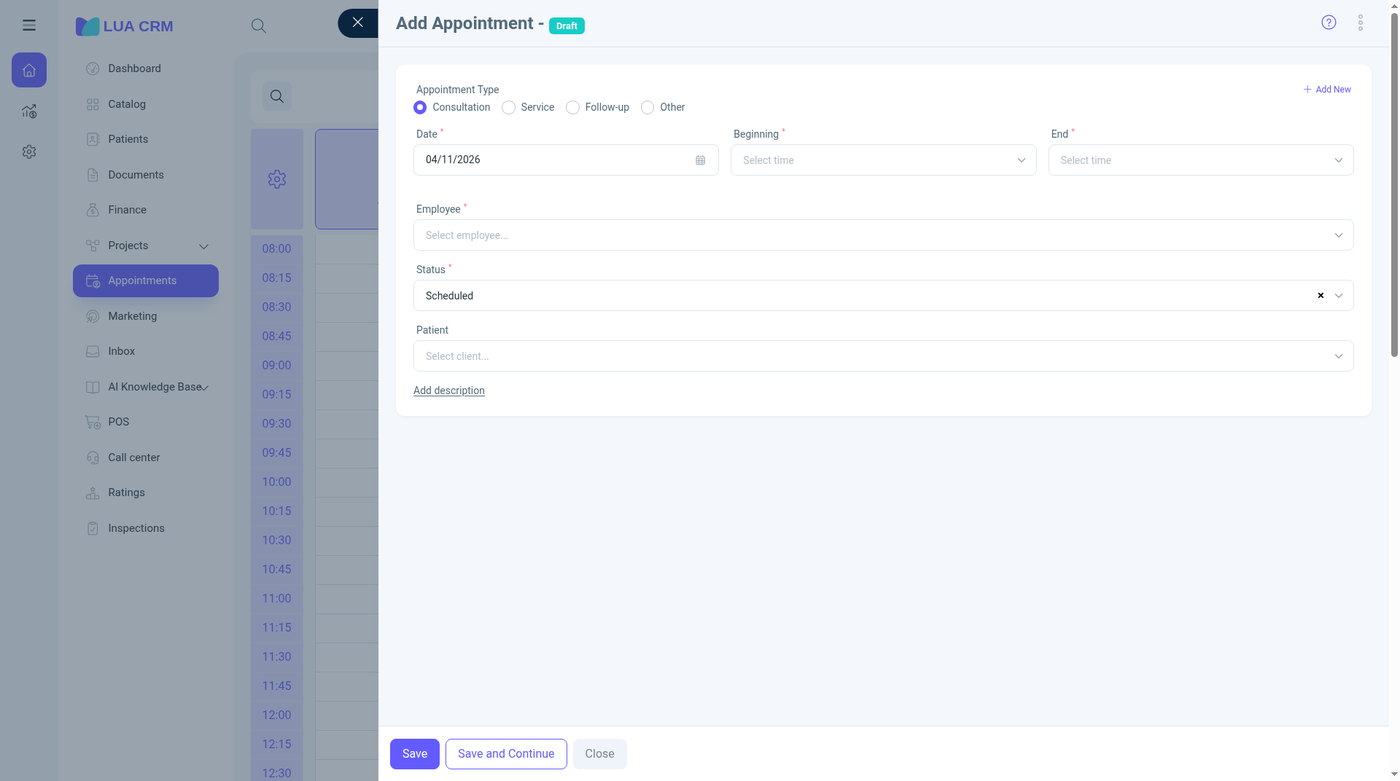
The form opens as Add appointment – Draft.
| Field | Required | Meaning and rules |
|---|---|---|
| Appointment type | No | Consultation, Service, Follow-up, or Other in the demo. Add new creates another type. The full list is edited under Configurations |
| Branch | No | The branch this visit belongs to |
| Date | Yes | The day of the visit |
| Start | Yes | A slot inside working hours. The demo uses 15-minute steps from 08:00 |
| End | Yes | Must be after the start. The length is the difference between start and end |
| Employee | Yes | The person the visit is booked with. The demo lists the staff who have a schedule |
| Status | Yes | See the lifecycle below. New visits use the status marked as the start of the pipeline |
| Customer | No | The contact. Hidden completely if your role has Hide appointment contact. You can add a contact from here if you may create contacts |
| Charge from membership | No | Shown when memberships are on and this customer has an active one. You then pick which membership to charge. Cancelling the visit gives the quota back |
| Description | No | Optional. Add description opens the text |
Save stores the visit. Save and continue stores it and keeps the form open for another one. Block marks the slot as blocked time so it cannot be booked. Close discards unsaved edits.
The visit must sit inside that employee’s schedule for the branch. A slot that ends at midnight is stored as the start of the next day.
Overlapping bookings for the same employee are refused unless Allow overlapping appointments is on. The slot size (5, 10, 15, 30, or 60 minutes) is a company setting, not a field on each visit.
Statuses
Companies can rename visit statuses. The usual set, and the one the English demo shows, is:
| Status | Meaning |
|---|---|
| Scheduled (planned) | Booked and not started |
| Waiting (checked in) | The customer has arrived |
| In progress | The visit has started |
| Completed (done) | Finished |
| Cancelled | Will not happen. The slot is free. If the visit had charged a membership, the quota is given back |
| No-show | The customer did not come |
Blocked time uses its own marker and is not one of these statuses. New visits open on the status marked as the start of the pipeline. The form title can still say Draft until that status is saved.
Changing status does not by itself change stock or a wallet. Billing is a document or a payment.
Day to day
- Drag a visit to another time or another employee when you may edit it
- Open a visit to change the customer, type, or status
- The list page is better when you need to filter a week of visits rather than look at one day
- Reminders for a visit use the same reminder tools as contacts and documents
- A customer’s Meetings & appointments tab on their contact card lists the same visits
Permissions
You need view, create, edit, delete, or print on appointments. Hide appointment contact removes the customer from people who should see the schedule but not who is booked. Open appointment on the appointments page forces the visit to open as a full page instead of a side panel. Google Calendar under Integrations can be connected from a user’s profile only when they can view appointments.
Tips and common problems
- End time before start time will not save. Date, start, end, and employee are required.
- Cannot book outside the schedule means that employee is not working then. Change the schedule or pick another person.
- This time is already booked means another visit occupies the slot. Allow overlapping in Configurations only if two visits at once are intentional.
- Charging a membership fails when the customer has no active membership or the quota is used up. Pick another membership or turn the charge off.
- The employee has no slots because they have no working hours that day, or the company working-hours window does not cover the time you want. Check Schedule and working hours.
- Two visits on one person are blocked until overlapping is allowed.
- The customer field is missing because of the hide-contact permission, not because the form is broken.
- A project-specific visits link is missing when that project does not allow appointments. Turn that on from the project if the board should have its own calendar.