Configurations
Path: Settings → Configurations (/settings). Opens a tile grid. Click a tile to open its content panel; the Settings breadcrumb returns to the grid.
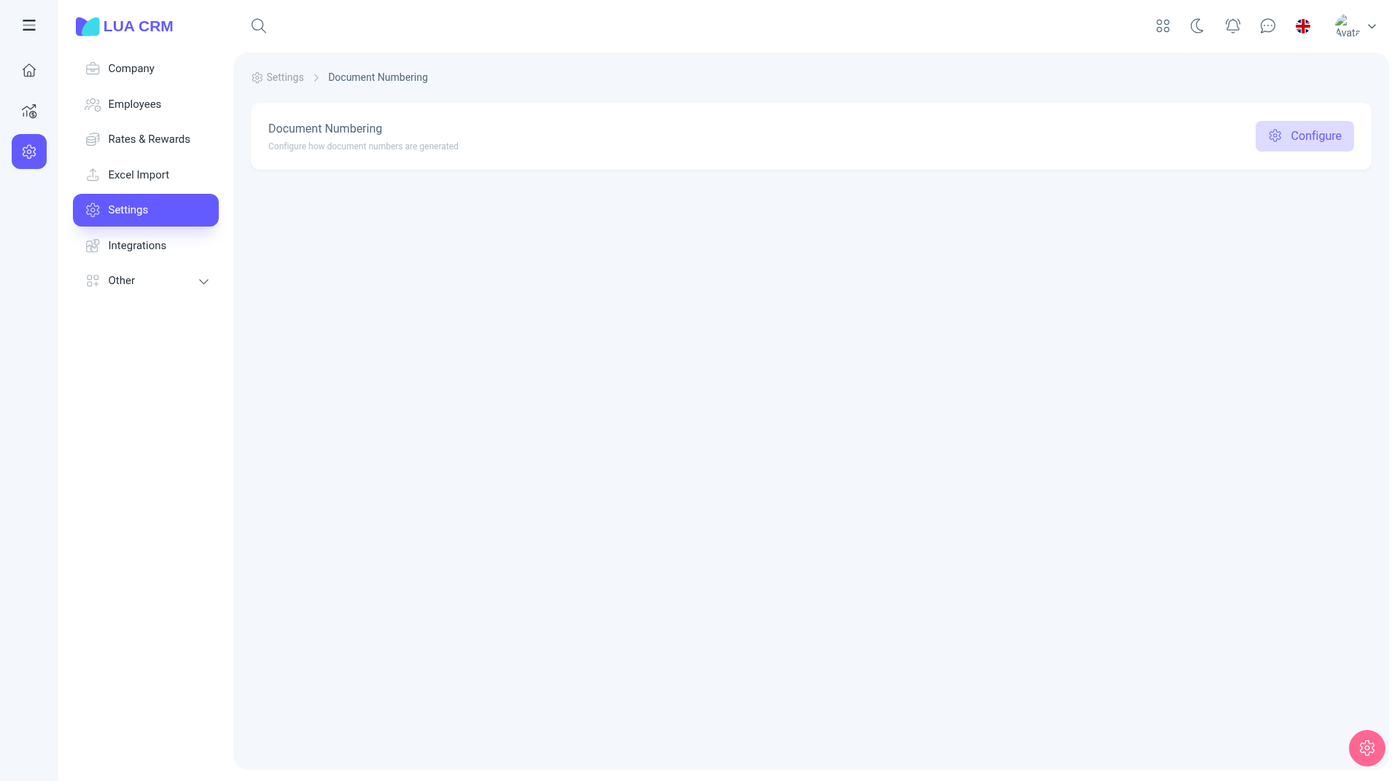
1. Currencies & exchange rates
Set the base currency, add extra currencies, and manage exchange rates.
In the demo, the main currency is fixed as USD. Cash denominations support + Add denomination. Additional currencies support + Add currency (AMD shown with Buy 367.00 and Sell 380.00 vs USD).
No dedicated English screenshot for Currencies was captured in the BrightSmile Dental pass; the Configurations tile grid above is the entry point.
2. Languages & translations
- Default interface language — select from a long list (Algerian Arabic, Armenian, Bahraini Arabic, Botswana Tswana, Bulgarian, Croatian, Danish, Egyptian Arabic, English, Estonian, Finnish, French, Georgian, German, Ghanaian English, Greek, Hungarian, Iranian Persian, Italian, Kazakh, Kuwaiti Arabic, Kyrgyz, Moroccan Arabic, Nigerian English, Portuguese, Qatari Arabic, Russian, Saudi Arabic, South African English, Spanish, Tunisian Arabic, Turkish, Turkmen, Ukrainian, UAE Arabic, Uzbek, Zambian English). Demo default: English.
- Toggle Allow AI to suggest missing translations (on in demo) — lets AI suggest translations for missing strings.
- Section Additional languages & translations — add languages to translate content of records added in modules. Button + Add language. Demo row: Armenian (Հայերեն), badge Partially translated (0%), with a kebab menu.
3. Document templates
Tabs: Print templates, PDF templates, Word templates, and XML. The fields, the four layouts, every placeholder, and the document types are in Document templates.
4. Document numbering
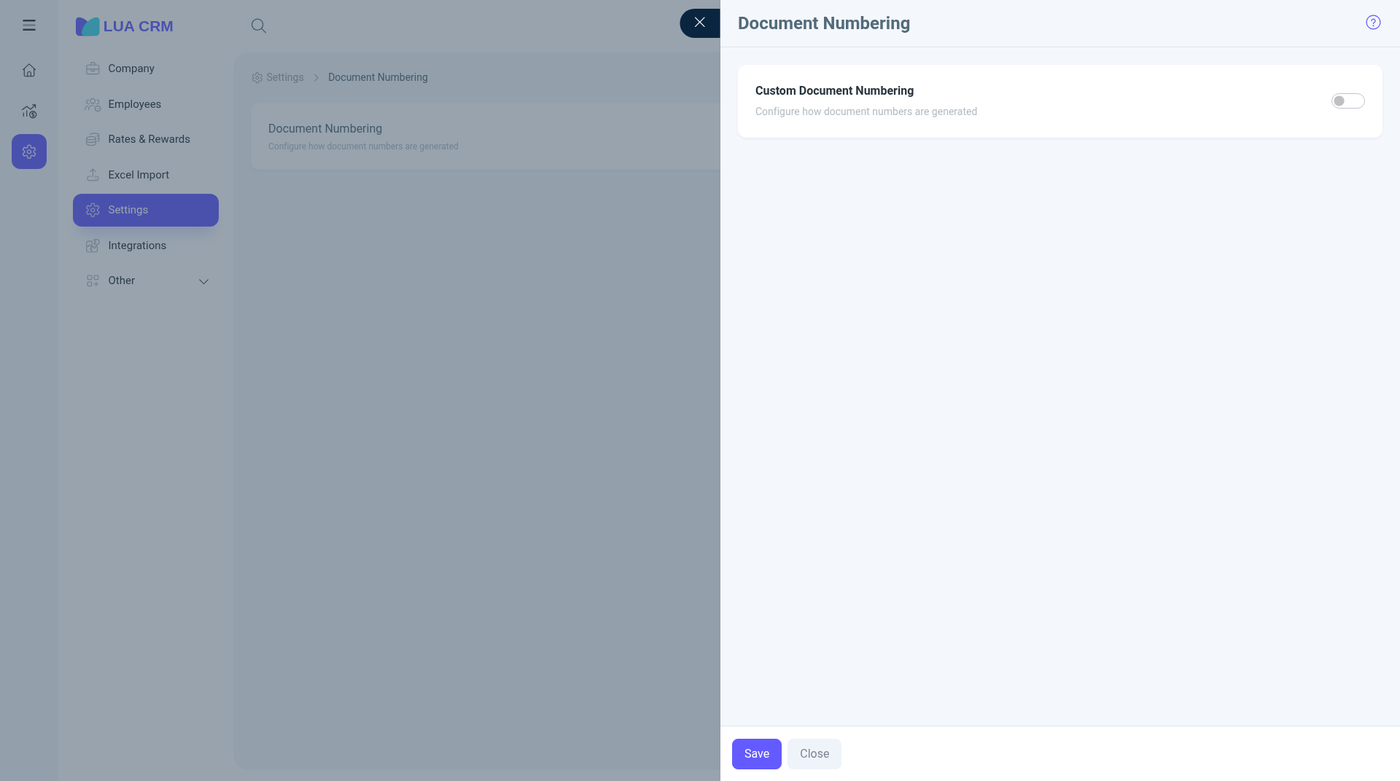
Card Document numbering (configure document number generation) with a Configure button. Side panel Document numbering setup:
| Control | Type | Notes |
|---|---|---|
| Enable custom document numbering | Toggle | Off until you need patterned numbers. While it is off, documents keep the ordinary number |
| Format | Text | The pattern. Empty format keeps ordinary numbering even if the switch is on |
| Separator | Text | Default is a hyphen. Used when the pattern contains {SEP} |
| Sequence padding | Number | How many digits the sequence uses. Default is 4, so the first number is 0001 |
| Save / Close | Buttons | — |
You can set one format for every document, or a different format per type (sale, purchase, return, adjustment, transfer, order, manufacturing).
| Placeholder | Inserts |
|---|---|
{WORKER_INITIALS} | Initials of the responsible person. A person uses the first letter of the first name and the last name. A company uses the first letters of the first two words of the legal name |
{DAY} {MONTH} | Day and month, two digits |
{YEAR} {YEAR_SHORT} | Four-digit year, or two-digit year |
{SEQ} | The next sequence, padded with zeros |
{DOC_TYPE} | SAL sale, SRT sales return, PUR purchase, PRT purchase return, ADJ adjustment, TRF transfer, ORD order, MFG manufacturing |
{PROJECT_KEY} | The project key, when the document is tied to a project |
{CF_5} | The value of custom field 5 on the source request, shortened and cleaned. Replace 5 with the field’s ID |
{SEP} | The separator you set |
The sequence resets on its own for every placeholder you include. A format with {YEAR} starts again each year. A format with {MONTH} starts again each month. A format with {WORKER_INITIALS} keeps a separate sequence per person. Tickets use the same placeholders, configured on the project rather than here, and {PROJECT_KEY} is filled from that project.
Example: {DOC_TYPE}-{YEAR}-{SEQ} on a sale can produce SAL-2026-0001.
5. Catalog settings
- Units of measure — long name, short name, defaults, and conversions. See Reference lists. The tile badge is how many units are active.
- Toggle Set prices by branch — allow different selling prices per branch (off).
- Toggle Show deactivated items in catalog selection — deactivated items appear in document/ticket catalog picker (off).
- Expandable toggles (all off in demo):
- Items with serial numbers — enable serial tracking for selected items
- Items with expiry date — track expiry
- Items coded with Data-Matrix — Data Matrix support for traceable or regulated goods. Related switches can require a serial, an expiry date, or a scan when stock moves or when the item is sold
6. Contact settings
- Customer acquisition sources and Relation types — Reference lists. The English demo shows 22 sources and 21 relation types.
- Contact display settings — which contact data shows when selecting/viewing contacts; button Preview.
- New contact default settings — how new contacts are classified by default.
- Access to contacts — whether employees may turn on sign-in for a contact. This is separate from employee access under Employees.
Contact display chooses the name order (name then surname, or name, patronymic, then surname) and which extras show on cards: photo, primary phone, email, employer, tax ID, and balance. Photo and primary phone default to on. Preview shows a sample card. New contact default is Customer, Supplier, Partner, or All. All does not force a role. An older “both” value is treated as All.
7. Rating settings
- Contact rating segments — scoring scale and segments for customer behavior/activity. Available segments: 0 in demo; range 0–100.
- Employee rating segments — segments for performance/compliance/activity. Available segments: 0; range 0–200.
8. Appointment settings
- Appointment types — Reference lists. The English demo uses Consultation, Service, Follow-up, and Other.
- Time slot interval — select 5 / 10 / 15 / 30 / 60 min (current 15).
- Toggle Allow overlapping appointments — same employee.
- Appointment view — Vertical (staff as columns, time as rows) or Horizontal (staff as rows, time as columns). A phone with many columns stays vertical.
Appointment types are the choices on a visit (the demo has Consultation, Service, Follow-up, and Other). Add a type with a name. One type can be the default for a new visit. Deactivate a type to hide it from new visits. Existing visits keep the type they were booked with. Types are not statuses. Statuses (scheduled, in progress, and the rest) are the pipeline and can be renamed for the company. The slot interval here is the same interval the calendar and the lessons timetable use.
9. Plans
Generate monthly renewals — create renewal docs for memberships expiring this month (approved sales docs; extends terms). Branch select (All branches / A / …), second branch select, button Preview & generate. Info About auto-renewals: processed automatically at the start of each month by a scheduled task; button to run manually.
Payroll payments — Generate payroll payments creates payroll docs for all employees with payable salary; button Preview & generate.
Toggles:
- Exclude weekends — end date Sat→Fri, Sun→Mon.
- Create membership from sale — sold membership attaches to contact on approved sale doc and renews period if it exists; off = one-off sale.
10. Security & access control
| Control | Type | Options / notes |
|---|---|---|
| Logout timeout | Select | 10 min, 15 min, 30 min, 1 h, 2 h, Never (current 30 min) |
| Two-factor auth (2FA) for all employees | Toggle | Every employee must set a second factor before sign-in completes |
| Admin approval for new logins | Toggle | A new sign-in waits until an administrator approves it |
| Trusted device duration | Select | How long a device that passed the second factor stays trusted |
| Revoke all trusted devices | Button | Signs every trusted device out of the second-factor memory. People sign in with the second factor again |
| IP whitelisting | — | Restrict access to allowed networks. The control is marked Coming soon |
11. Working hours
Working hours set the window the visit calendar and the lessons timetable start from. The summary shows a start and an end (09:00–18:00 in the demo). Configure opens the week: each day can be open or closed, with a start, an end, and a break. The slot interval (5, 10, 15, 30, or 60 minutes) is shared with appointment settings. If nothing has been saved, calendars fall back to 08:00–20:00 in 15-minute steps.
These hours are the company window. A person’s own week is the schedule. A visit outside that person’s schedule is refused even when the company is open.
12. Messages
| Control | Type | Options |
|---|---|---|
| First response time (hours) | Select | 1, 2, 4, 8, 12, 24, 48, 72 h (current 1 h) |
Marks a conversation overdue if the first reply takes longer than this.
13. Reference data
Address types (8 in the English demo), file types (25), reminder types (none until you add one), and employment types. Add, edit, and retire them from Reference lists.