Catalog
Home → Catalog (/catalog) is the list of everything you sell, buy, or consume: products, services, memberships, and materials. Documents, visits, POS, and price lists all pick from this list. Deactivating an item hides it from new documents unless Show deactivated items in catalog selection is on under Configurations → Catalog.
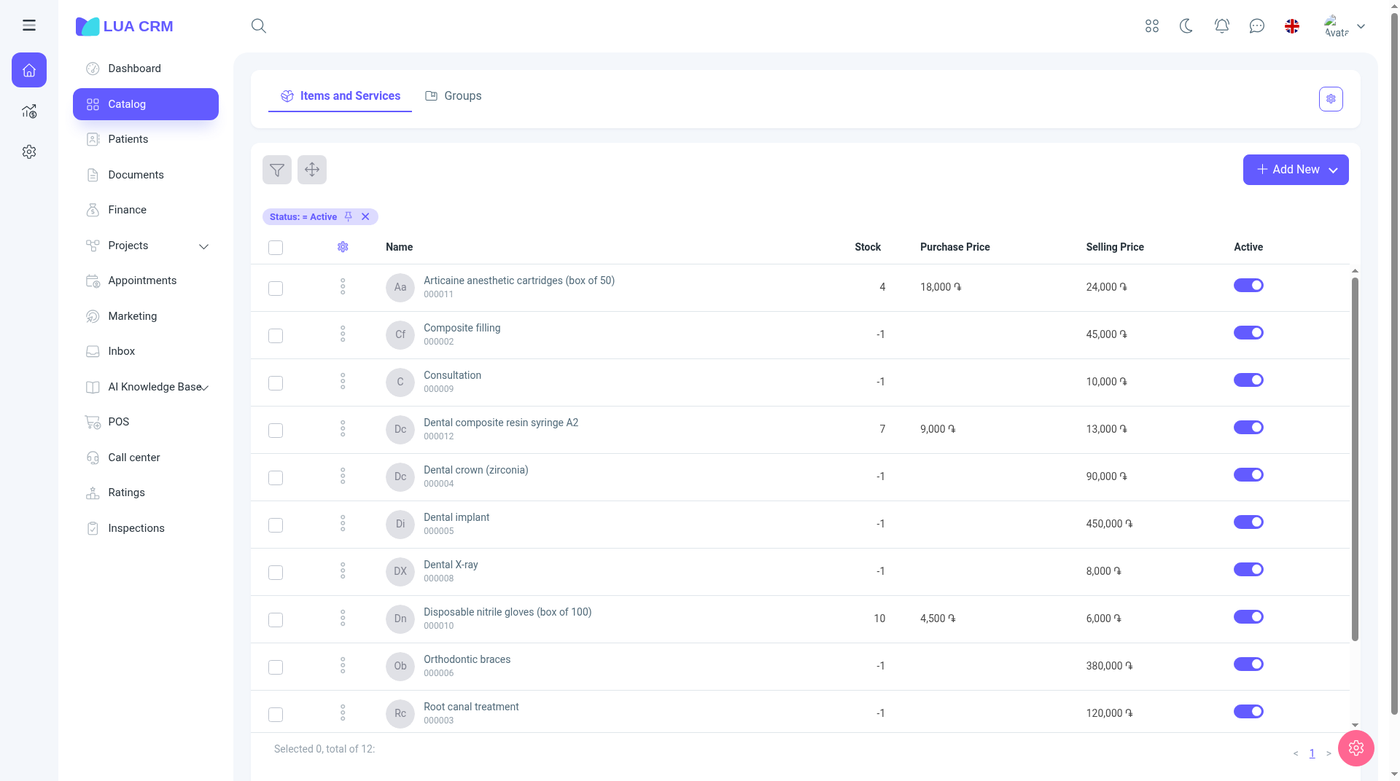
Use it when you add something you will put on a sale, a purchase, a visit, or a membership, or when you need to check price, barcode, or on-hand quantity.
Pages on this screen
| Tab | What it lists |
|---|---|
| Items & services | Products, services, memberships, and materials |
| Groups | Folders for those items. Opens /groups?module=1. You need the Groups module to see this tab |
Add new offers five choices. Each one is shown only if your role may create that type:
| Choice | What it is |
|---|---|
| Product | A stocked item you buy and sell. Confirming a sale or purchase changes its quantity |
| Service | Work you sell. It has a duration and can be limited by gender or age. It does not keep stock |
| Membership | A pass sold to a contact, with a length and an optional usage quota |
| Material | Something you consume, usually inside production. It tracks stock and barcodes, and it does not use a selling price the way a product does |
| Group | A folder. See Add a group |
The list starts with Status = Active.
Columns
The default columns are name (with SKU), type, SKU, stock, each price type your company uses (purchase and selling are the usual pair), and Active. You can also turn on long name, barcode, minimum stock, supplier, group, unit, tax, created date, sort order, ID, external ID, HS code, and margin %. Custom fields for the catalog appear as extra columns when they exist.
The gear on the tab bar opens card-layout settings separately for products, services, memberships, and materials. Those settings change the item card, not the table.
Stock on this list is the quantity already posted by confirmed documents. Editing the catalog does not itself add or remove stock. Use a stock adjustment, purchase, sale, or transfer for that.
Add or edit an item
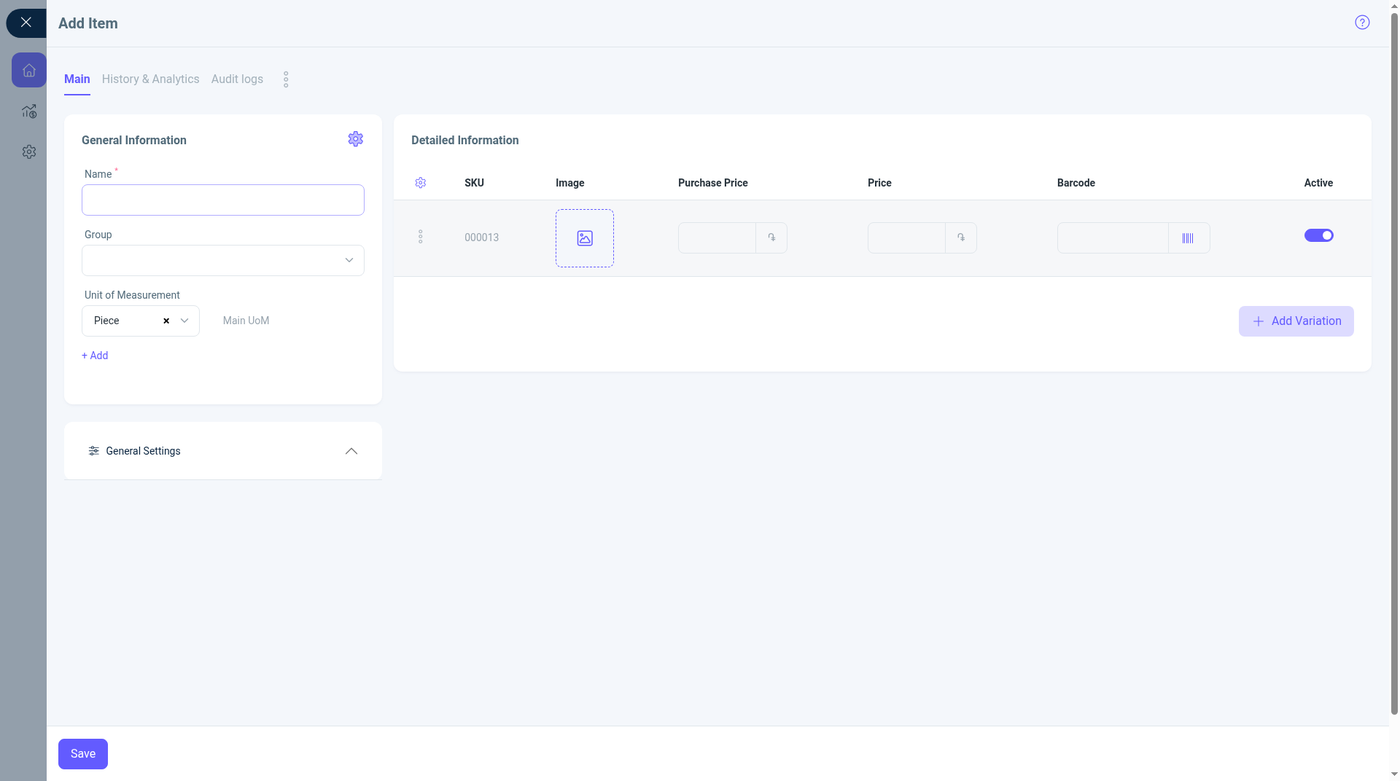
Open Add new and choose the type, or open an existing row. The form title matches the type (New product, and the same pattern for service, membership, and material). Tabs are Main, History & analytics, and Audit log.
Name is always required. Group is always available. Other built-in fields appear when an administrator has turned them on. The product form in the screenshot shows the usual set.
Fields shared by every item type
| Field | Required | Meaning and rules |
|---|---|---|
| Name | Yes | The name people see on documents and in search |
| Long name | No | A longer label for printouts and pickers |
| Group | No | Folder from the Groups tab. Add new creates a group without leaving the form. Defaults to the first group when one exists |
| Supplier | No | One or more suppliers. Used as a filter and as the default supplier on purchases |
| HS code | No | Customs or classification code |
| Tax | No | Optional. Clearable. The list is the company’s tax types (the English demo includes VAT, VAT-exempt, turnover tax, patent fee, fixed payment, family entrepreneur, and micro entrepreneur) |
| Return period | No | Number of days a customer may return the item |
| Warranty | No | Guarantee length in days |
| External ID | No | The identifier from another system. Leave blank if you do not sync |
| Unit of measure | No | Selling and stock unit (piece, kg, hour, and any unit your company added). Add creates another unit. The first active unit is the default |
| Active | — | On means the item can be picked on new documents. Off keeps history but hides it from pickers unless the catalog setting says otherwise |
The variation grid sits under the name. Each row is one sellable variant.
| Variation column | Meaning |
|---|---|
| SKU | Assigned automatically (for example 000008). You can filter the list by it later |
| Image | Photo for that variant |
| Characteristics | The options that make this variant different (size, color, and similar) |
| Purchase price | What you pay. Number |
| Selling price | What you charge. One column per price type. If prices by branch are on, price can differ by branch |
| Barcode | Number scanned at POS and on documents |
| Availability and stock | On-hand quantity per branch, shown for information. Change it with a document, not by typing a new “true” stock here |
| Minimum quantity | Optional warning level. Shown when you turn that column on |
| Active | This variant can be sold |
Add subtype adds another variant row. General settings holds the shared fields above the grid.
Service cards can also show material cost, duration, gender and age limits, and availability. Product and material cards can show weight (net and gross), sizes, barcode, and the minimum-stock threshold. Membership cards stay shorter: image, variations, and external ID, plus the membership fields below.
Membership fields
These show on a membership item.
| Field | Required | Default | Allowed values |
|---|---|---|---|
| Membership duration | No | 1 | Whole number, minimum 1 |
| Duration unit | No | Month | Hour, day, month, year |
| Usage quota type | No | Unlimited | Unlimited, count, or time |
| Quota amount | No, and hidden while the type is Unlimited | Empty | Number, minimum 0, up to 2 decimal places |
| Quota unit | No, hidden while Unlimited | Visits | Visits or sessions for a count quota. Minutes or hours for a time quota |
| Reset cycle | No, hidden while Unlimited | Per membership period | Per membership period, monthly, weekly, daily |
| Work project | No | Empty | An active project. Used when the membership should file work on a board |
| Expiry reminder (days) | No | Empty | Whole number, minimum 1. How many days before the membership ends to raise a reminder |
Unlimited is the right choice when the pass should not count visits or minutes. A count quota blocks further use after the visits or sessions in the current cycle are used up. A time quota does the same with minutes or hours. The cycle either follows the membership’s own start and end dates or resets on the calendar (month, week, or day).
Selling a membership on a confirmed sale can attach it to the customer and renew the period when Create membership from sale is on under Configurations → Plans.
Save
Save stores the item. There is no separate approve step. The item is active or inactive based on the Active switch.
History & analytics shows how the item has been used. Audit log shows who changed the card, if you can open the audit log.
Add a group
Groups are the folders on the second tab, and the same form opens from Add new → Group or from Add new inside the group field.
| Field | Required | Meaning |
|---|---|---|
| Name | Yes | Folder name |
| Color | No | Color used in lists |
| Parent group | No | Makes this a subfolder. Clearable |
| Description | No | Short note |
| Image | No | Avatar for the folder |
| Active | No | On by default. An inactive group drops out of pickers |
Filter the list
| Filter | How it matches |
|---|---|
| Name | Contains or equals |
| Group | One or more groups |
| Status | Active or inactive |
| Supplier | One or more suppliers |
| SKU | Contains or equals |
| Barcode | Contains or equals |
| Stock | Equal, greater than, less than, greater or equal, less or equal |
| Type | Product, service, membership, or material |
| External ID, ID, HS code | Contains or equals |
| Tax | One tax type |
| Each price type | Same numeric comparisons as stock |
| Custom fields | Contains, equals, or empty, depending on the field type |
Choose Apply. Clear a chip to drop that condition.
Print a price list
Generate PDF builds a price list from the rows you selected. Select at least one item first. If nothing is selected, the export stops.
| Field | Required | Default | Notes |
|---|---|---|---|
| Language | Yes | Russian in the form default; change it | English, Armenian, or Russian |
| Show prices | No | Off | Turning it on reveals the price fields |
| Price type | Yes, when prices are shown | — | One of your price types |
| Percent | Yes, when prices are shown | 0 | Markup or adjustment percent applied on the PDF |
| Currency | Yes, when prices are shown | — | AMD, USD, EUR, or RUB |
| Exchange rate | Yes, when prices are shown | 1 | Rate against the price-list currency. Choosing AMD locks the rate at 1 |
Delete
Select rows and choose Delete, or delete one row from its menu. You need delete permission for that item type. Deleted items leave the normal list. History on old documents stays.
What changes elsewhere
- New documents, POS, visits, and tickets can pick the item as soon as it is active
- Price types on the item are the prices used unless a price list overrides them for a contact
- Stock columns update after a document is confirmed, not when you edit the card
- A membership with a quota is what visits and the contact’s membership panel check before allowing another use
Permissions
Catalog rights are split by type. Products, services, memberships, and materials each have view, create, edit, delete, and print. You can be allowed to create services and not products. Groups use the separate Groups permission. Card settings for a type appear only if you may create that type.
Tips and common problems
- Name is required. The form will not save an item with an empty name.
- A barcode must be unique in the catalog and on the form, and it can be at most 15 characters. A duplicate is rejected.
- A product or material can have at most five units of measure. The form stops you past that.
- Add material checks a materials right on the catalog screen. System permissions list products, services, and memberships. If materials are missing from that grid, a role that can create products may still be unable to add a material until that right exists.
- A service will not show a stock quantity you can adjust. Put stock on a product or a material.
- If a barcode or price column is missing, open the column gear. Those columns are off until you show them.
- If a field from this page is missing on the form, it is turned off in field settings. An owner can enable it under Custom fields.
- Deactivated items disappear from document search until the catalog setting to show them is on.
- Quota amount and unit stay hidden while the membership is Unlimited. Choose Count or Time first.
- Membership duration must be at least 1.