Documents
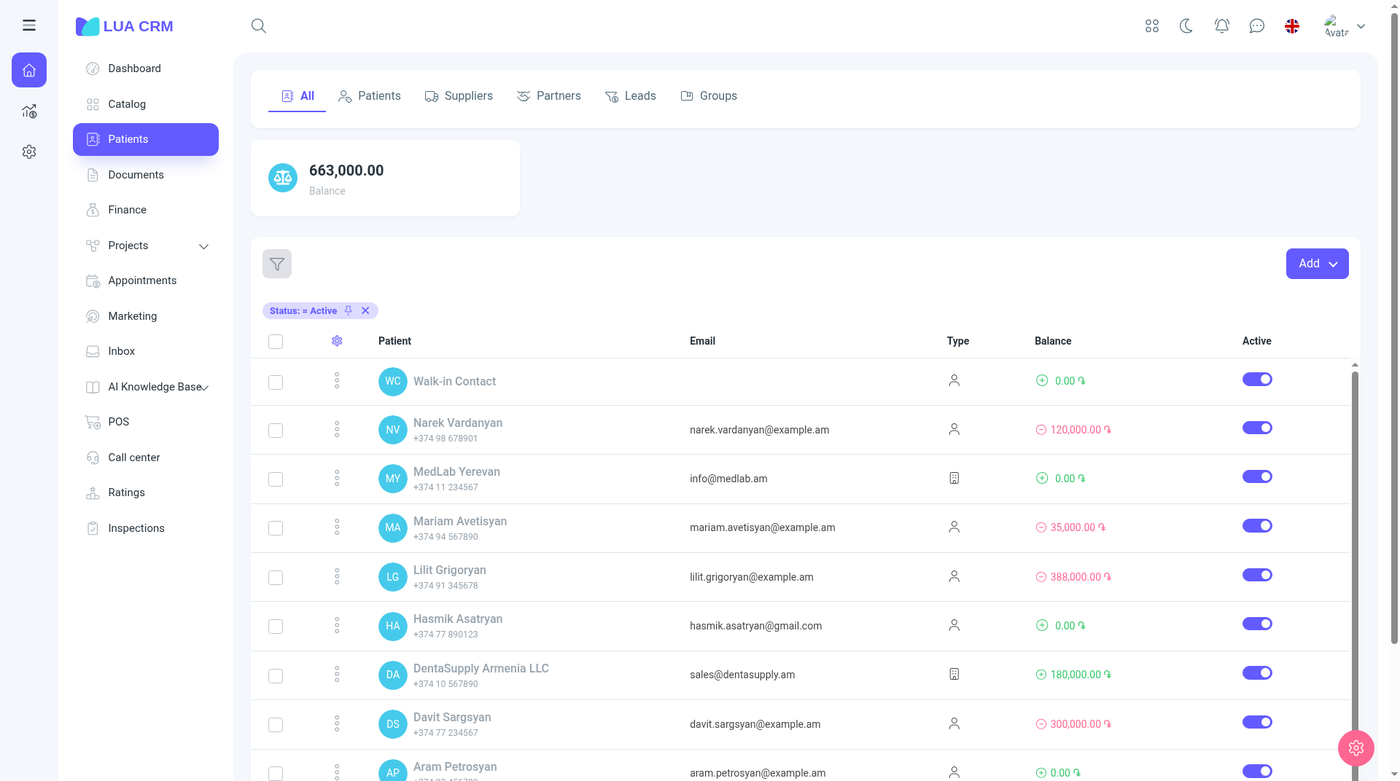
Home → Documents is where stock and customer balances change. A document stays a draft until someone with Confirm on that document type approves it. A draft sale already reserves quantity, so sellable stock drops, but the on-hand quantity and the customer balance wait until the sale is confirmed. Other drafts do not move stock.
The menu opens the first type you are allowed to see. Sales live at /documents/sales.
Which type to use
| Tab | Address | Use it when | Posts stock | Posts money owed |
|---|---|---|---|---|
| Sales & returns | /documents/sales | You sell to a customer, or take a sale back | Sale decreases product stock. A return puts it back | Yes. Unpaid amount becomes the customer’s balance |
| Purchases & returns | /documents/purchase | You buy from a supplier, or return goods to them | Purchase increases stock. A return decreases it | Yes. Unpaid amount is what you owe the supplier |
| Stock adjustments | /documents/stock_adjustment | A count does not match the book quantity | Sets the branch quantity to the counted figure | No |
| Transfers | /documents/transfer | Goods move from one branch to another | Moves quantity from the source branch to the destination | No |
| Orders | /documents/order | You place a supplier order that is not a receipt yet | Increases incoming (expected) quantity only. Available stock waits for a purchase | No |
| Manufacturing | /documents/manufacturing | You build a finished item from materials, or break one down | Consumes components and, if you choose, posts the output to stock | No |
The Transfers tab is hidden when the company has only one branch, and hidden from anyone who cannot view transfers. Each other tab is hidden when you cannot view that type.
Sales and purchases show summary cards for Total, Paid, and Balance. The list opens on Created date = today. Change the date filter to see older documents.
Columns
Every type shows number, name, items, total, status, contact, and (when you turn them on) type, subtotal, discount, net weight, gross weight, duration, branch, department, currency, notes, files, responsible manager, created on, and created by.
Sales and purchases also show paid, balance, payment status, and the linked requests. Sales can show commission, commission already paid, commission still due, profit, and a fiscal column when a fiscal device is enabled. Transfers show From branch and To branch.
Statuses
| Status | Value | Meaning |
|---|---|---|
| Draft | Not posted | You can still change the header and the lines. A draft sale reserves stock. Other drafts do not change on-hand quantity or balances |
| In transfer | Shipped, not received | A transfer has left the source branch and is in transit. The English interface often shows this as In transit. Receiving it confirms the document and puts the quantity into the destination |
| Confirmed | Posted | Stock and, where relevant, the amount owed are updated. The English interface often shows this as Approved |
| Cancelled | Reversed | The posting is undone. Cancelling a document that was already confirmed requires the extra permission Cancel confirmed documents |
Payment status, on sales and purchases only:
| Payment status | Meaning |
|---|---|
| Unpaid | Nothing has been allocated from Finance |
| Partial | Some of the total is paid |
| Paid | The balance is zero |
Debt payment condition (sales and purchases) sets when the unpaid part is due: 2 days, 1 week, 2 weeks, 1 month, a custom date, or no condition. Purchases also offer 1 day. The default on a new document is No condition. The custom date field appears only after you choose Custom date.
Add a sale
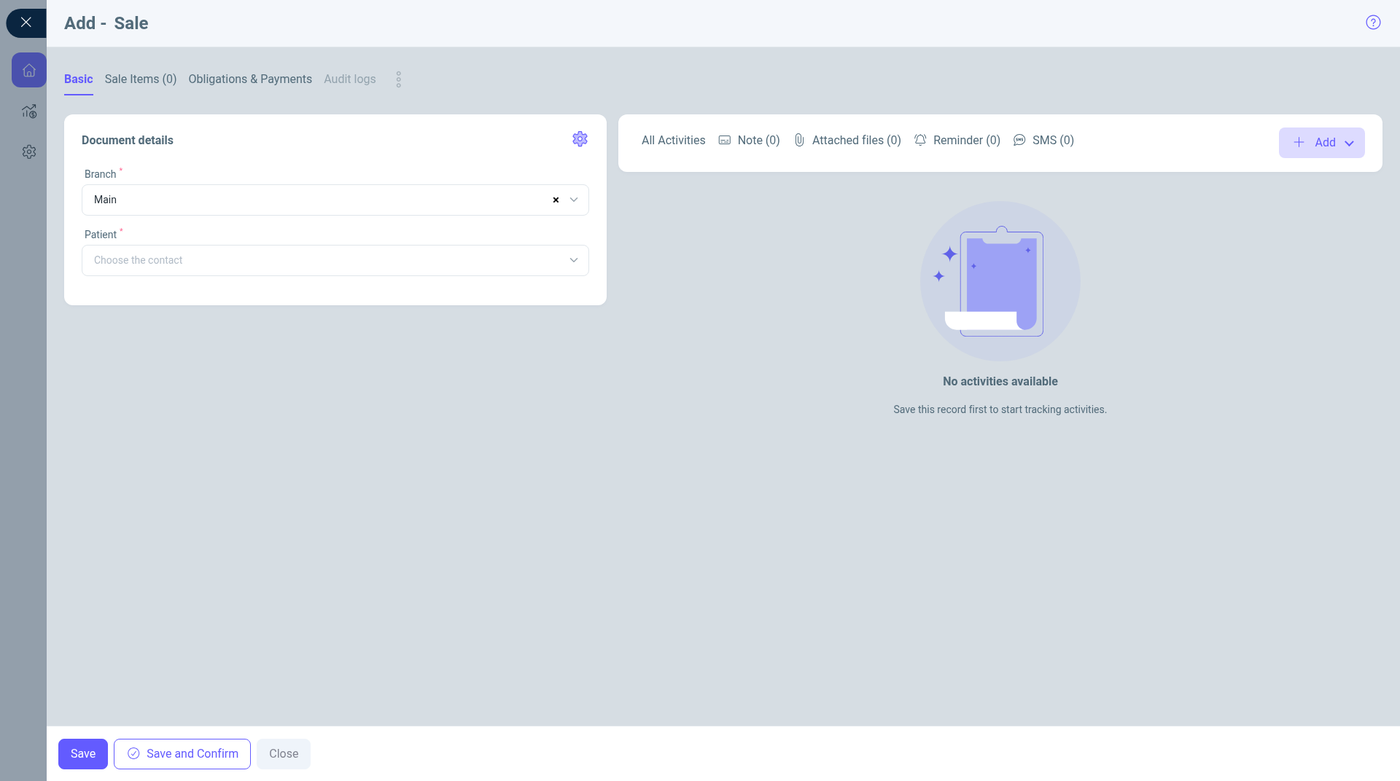
Add opens Add – Sale. Tabs are Main, Sale items, Obligations & payments, and Audit log.
| Field | Required | Default | Rules |
|---|---|---|---|
| Branch | Yes | The only branch, if you can access just one | Branches you are allowed to use |
| Department | No | Empty | Departments of the chosen branch |
| Customer | Yes | Empty | Search contacts. New contact appears if you may create contacts. On a purchase or order this field is the supplier and searches suppliers |
| Responsible manager | No | You, unless you are a super administrator | Employees only |
| Currency | Yes | The company currency | Currencies that have a wallet. If your user is locked to a price list currency, this field is fixed and the contact is fixed to you |
| Exchange rate | Yes | 1 | Greater than zero, up to 6 decimal places. Locked together with currency when a price list forces the currency |
| External ID | No | Empty | ID from another system |
| Description | No | Empty | Up to 5,000 characters |
| Basis document | — | “No basis document linked” | Filled when this document was created from another document or a request |
| Created on | No | Now | Cannot be in the future. Includes time, down to seconds |
| Implementation date | No | Now | Sales only. May be in the future. The date the work or goods are treated as delivered |
| Debt payment condition | No | No condition | See the table above |
| Custom date | No | Hidden | Shown only for a custom due date |
| Created by | — | Filled after save | You cannot edit it |
Sale items is where you add products, services, memberships, and, when the company has them, rental items. Each line has the item, quantity, price, discount, and warehouse or branch availability. Services can carry a duration. If a membership is sold and Create membership from sale is on, confirming the sale attaches that membership to the customer.
Obligations & payments shows what this document still needs and lets you take a payment into a wallet. Stock adjustments, transfers, orders, and manufacturing do not have this tab.
Save keeps a draft. Save and approve saves and confirms in one step. You need the Confirm permission to approve. Close leaves without saving new edits.
Add a purchase or a return
Purchases use the same header as a sale, with the contact labeled Supplier. The supplier search lists suppliers. Purchases have no implementation date. The Add menu on the Purchases tab can also start a Purchase return, which reverses a purchase: stock goes back out and the amount you owe goes down.
A sales return reverses a sale: stock comes back and the customer’s balance goes down. It is stored on the Sales tab and needs the sales-return permission. The Sales Add menu does not include a return. The Purchases tab does include Purchase return. A sales return is opened from the original sale, from POS, or from another flow that sets the document type to a return.
Add a stock adjustment
There is no customer and no currency. You need a branch, then the lines you counted.
| Field | Required | Meaning |
|---|---|---|
| Branch | Yes | The location you counted |
| Department | No | Optional department |
| Responsible manager | No | Defaults to you |
| External ID, description, created on | No | Same rules as a sale. Description up to 5,000 characters. Created on cannot be in the future |
Each line is a target quantity. Confirming applies the difference between the book quantity and that target. The target may be zero or negative. From the list you can also select rows and choose Add remaining items if you may create adjustments. That starts an adjustment for items that were not on the count yet.
Add a transfer
| Field | Required | Meaning |
|---|---|---|
| From branch | Yes | Source. Limited to branches you can access |
| To branch | Yes | Destination. Can be any branch, including one you do not usually work in |
| Department | No | Department on the source side |
| Responsible manager | No | Defaults to you |
| External ID, description, created on | No | Same rules as an adjustment |
The destination must be a different branch from the source. Shipping the transfer (draft to In transfer) takes the quantity out of the source and puts it in transit. Receiving it (in transfer to Confirmed) puts it into the destination. Transfers have no payment and no customer.
Add an order
An order is a request to a supplier. It uses the purchase-style header (branch, supplier, currency, rate). Confirming it raises the incoming quantity at the branch. It does not increase available stock and it does not create a payable. When the goods arrive, receive them with a purchase. The purchase can keep the order as its basis document.
If you may create, edit, and delete orders, you can select several orders and Merge them into one.
Add a manufacturing document
| Field | Required | Default | Meaning |
|---|---|---|---|
| Branch | Yes | Your only branch, if you have one | Where the work happens |
| Department | No | Empty | |
| Responsible manager | No | You | |
| Direction | Yes | Assemble | Assemble builds a finished item from components. Disassemble breaks an item into components |
| Output to stock | Yes | Produce to stock | Produce to stock posts the finished quantity. Consume materials only deducts components and does not increase finished stock |
| External ID, description, created on | No | Same limits as the other types |
The lines list the finished item and the materials. Confirming consumes the materials at the branch. If you chose produce to stock, the finished quantity is added as well.
Filter
| Filter | Applies to | Options |
|---|---|---|
| Created date | All | Range, default today |
| Status | All | Draft, in transfer, confirmed, cancelled |
| Branch | All | Your branches |
| Customer or supplier | Types that have a contact | Contact search. Purchases and orders search suppliers |
| Employment | Types with a contact | The contact’s employment |
| Workplaces | Sales | Workplaces linked to the sale |
| Department | All | |
| Responsible manager | All | Employees |
| Total, total paid, item count | Paid columns only where the type has payments | Equal, greater, less, and the inclusive comparisons |
| Custom number | All | Contains or equals. Filled when custom numbering is on |
| ID | All | Contains or equals |
| Created by | All | Employees |
| Currency | Sales, purchases, orders, manufacturing, when the company has more than one currency | |
| Payment status | Sales and purchases | Paid, partial, unpaid |
| Debt payment condition | Sales and purchases | 2 days, 1 week, 2 weeks, 1 month, custom date, no condition |
| Fiscal receipt, fiscal number | Sales, and only if a fiscal device is enabled | Yes or no, and the receipt number |
| Deleted | All | Not deleted or deleted |
| Custom fields | Any type that has them | Text, list, yes/no/empty, or a date range. How filters combine is in Filtering lists |
Print and fiscal receipts
Print uses a document template. You need print permission for that document type. When a branch has a fiscal device, a confirmed sale can also be sent to that device. The fiscal number then shows on the sale and can be filtered.
Permissions
Each document type has its own view, create, edit, delete, print, and confirm rights. View and edit can be limited to your own documents or your department. Confirm is what allows Save and approve and approving an existing draft. Cancel confirmed documents is a separate switch. Without it, a confirmed document stays confirmed.
Deleting from the list needs delete permission. Deleted documents disappear until the Deleted filter is set to deleted.
Tips and common problems
- Stock did not change: the document is still a draft. Confirm it.
- Confirm is refused when a line quantity is zero. Stock adjustments are the exception: the counted target may be zero or negative. A price of zero is refused unless the line is fully discounted, it comes from a request, or a membership sale is allowed to be free.
- Sellable stock fell but the warehouse balance did not: the sale is still a draft and only the reservation has been posted. Confirm it to take the goods out of on-hand stock.
- A transfer needs two different branches. The same branch on both sides is rejected.
- Branch is required on every document. A sale or purchase also requires the contact. An order requires the supplier.
- Save and approve is missing or refused: your role can create drafts but cannot confirm.
- You cannot cancel: the document is confirmed and your role lacks Cancel confirmed documents.
- Transfer tab is missing: the company has one branch, or you cannot view transfers.
- Currency or customer is locked: your user is tied to a price list that has its own currency. The document must use that currency and your contact.
- Exchange rate must be greater than zero.
- Description longer than 5,000 characters is rejected.
- Created on cannot be a future date. Implementation date on a sale can.
- Payments are refused on adjustments, transfers, orders, and manufacturing. Record those movements only in stock, then pay the related sale or purchase.
- A contact you cannot find in the supplier field is not marked as a supplier. Edit the contact, or create one from the field if you are allowed.