Marketing
Home → Marketing opens on campaigns (/campaigns). The other areas are separate pages, and each one can be hidden if your role cannot view it:
| Page | Address | What it is for |
|---|---|---|
| Campaigns | /campaigns | A one-time SMS or email to an audience |
| Automations | /automations | A message that sends on a schedule or when something happens |
| Templates | /templates | Reusable SMS, email, and chat text |
| Target audiences | /audiences | Who can receive a campaign |
| Blacklist | /blacklists | Phones and emails that must never be mailed |
| History | /marketing_history | What was sent, and whether it was delivered |
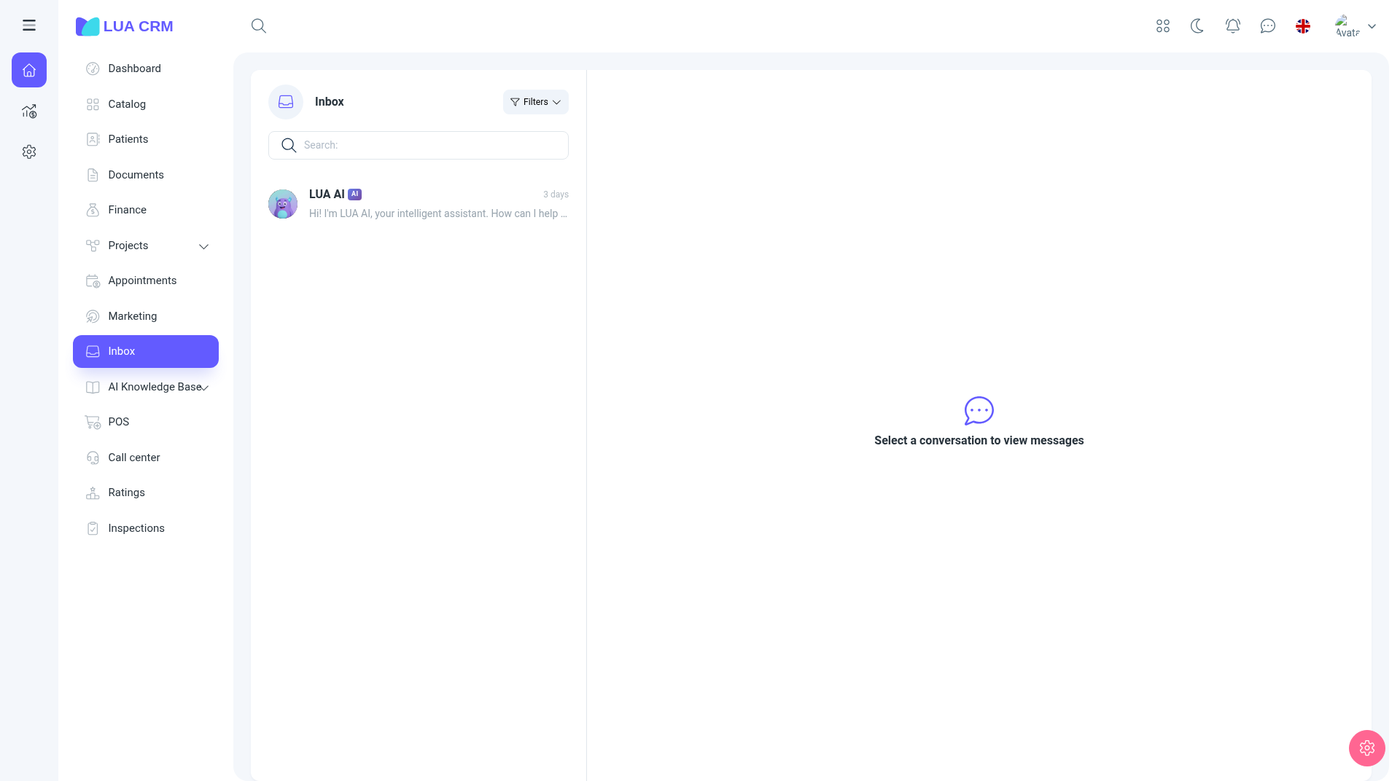
You need a template and an audience before a campaign is useful. Put people who opted out on the blacklist first. History is the place to check failures after a send.
Campaigns
Columns: number, name, channel, message type, delivery stats, status, and scheduled time.
Add new starts an SMS campaign or an Email campaign. Campaigns can be viewed, created, deleted, and printed. There is no separate edit right. Change a campaign before it is locked, or create another one.
SMS campaign
The wizard has four steps: type, details, message, and done.
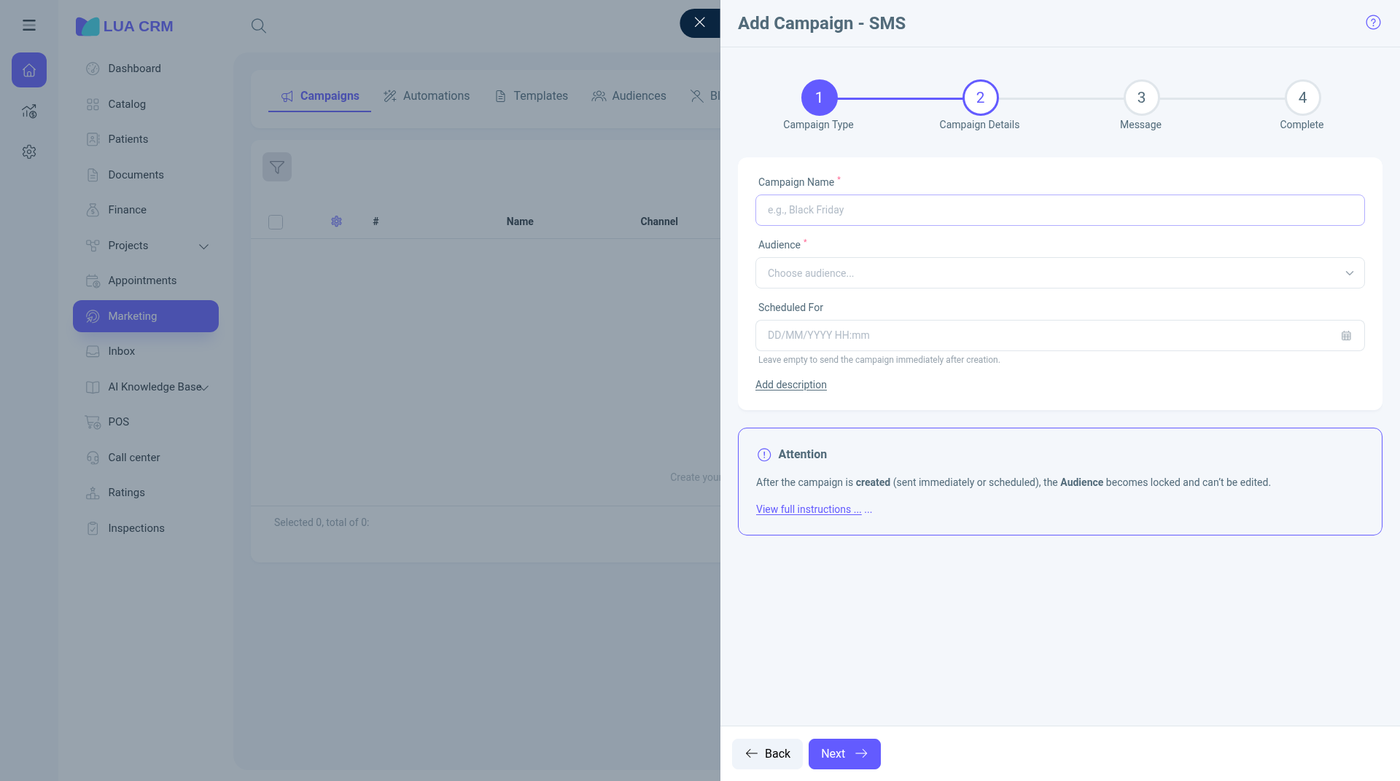
| Field | Required | Meaning |
|---|---|---|
| Campaign name | Yes | The name on the campaign list |
| Target audience | Yes | Who receives it. After the campaign is created, the audience is locked so the recipient list cannot silently change |
| Scheduled time | No | When to send. Empty means send as soon as you finish the wizard |
| Description | No | Internal note. Recipients do not see it |
| Message template | No | An SMS template. You can still edit the text in the message step |
The message step shows the SMS length. One SMS part is 160 characters. A longer text is split and the counter shows how many parts will be billed.
Email campaign
Use the same wizard with the email channel.
| Field | Required | Meaning |
|---|---|---|
| Campaign name | Yes | Same as SMS |
| Target audience | Yes | An audience that has email addresses. Locked after create |
| Scheduled time | No | Empty sends immediately |
| Description | No | Internal |
| Message template | No | An email template. Email templates can include an attachment placeholder and a SendGrid dynamic template ID |
| Subject and body | Yes at the message step | Come from the template or are typed in this step |
People on the blacklist, and contacts with no address for that channel, are skipped. Delivery counts on the row show sent, delivered, and failed after the run.
Campaign filters
Filter the list by name (contains or equals), channel (SMS or email), status, and scheduled time. Status follows the run: not yet sent, scheduled, sending, and finished. A finished campaign stays in the list so you can read the stats. Delete removes it if you have delete permission. History keeps the individual messages.
Automations
Columns: number, name, channel, message type, settings summary, status, last run, and next run.
Add offers Automated SMS, Email automation, and System notification. Automations can be viewed, created, edited, deleted, and printed. Turn status off to pause without deleting.
| Field | Required | Meaning |
|---|---|---|
| Name | Yes | Shown on the automation list |
| Channel | Yes | SMS, email, or an in-app system notification |
| Trigger | Yes | By schedule (a clock time and a repeat) or By event (something in Lua CRM, such as a new contact or a document) |
| Event | When the trigger is an event | Which event starts the send |
| Offset | No | How long after the event, and the unit (minutes, hours, days) |
| Recipient mode | Yes | The audience, or specific users to notify |
| Audience | Yes when sending to contacts | Same audiences as campaigns |
| Provider | Yes for SMS or email | The connected SMS or email provider. Connect it under Integrations if the list is empty |
| Repeat | For a schedule | How often it runs |
| Duration | No | How long the automation stays active |
| Template | Yes for a useful message | SMS, email, or chat template. Email event automations that use SendGrid need the template’s SendGrid ID |
Last run and Next run update after each cycle. A failed provider (no credit, disconnected mailbox) shows in History.
Templates
Columns: number, name, channel, message type, and Active.
Add offers SMS, email, and chat.
| Field | Required | Channel | Meaning |
|---|---|---|---|
| Template name | Yes | All | The name you pick on a campaign |
| Description | No | All | Internal |
| Message | Yes | All | The text. Placeholders drop in the contact’s name and similar fields |
| SMS symbol counter | — | SMS | Shows characters used out of 160, and how many SMS parts that becomes |
| Include attachment placeholder | No | Leaves a slot for a file | |
| SendGrid template ID | No | The dynamic template ID at SendGrid. Required when an email automation sends through a SendGrid dynamic template |
Inactive templates stay in the list but should not be selected for a new send. Chat templates are the ones the inbox and the AI assistant can reuse.
Target audiences
Columns: audience name, target group, recipient count, created date, and status.
Add offers:
| Type | What it does |
|---|---|
| Static | A fixed list of contacts who are allowed to receive messages. You pick the people. The count changes only when you edit the list |
| Dynamic | A saved filter. The recipient list is rebuilt from contacts who match, so new contacts are included automatically |
| Field | Required | Meaning |
|---|---|---|
| Name | Yes | Shown when you pick an audience on a campaign |
| Description | No | Internal |
| Target group | Yes | Customers, or another contact role you choose |
| Contacts | Yes for a static audience | The people on the list. Contacts with no phone are useless for SMS, and contacts with no email are useless for email |
| Filter conditions | Yes for a dynamic audience | The same kind of contact filters as on Customers: status, group, branch, and similar |
| Status | No | Active audiences can be chosen on a campaign. Inactive ones cannot |
You can view, create, edit, delete, and print audiences.
Blacklist
Columns: number, type, phone or email, name, and created date.
Add offers Add phone number or Add email.
| Field | Required | Meaning |
|---|---|---|
| Phone or email | Yes | The address that must be skipped. Use the type that matches the channel |
| Name | No | Who asked to be removed, so the team recognizes the row |
Blacklist entries can be viewed, created, deleted, and printed. There is no edit right. Delete the row and add a corrected one. A blacklisted address is dropped at send time even if it is still inside an audience.
History
Columns: channel, recipient, recipient address, where the message was created (campaign, automation, or a manual send), message type, number of SMS parts, status, created time, and scheduled time.
History is view and print only. You do not edit a sent message here. Use it to see failed numbers, empty addresses, and how many SMS parts a campaign consumed.
Permissions
| Area | Rights |
|---|---|
| Campaigns | View, create, delete, print |
| Automations | View, create, edit, delete, print |
| Templates | View, create, edit, delete, print |
| Audiences | View, create, edit, delete, print |
| Blacklist | View, create, delete, print |
| History | View, print |
The Home menu shows Marketing if you can view at least one of these.
Tips and common problems
- Audience is required on a campaign, and it locks after the campaign exists. Build the audience before you start the wizard.
- An empty provider list means SMS or email is not connected. Open Integrations.
- Email automations that expect a SendGrid template fail until the template has a SendGrid ID.
- Contacts without a phone or email are skipped. They still sit in the audience count, so the sent count can be lower than the audience size.
- Blacklisted addresses are skipped with no error on the campaign row. Check History for the skip.
- Scheduled time left empty sends immediately. Set a time if the message should wait.