Data tables
Most Home and Reports screens are the same kind of list: a checkbox column, the columns your company uses, and an actions column at the end. Catalog, contacts, and documents are the lists you will use most often.
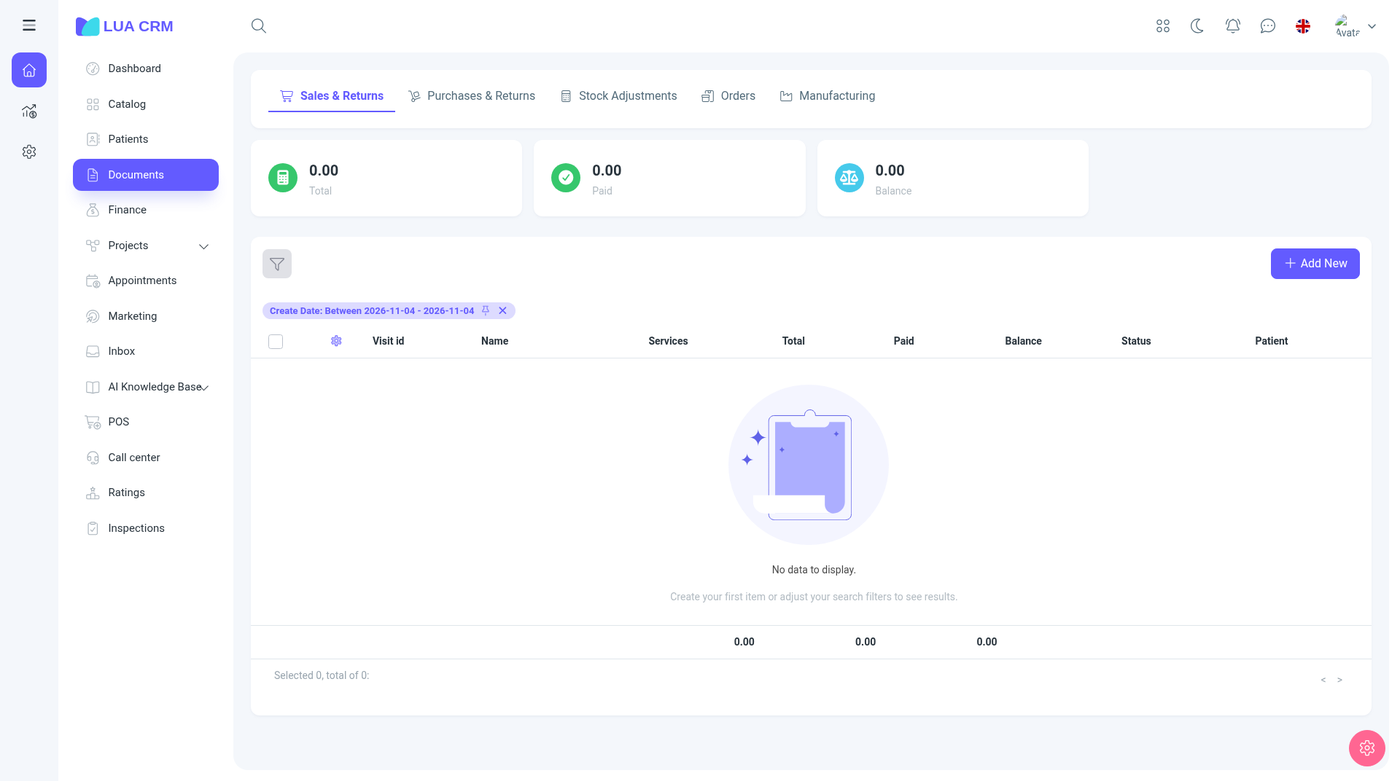
There is no library of named table views, and a layout is not shared with the rest of the company. Each person has one column layout and one rows-per-page setting for each list. A new column that appears after you have saved a layout is added at the end of your list until you move it.
Show, hide, and reorder columns
- Open the list.
- Click the actions column header (the gear at the right of the header row). That opens Table settings.
- Drag a row by the handle to change the column order.
- Tick Show to include a column. Clear it to hide the column.
- Choose how many rows a page shows: 10, 25, 50, or 100. A list starts at 50 until you save another number.
- Choose Save. The page reloads with your layout.
The actions column stays visible. A few columns are locked and cannot be cleared, because the list cannot work without them. On a document’s lines those locked columns are the item, the quantity, the unit price, and the total.
Choose the rotate icon in the settings title to return that list to the product default. A badge on the icon shows that your layout differs from the default.
Columns that start hidden stay off until you tick them. Custom fields are in that group: the field can exist on the form and in filters while the column stays off for you. Barcode, some price columns, and several document columns work the same way. Each module page names the columns that start hidden on that list.
What is stored, and for whom
| What you change | Where it is kept |
|---|---|
| Which columns are visible, and their order | Your user, for that list |
| Rows per page | Your user, for that list |
| Which fields exist on forms | The whole company. See Custom fields |
Catalog layouts are stored separately for products, services, memberships, and materials. Document line layouts are stored separately for each document type (a sale, a purchase, a transfer, and so on). If you have never saved the lines on a document, you see the first owner’s line layout until you save your own.
Some short tables turn column settings off. When the gear is not on the header, that table does not keep a personal layout.
Sort, select, and export
Click a column title to sort when that list allows sorting. Sorting is not saved as part of the column layout.
Tick the checkbox column to select rows. The footer shows how many rows are selected and how many match the current filter. Bulk actions, including export when your role may print, use that selection.
Export opens its own dialog. You pick CSV or Excel and which columns to include. You need Print / export on that module. Export uses the rows that match the filter, and it can be limited to the rows you ticked.
Filters are separate from columns. Hiding a column does not remove its filter. See Filtering lists.