AI Knowledge Base
Home → AI Knowledge Base has two entries: the bases (/knowledge_bases) and Test AI (/knowledge_test). A base is a set of documents the assistant is allowed to read. Test AI asks a question against those documents without sending anything to a customer.
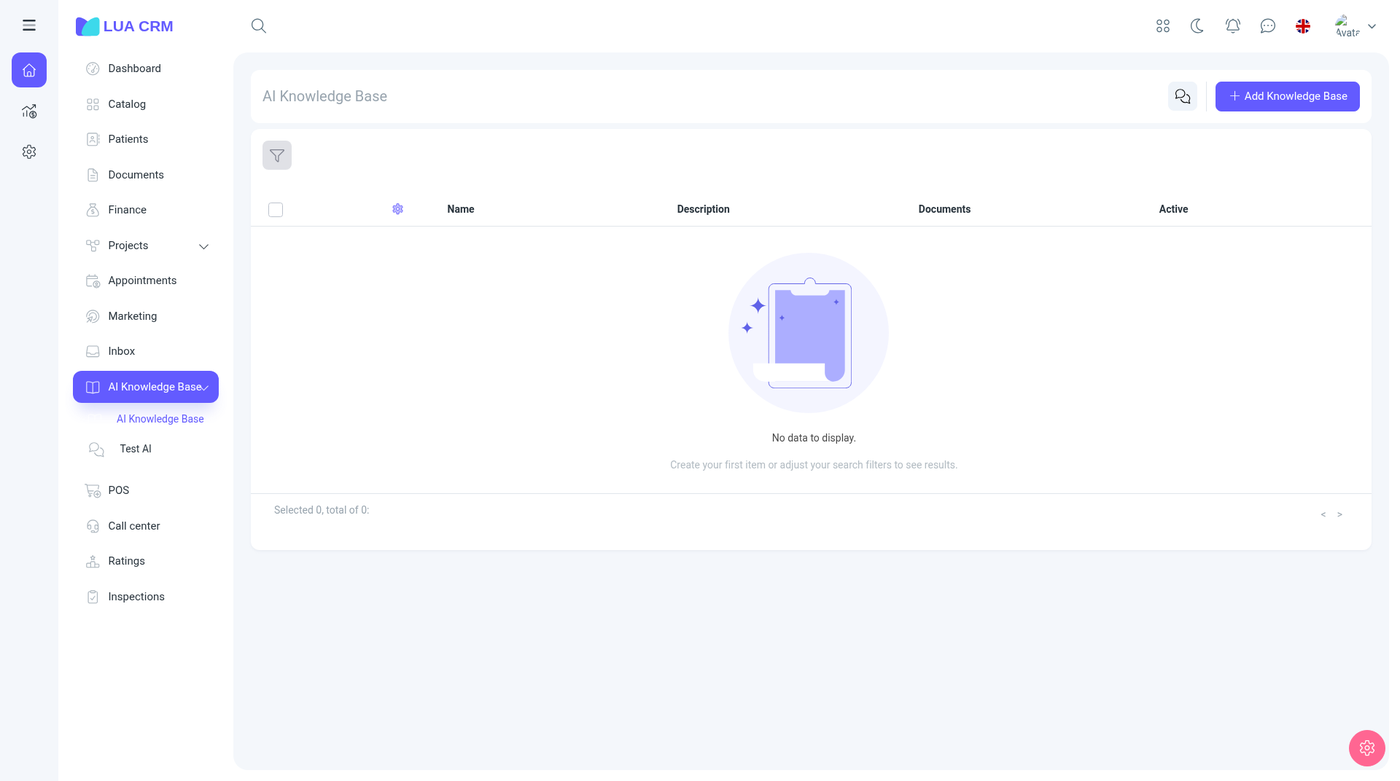
Use a base for policies, price explanations, service steps, and answers you want the inbox assistant to reuse. Do not put passwords or card numbers in a document that is enabled for customer replies.
Knowledge bases
Columns: name, description, number of documents, and Active. Created on and created by can be shown from the column menu. Filter by name (contains or equals).
Add a knowledge base
Add knowledge base opens a short panel. You need create permission.
| Field | Required | Meaning |
|---|---|---|
| Name | Yes | The name on the list and in Test AI |
| Description | No | What this base is for. Long text is allowed |
Save creates an empty base. Open the row to add documents. The address is /knowledge_base/{id}.
Inactive bases stay in the list but should not be offered to the assistant.
Documents inside a base
The document page shows the base name, a gear for that base’s settings (/knowledge_base/{id}/settings), a shortcut to Test AI for this base, and Add knowledge.
Columns: name, source type, category, status, and updated date.
Filter by title (contains or equals), source type, or category.
Add knowledge has two choices.
Upload a file
| Field | Required | Meaning |
|---|---|---|
| File | Yes for an upload | PDF, Word, Excel, or another file the attach button accepts |
| Title | Yes | The name in the document list |
| Category | No | A folder for this base. New category creates a group. Groups have a name (required), a color, an optional parent, a description, and Active (on by default) |
| Processing priority | No | Normal (default) or High. High-priority documents are processed first |
| Description | No | What the file contains |
| Enable for AI search | No | On by default. The assistant may use this document |
| Use only for internal reference | No | Off by default. When on, the document is not used for customer-facing AI replies |
Upload and save stores the file and queues it for processing. Status on the list moves as processing finishes.
Write text
Same fields, without a file. Content is the body, in a rich-text editor. Save and process stores it and queues it the same way.
You need create permission to add, edit permission to change, and delete permission to remove a document. Opening a missing or deleted base sends you back to the list.
Test AI
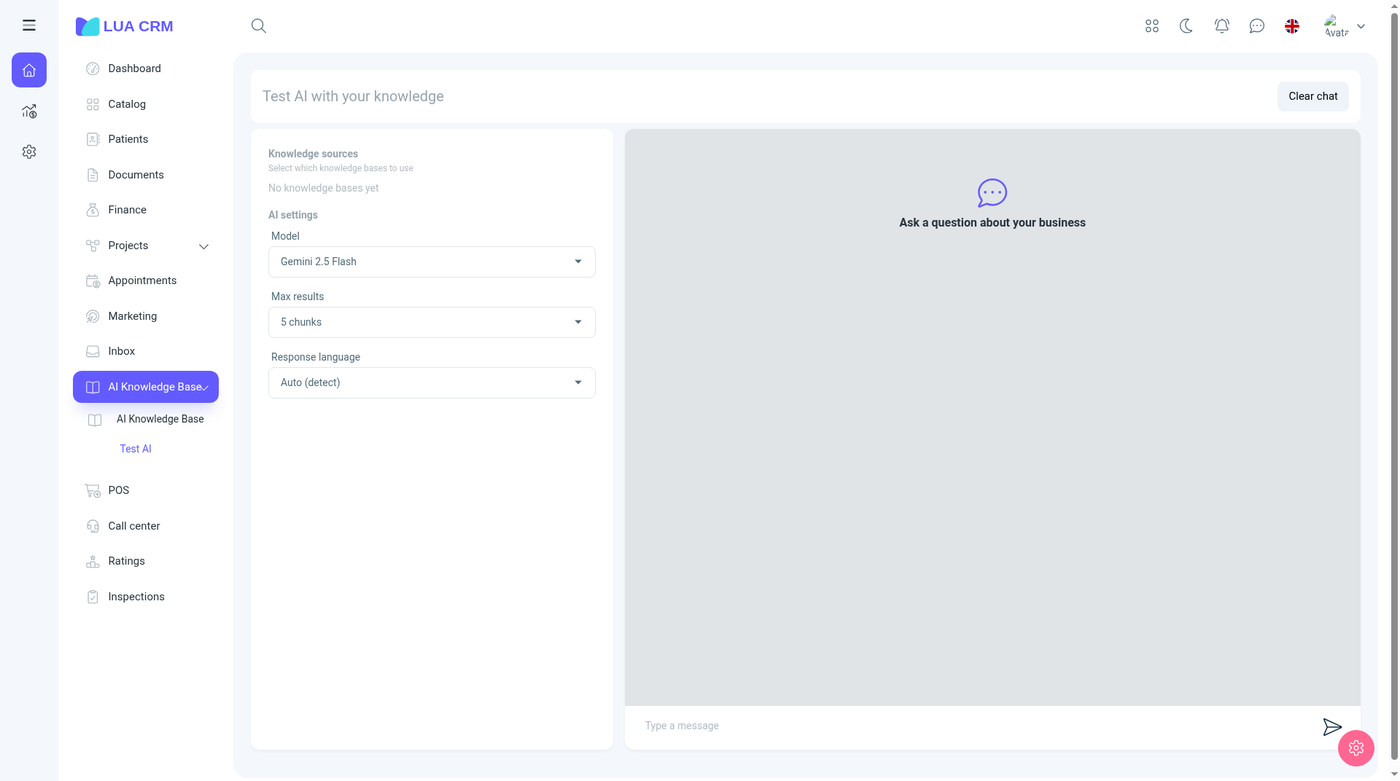
Open Test AI from the menu or from a base. Pick the knowledge sources (the demo starts with none selected), then:
| Control | Meaning |
|---|---|
| Model | Which model answers. The demo offers Gemini 1.5 Flash |
| Maximum results | How many matching fragments are retrieved. The demo uses 5 |
| Response language | Automatic, or a language you choose |
| Message box | The question. Nothing here is sent to a customer |
| Clear chat | Wipes the test thread |
If the answer is wrong, fix the source document or turn off Enable for AI search on a document that should not be used. Internal-only documents are skipped for customer replies and can still be used when you test as a staff member, depending on the base settings.
Permissions
Knowledge bases and knowledge documents are separate. Each has view, create, edit, and delete. There is no print right on this module. Test AI follows the same knowledge-base access: you cannot test a base you cannot view.
Tips and common problems
- Name and title are required. A file without a title will not save.
- The assistant ignores a document when AI search is off, the base is inactive, or the document is still processing.
- Customer replies ignore internal-only documents on purpose.
- High priority only changes the processing queue. It does not make an answer “more true.”
- Categories are groups. An inactive category disappears from the picker.