Schedule
Reports → Schedule (/schedule) is the weekly grid of who works which day. Visits and the lessons timetable use these hours when they offer slots for an employee.
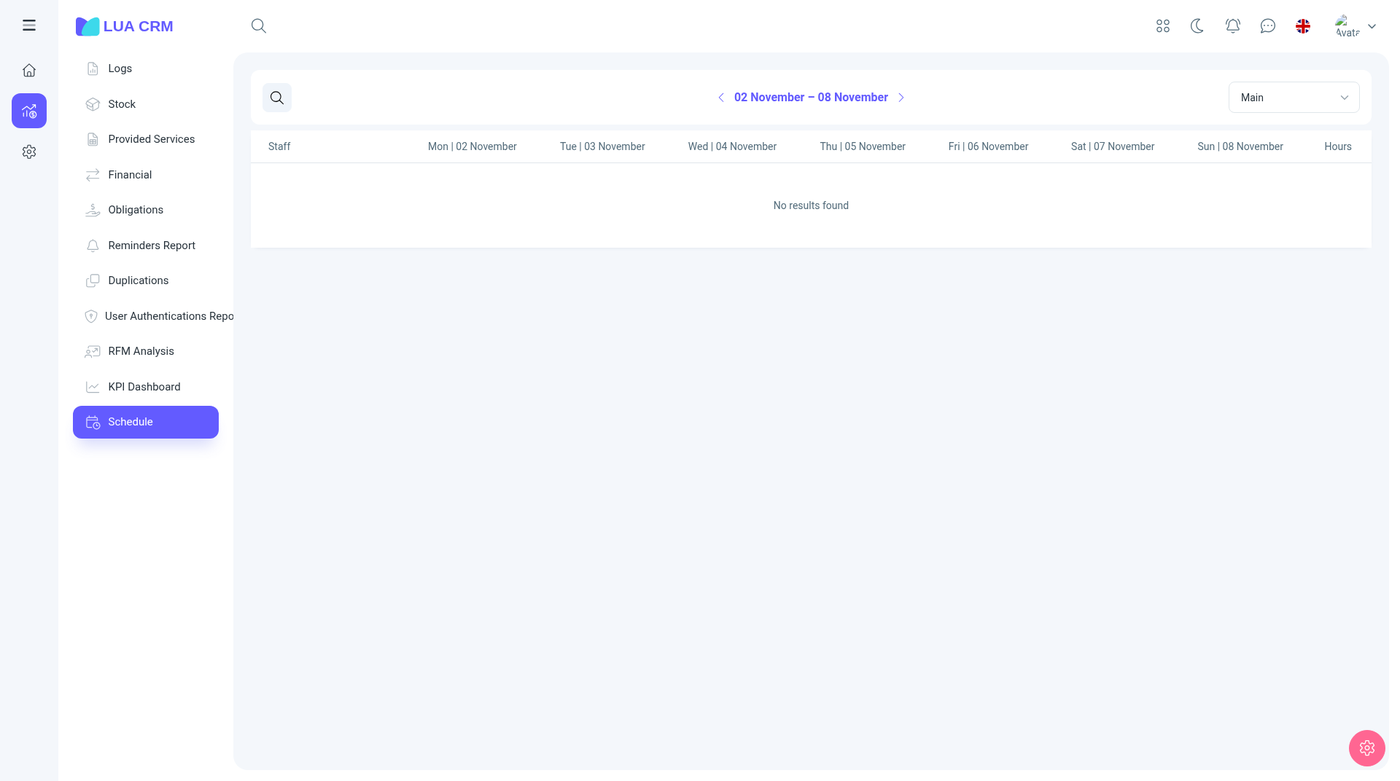
The grid
Columns are the staff member, Monday through Sunday of the week you are looking at, and the total hours. Move a week at a time. Search finds a person.
A cell is that person’s working time that day. Empty means they are not scheduled, so the visit calendar will not offer them then (unless overlapping and working-hours rules say otherwise).
Edit a week
You need create or edit on the schedule. People with only view can read the grid. The separate switch Edit users’ schedules on the employees module is what lets a manager change someone else’s week. Without it, a person may only see the schedule.
Schedule templates (/schedule_templates, also a tab under Employees) store a reusable week. Apply a template instead of typing the same hours every Monday.
Company-wide opening hours (the default day, such as 09:00–18:00) are under Configurations → Working hours. The schedule is the exception and the detail per person. The company hours are the window the calendars start from.
Permissions
Schedule: view, create, edit, delete, print. Templates have the same set and live on the schedule module. The Reports menu shows Schedule when you can view it.
Tips
- A visit at 19:00 is refused when that employee’s cell ends at 18:00 and the company window ends then too.
- Hours on the total column are the sum of the cells, not the company default.
- Templates do not change a week until you apply them.