Finance
Home → Finance (/finance) is the cash and bank journal. Documents decide what a customer owes. Finance records the money that actually moved, and which wallet it landed in.
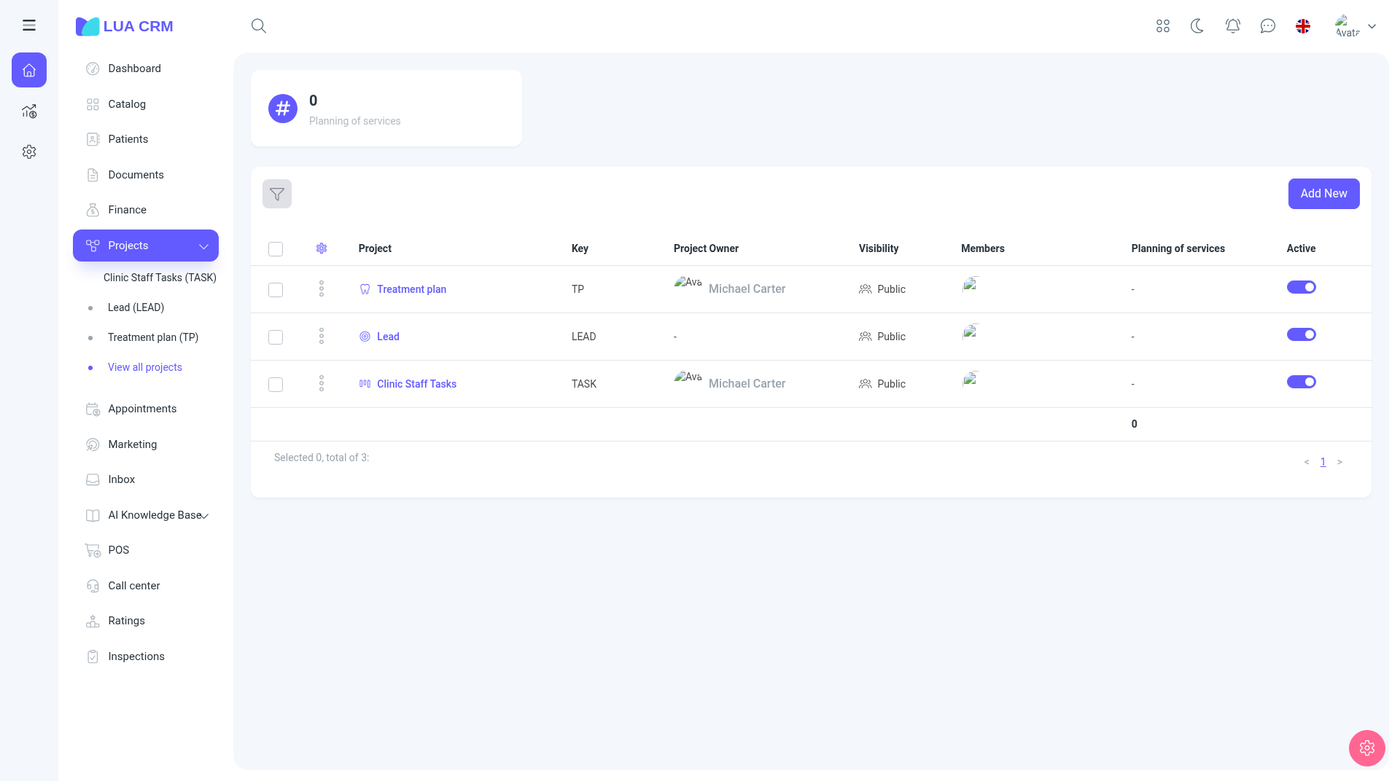
Use a transaction when money enters or leaves a wallet and it is not only a line on a document: a customer pays, you pay a supplier or an expense, or you move cash between wallets or currencies. Use the document’s own payment tab when the payment belongs to one sale or purchase. Both end up in this list.
Transactions
The page opens on Transactions. A summary by currency and branch shows the total currently in the wallets you can see. Obligations jumps to the obligations report when you may view it.
Columns
Date (hidden until you show it), operation date, transaction type, operation type, branch, contact, wallet, amount, notes, and balance after the transaction. You can also show status, reference, contact ID, the document’s contact, the document’s responsible manager, and who performed the entry. A fiscal column appears when a fiscal device is enabled.
Add money in, money out, or a transfer
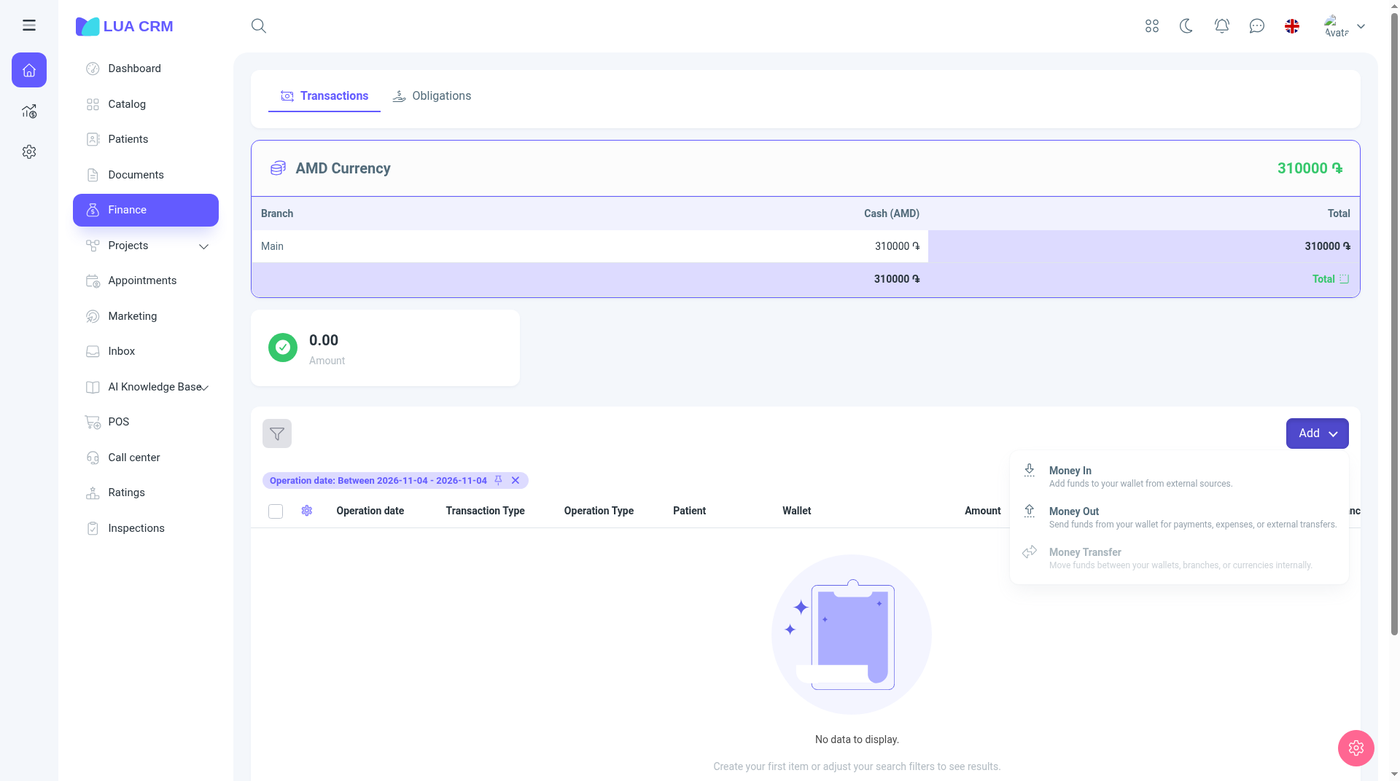
Add offers:
| Choice | What it does | When it is unavailable |
|---|---|---|
| Income (money in) | Records money arriving in one wallet | You cannot create money-in |
| Expense (money out) | Records money leaving one wallet | You cannot create money-out |
| Transfer | Moves money between wallets, branches, or currencies | You cannot create transfers, or the company has only one wallet. The menu item stays visible but dimmed, with a note that a transfer needs two wallets |
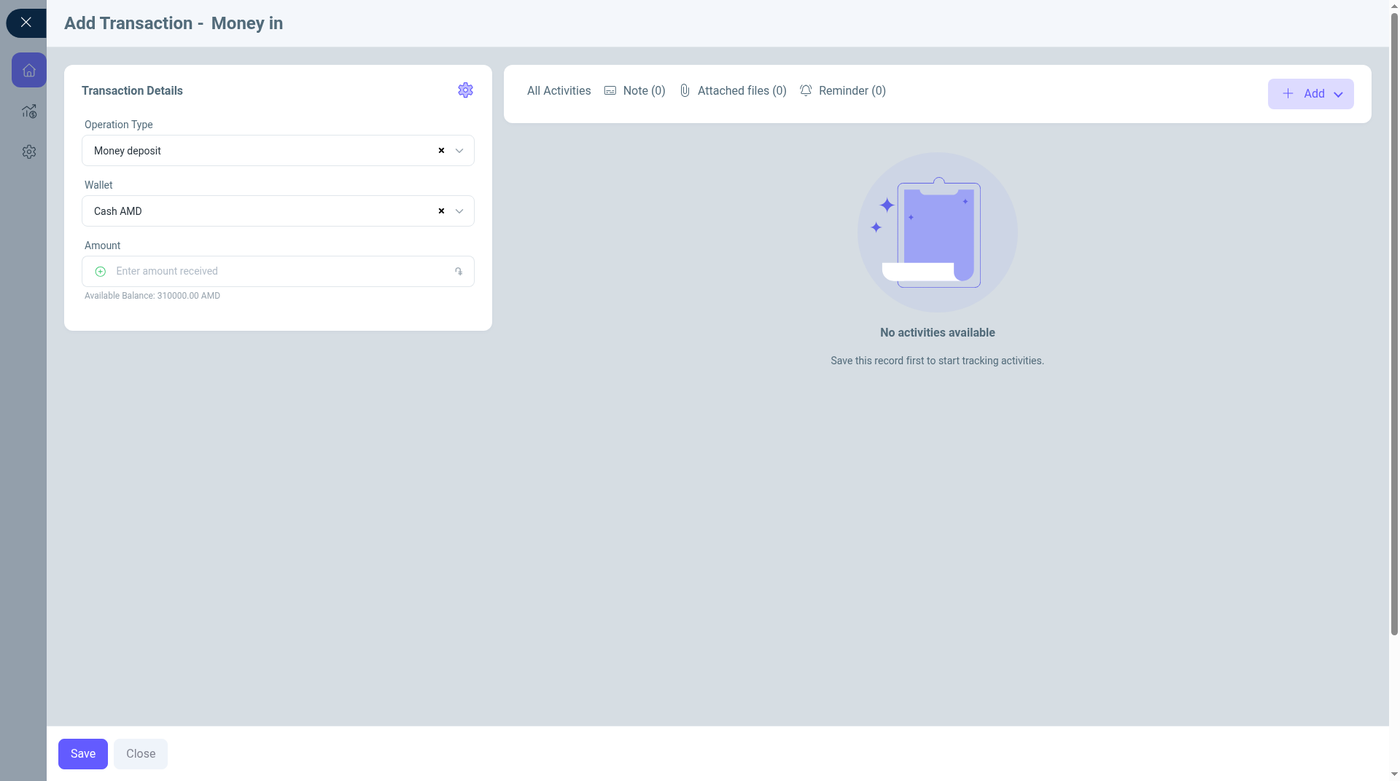
The form title is Add transaction, with the type after the dash (Deposit for money in).
| Field | Required | Shown for | Default and rules |
|---|---|---|---|
| Operation type | Expected for a clear book | The matching type | The first active type of that kind (money in, money out, or transfer). Add new opens transaction types if you may manage them |
| Operation date | Yes | All | Now, including seconds. Format DD/MM/YYYY HH:mm:ss |
| Branch | Yes for in and out | Income and expense | Branches you can access |
| Wallet | Yes for in and out | Income and expense | Wallets of the chosen branch that you are allowed to use. The currency label follows the wallet |
| Amount | Should be filled | Income and expense | A number. The line under the field shows Available balance for that wallet |
| From branch, to branch | Needed to pick wallets | Transfer | Source is limited to your branches. Destination can be any branch |
| From wallet, to wallet | Needed | Transfer | Two wallets. Amounts on a transfer follow the rate between the two currencies |
| Contact | No | When the field is enabled | The person or company this movement belongs to |
| Basis document | No | All | Filled and locked when the transaction was created from a document |
| Created on, Performed by | — | All | Written when you save. You cannot type them |
| Notes, files, reminders | No | The activity panel | Notes and files sit beside the form |
Change rate appears on a transfer between two currencies so you can set the rate used for that one movement.
Saving an income increases that wallet and the balance-after figure on the row. An expense decreases it. A transfer decreases the source wallet and increases the destination wallet. If the transaction was opened from a document, the document’s paid amount and payment status (unpaid, partial, paid) update as well.
Transaction status
| Status | Meaning |
|---|---|
| New | Entered and not yet approved |
| Approved | Accepted into the journal |
Filter transactions
| Filter | How it matches |
|---|---|
| Operation date | A date-time range |
| Transaction type | Income, expense, or transfer. Transfer is listed only if you may view transfers |
| Operation type | One type from your transaction-type list |
| Branch | |
| Wallet | |
| Amount | Equal, greater, less, and the inclusive comparisons |
| Status | New or approved |
| Notes | Contains or equals |
| Reference | Equals or contains |
| Contact | Contact search |
| Contact ID | Equals the numeric ID |
| ID | Equals |
| Performed by | The employee who entered it |
| Responsible manager | The manager on the linked document |
| Contact’s responsible manager | The manager stored on the contact |
| Deleted | False (normal list) or true |
| Fiscal receipt, fiscal number | Only when fiscal devices are on |
| Custom fields | Any extra finance fields |
Export can be grouped by branch, wallet, or the person who entered the row. Printing and export need the print permission.
Obligations
Obligations are what is still owed. The Finance tab opens the same report as Reports → Obligations. Columns include the customer or responsible manager, document, branch, source, description, receivable, payable, paid, balance, payment status, created on, and created by.
Add new can start an advance payment or a write-off.
Advance payment
| Field | Required | Meaning |
|---|---|---|
| Customer | Yes | Who the advance belongs to |
| Branch | Yes | Where it is recorded |
| Mode | Yes | Affect business wallet balance creates the obligation and moves the wallet now. Record obligation only stores the debt or credit and does not touch the wallet |
| Wallet | When the mode affects the wallet | Cash or bank account, for example Cash USD or Cash AMD |
| Currency | Yes | |
| Amount | Yes | |
| Responsible manager | No | |
| Description | No |
Some roles can hide one of the modes, hide the manager, or hide adding obligations entirely. Those people can still read the list if they have view access.
Write-off
A write-off clears an amount that will not be collected or paid, without pretending cash moved. Use it for a balance you have agreed to forgive. It reduces the open obligation and does not increase a wallet.
Obligation filters
Search, created date, customer or responsible manager, direction (receivable or payable), customer type (client, partner, employee, supplier), group, the contact’s own manager, document contact, contact status, document type (sale, purchase, sales return, purchase return), payment status, obligation status (draft, in progress, done, postponed), commission type, the receivable, payable, paid, and balance amounts, branch, currency, linked requests, last payment date, ID, description, and any custom region or type field.
Permissions
Money in, money out, and transfer are separate. Each has view, create, edit, delete, and print. View can be all records, only your own, or Managed contacts (the contacts you are responsible for). Wallets themselves are managed under Company. A wallet restriction on your user removes wallets from the dropdown even if you can open Finance.
Related records
- A payment taken on a sale or purchase creates the finance row for you
- Contact balance on Customers is the open obligations, not the wallet total
- Wallet setup, currencies, and opening amounts are under Company and Configurations
- Operation names are maintained under Financial transaction types
Tips and common problems
- Transfer is greyed out when only one wallet exists. Add a second wallet first.
- The wallet list is empty for a branch when that branch has no wallet, or your user is blocked from those wallets.
- Amount must be a number other than zero. A blank or zero amount is rejected.
- A transfer must use two different wallets. The same wallet on both sides is rejected.
- Operation date is required.
- A document still shows unpaid after you saved a transaction that was not linked to it. Open the document and take the payment there, or link the obligation.
- You can view transactions but not add them when create is off for that direction.
- Income and expense do not show each other’s operation types. If the type you want is missing, check it is active and is the right direction under transaction types.