Ratings
Home → Ratings (/rating_options) is the list of reasons a score goes up or down. Applying a reason to a customer or an employee changes their score by the value on that reason. Segments that group those scores are configured under Configurations → Rating settings.
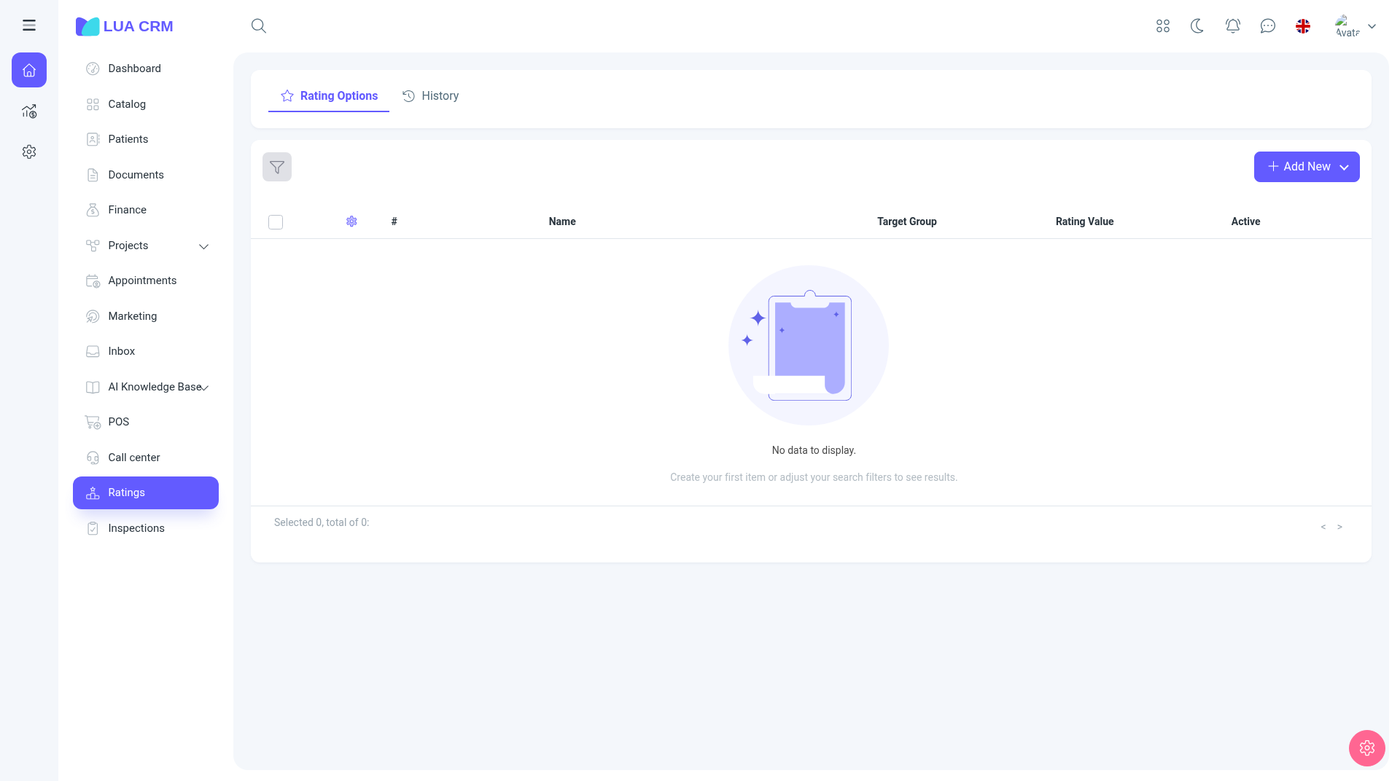
Rating options
Tabs: Rating options and History (/rating_options/history).
Columns: number, name, target group, rating value, and Active. Description, created on, and created by are available from the column menu.
Add new offers a positive option or a negative option. The form opens as a draft until you save.
| Field | Required | Default | Meaning |
|---|---|---|---|
| Option name | Yes | — | The reason staff pick, such as “On-time payment” or “No-show” |
| Rating value | Yes | — | How many points to add or subtract. A positive option shows a plus. A negative option is stored as a negative change. The number is required |
| Target group | No | Customers | Customers, Employees, or Both. This decides whose card offers the option |
| Description | No | Hidden until you choose Add description | A note for staff. Not shown to the customer |
| Type | — | Positive or negative, from the menu you used | You do not retype this. It follows the add action |
Inactive options stay in the list but should not be offered when someone rates a person.
Filter
Name (contains or equals), target group (customers, employees, or both), rating value (equal, greater, or less), status (active or inactive), created by, and created date.
Apply a rating
On a customer or an employee, choose a rating option aimed at that group (or at both). Lua CRM adds the rating value to their current score and writes a history row. You cannot type an arbitrary score here. If the reason does not exist, add an option first.
Segments under Configurations then place the person in a band (the demo’s customer scale is 0–100 and the employee scale is 0–200 when segments exist). The contact list can be filtered by rating segment.
History
Columns: number, name, description, target group, the customer or employee, the score before, the rating value applied, the score after, and where the rating was created.
History is the audit of score changes. Correct a mistake by applying an opposite option, not by editing the history row.
Permissions
Rating options allow view, create, edit, delete, and print. Deleting an option does not erase history already written.
Tips and common problems
- Name and rating value are both required.
- A negative option still asks for a value. Enter how many points to take away. The form marks the direction from the menu you chose.
- The option does not appear on a customer: its target is Employees only, or it is inactive.
- The score did not change a segment: no segments are defined yet, or the new score is still inside the same band. Edit segments under Configurations.