Filtering lists
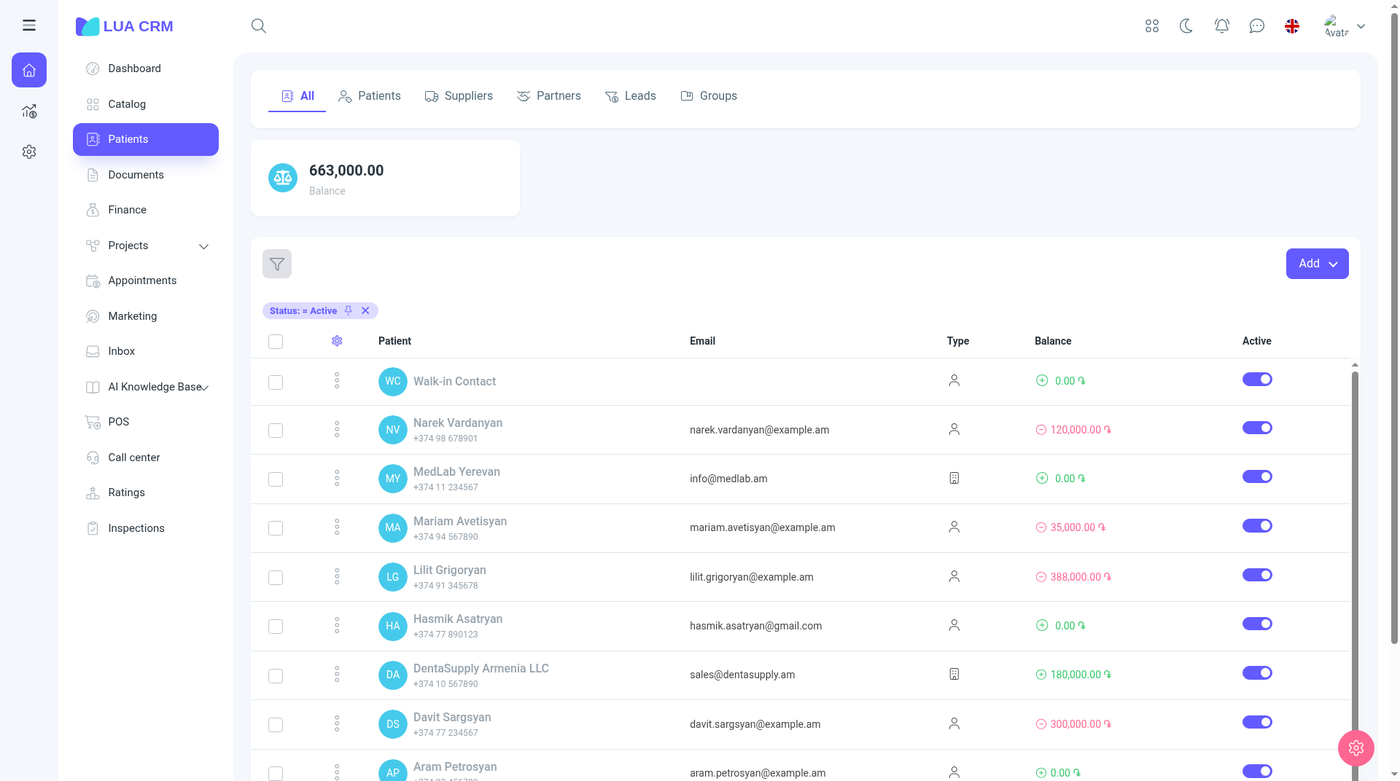
Lists do not have a search box in the table, and they do not have a filter row under each column title. You filter from the funnel button, which opens a Search panel. Apply runs the filter. Press Enter in the panel to apply, or Escape to close it without changing the list.
Each module page lists the fields on that panel. Contacts include a free-text Search field inside the panel. Other lists offer the fields that belong to that record, plus any custom fields the company has turned on.
Set a filter
- Click the funnel button.
- Fill the fields you care about. Leave the rest empty.
- Choose Apply.
A badge appears under the list for each active filter. Hidden fields are not shown as badges. Click a badge to reopen the panel on that field. Click the × on a badge to remove that filter and refresh the list. The panel does not show a Clear-all button, so remove badges one at a time or change the values and apply again.
How a value is matched
The operator sits next to the field when the field has more than one way to match.
| Kind of field | Ways to match |
|---|---|
| Text, including most custom text fields | Contains, equals, or empty |
| Number | Equals, greater than, less than, greater or equal, less or equal, or empty |
| Date | A range. The operator is between the start and the end |
| Yes/no | Yes, no, or empty |
| List | One or more of the options. Several choices stay one filter |
| Employee or contact | Pick the person. The match is that person |
Date ranges offer Today, Yesterday, Last 7 days, Last 30 days, This month, Last month, or a range you type.
How filters combine
Every badge is applied together. A row is listed only when it matches all of them. Choosing several options inside one list filter is still a single badge: the row matches when it has one of those options.
There is no way to say “this field or that field” across two badges, and there is no saved set of filters with a name you can switch.
What the list uses when you open it
Lua CRM picks the starting filters in this order:
- Parameters already on the address. If the link has query parameters, those values are applied. They replace pinned filters and the built-in default. A link with
idopens that row when the list comes back with exactly that one row. Choosing Apply does not write the filter into the address, so a shared link has to be a URL that already contains the parameters. - A reload of the same page. The filters you last applied in this browser are restored. That copy lives in the browser. It is not a named view and it is not shared.
- A fresh visit, when you have pinned filters. Each pinned filter for that list is applied. Pin a badge with the thumbtack. The pin is stored for you on that list only. Unpin with the same icon. A pinned date preset (today, last 7 days, this month, and the other presets) moves forward with the calendar. A custom range stays on the dates you pinned.
- A fresh visit, with nothing pinned and no parameters. The list uses its built-in default, when it has one.
| List | Built-in default |
|---|---|
| Documents (sales, purchases, returns, adjustments, transfers, orders, shifts, and the money documents) | Created date is today |
| Finance account transactions | Operation date is today |
| Catalog | Status is active |
| Contacts | Status is active |
| Employees | Status is one of the two values the product treats as an active user |
| Obligations | Payment status is unpaid or partial |
| Audit log, sign-in report, phone calls, marketing log, fiscal receipts, document lines report, lesson attendance | The date field is today |
| Contact finance comparison | The period is today, and zero rows are hidden |
A list that is not in that table opens with no extra default. If the address already has any parameter, the built-in default is skipped, even when that parameter is not one of the filters above. Pinned filters also skip the built-in default.
Project boards use their own All filters panel. It is not this list panel. Custom fields for requests are included there, except catalog variations.