Inspections
Home → Inspections (/inspections) is for repeating checks: opening a site, a safety round, a room inspection. Each inspection is a named checklist tied to a project. Running it records an answer for every check. An answer can be required to include a comment or a photo, and it can open a request on that project.
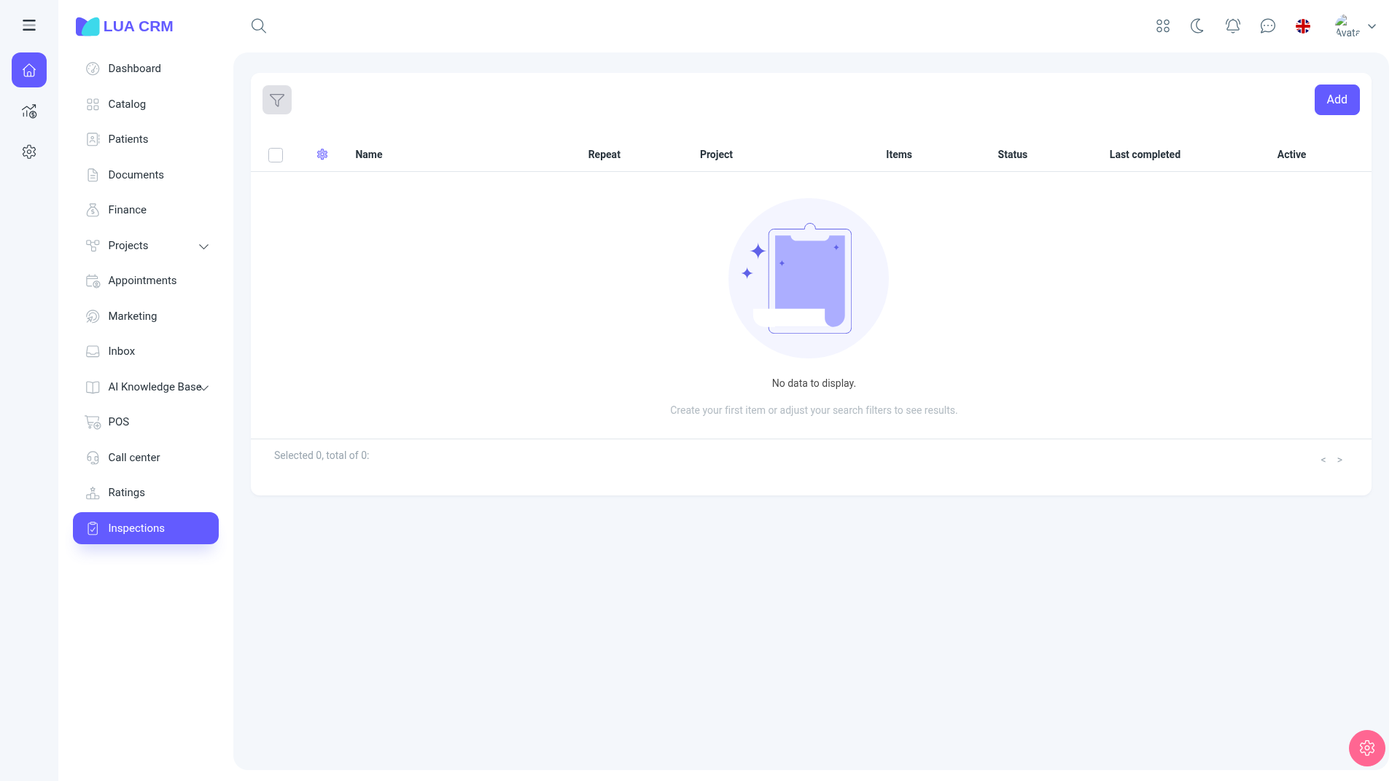
The list
Columns: name, cadence (how often it repeats), project, number of checks, due status, last completed, and Active. ID, description, created date, and created by can be shown as well.
| Filter | Options |
|---|---|
| Name | Contains or equals |
| Cadence | No schedule, daily, weekly, monthly |
| Project | A project you may use |
| Active | Active or inactive |
Due status tells you whether this inspection is waiting, due, or recently completed, based on the cadence and the last completed time.
Add or edit an inspection
You need permission to create inspections. Add opens the form.
| Field | Required | Default | Meaning |
|---|---|---|---|
| Name | Yes | — | The name on the list |
| Description | No | — | What the round is for |
| Cadence | Yes | No schedule | No schedule (run it whenever you want), Daily, Weekly, or Monthly |
| Project | Yes | — | The board that receives a request when an outcome says to create one. You only see projects you may use |
| Default assignee | No | Empty | Who those requests are assigned to. The list is employees |
| Active | No | On | Inactive inspections drop off the work people are asked to run |
Outcome buttons
Outcome buttons are the answers a person can tap for a check, such as Normal and Abnormal in the demo. Open the list and add a row.
| Field | Required | Default | Meaning |
|---|---|---|---|
| Name | Yes (the row is required once you add it) | — | The label on the button |
| Color | No | Green (#198754) | Green, red, orange, blue, or gray |
| Creates a request | No | Off | When on, choosing this answer opens a request on the inspection’s project |
| Requires a comment | No | Off | The runner must type a note before this answer is accepted |
| Requires a photo | No | Off | The runner must attach a photo |
Checks
Checks are the lines on the list. Each line has:
| Field | Required | Meaning |
|---|---|---|
| Check name | Yes, once the line exists | What the person must look at |
| Section name | No | Groups checks under a heading. Empty means ungrouped |
Drag the handle to reorder. The trash icon removes a line.
Save stores the definition. It does not record that anyone did the inspection today.
Run an inspection
Running is a separate right (Inspection runs: view and create). Open the inspection and complete a run (the run screen is /inspections/run).
For each check, tap an outcome button. If that button requires a comment or a photo, you cannot finish the check without it. If the button creates a request, Lua CRM adds a request on the inspection’s project and assigns the default assignee when one is set. Last completed on the list updates when the run is finished. History on the inspection shows earlier runs.
Permissions
| Area | Rights |
|---|---|
| Inspections | View, create, edit, delete. This is the checklist definition |
| Inspection runs | View and create. This is filling in a run. There is no delete on a run from this permission |
Someone can be allowed to perform checks without being allowed to redesign them.
Tips and common problems
- Name, cadence, and project are required. The project list is empty when you cannot use any project, or the company still only has the untouched default project.
- A failed check did not create a request: Creates a request is off on that button, or you cannot create requests on the inspection’s project.
- The form will not accept the answer: the button requires a comment or a photo.
- The inspection never shows as due: cadence is No schedule. It only becomes due when you set daily, weekly, or monthly.
- Default assignee is optional. Requests from a run are unassigned when it is empty, unless the project’s own default assignee fills them in.