Custom fields
Custom fields and the built-in fields you turn on or off are company settings. They are not saved per user. Open Settings → Other → Custom fields (/fields). You need access to that settings area.
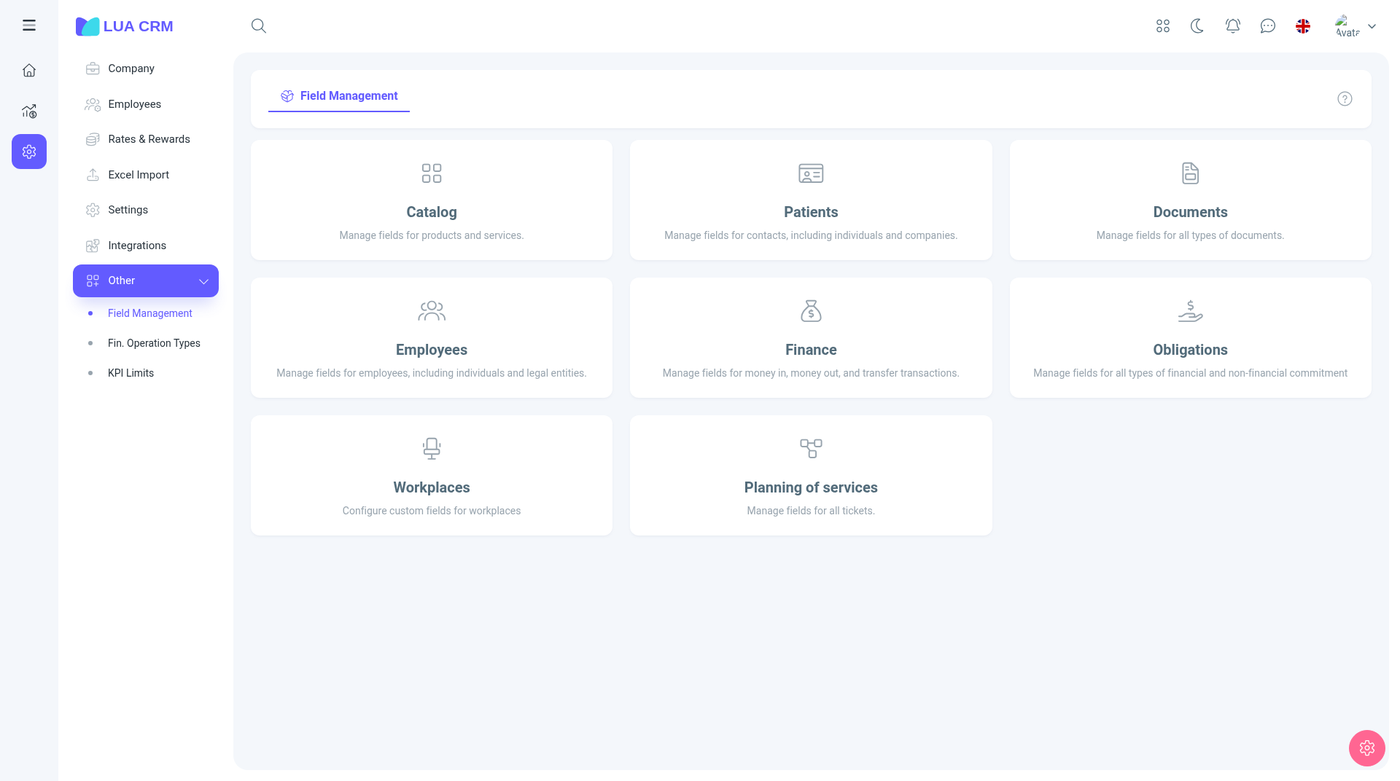
Each card is one area of the product. Open a card, then pick the form inside it. The table lists the fields currently on that form: name, description, and how many forms use the field. Drag a row to reorder the form, then save the order. That order is the order on the form for everyone.
Which records can have fields
| Card | Forms you can configure |
|---|---|
| Catalog | Items, services, memberships, materials |
| Employees | Individual |
| Contacts | Individual, legal entity |
| Documents | Sales, sales return, purchase, purchase return, stock adjustment, transfer, order, manufacturing |
| Finance | Money in, money out, transfer |
| Obligations | Obligations |
| Workplaces | Workplaces |
| Requests | One form per active project. The form name is the project name |
A field can be on one of those forms, on several, or on none. Catalog variations are a separate catalog editor. They are not one of the types in Create new field.
Show a field that is hidden
A field that is off for a form is absent from that form and from the field table. Stored values stay in the database. Hiding a field does not delete them.
- Open the card and the form (for a contact, individual or legal entity; for a document, the document type; for a request, the project).
- Choose Add field.
- Tick the built-in fields you want on this form. The list is whatever is not already shown.
- Choose Add. The count on the button is how many you ticked.
You can also open a field that already exists and use Form visibility. Show field is one checkbox per form. The per-form required column is not shown. Required is the single Required checkbox on the field, and it applies wherever the field is shown.
A few built-in fields cannot be removed. A catalog item’s name is one of them. Its show checkbox stays locked.
Fields a new project leaves off
When a project is created, these request fields start visible: title, description, status, assignee, and priority.
These start hidden until someone shows them for that project: primary contact, lead amount, currency, currency rate, source, tags, start date, due date, reporter, branch, department, addresses, employment, created on, created by, and visibility.
Other modules start from the fields already saved for your company. The same Add field list is how you turn a hidden built-in field on. The dental demo’s individual contact form, for example, keeps many personal fields in that list until you add them.
Create a custom field
- On the form, choose Add field, then Create new field.
- Pick a type. The types below are the ones the form offers.
- Enter a name. Placeholder, description, and default value are optional.
- For a list, a multi-select, or tags, add the options. Each option has a name and a color. Drag options to set their order.
- Turn on Required when the record must not save without a value.
- Under Form visibility, tick Show field for each form that should include it.
- Save.
| Type | What the user fills in | Where you can add it |
|---|---|---|
| Text | A short line | Every card |
| Paragraph | A longer note | Every card |
| Number | A number | Every card |
| List | One option from the list you define | Every card |
| Several choices | More than one option | Every card |
| Date | A date | Every card |
| Link | A web address | Every card |
| Yes/no | Checked or not. The default is checked or unchecked | Every card |
| Tags | Tags from the options you define | Every card |
| Employee | A person who can sign in | Documents and requests |
| Contact | A contact | Documents and requests |
Yes/no, list, multi-select, and tags use a default chosen from their options. The other types use a text default. There is no separate date-and-time type and no date-range type in this form.
Where the field appears
| Place | What happens |
|---|---|
| The form you ticked | The field is on the create and edit form, in the order you dragged |
| The list filter | An active custom field is added to the filter panel. Text uses contains, equals, or empty. A number uses comparisons. A date uses a range. Yes/no is yes, no, or empty. A list or multi-select filters by the options. Employee and contact filters search for that person |
| The list columns | The column is created hidden. Each person turns it on from the column settings. That choice is theirs, not the company’s |
| A request card | Fields shown for that project can appear on the card |
| A printed document | Templates can insert a custom field with a placeholder such as {contact_cf_12} or {document_cf_12}. The number is the field’s id. See Document templates |
Turning a column on does not change who sees the field on the form. Turning the field off in this screen removes it from the form for everyone and leaves the data in place.