User authentication
Reports → User authentication (/reports/user_authentications) lists sign-in attempts. Use it when someone says they could not log in, or when you want to see whether an account was used from an unexpected place.
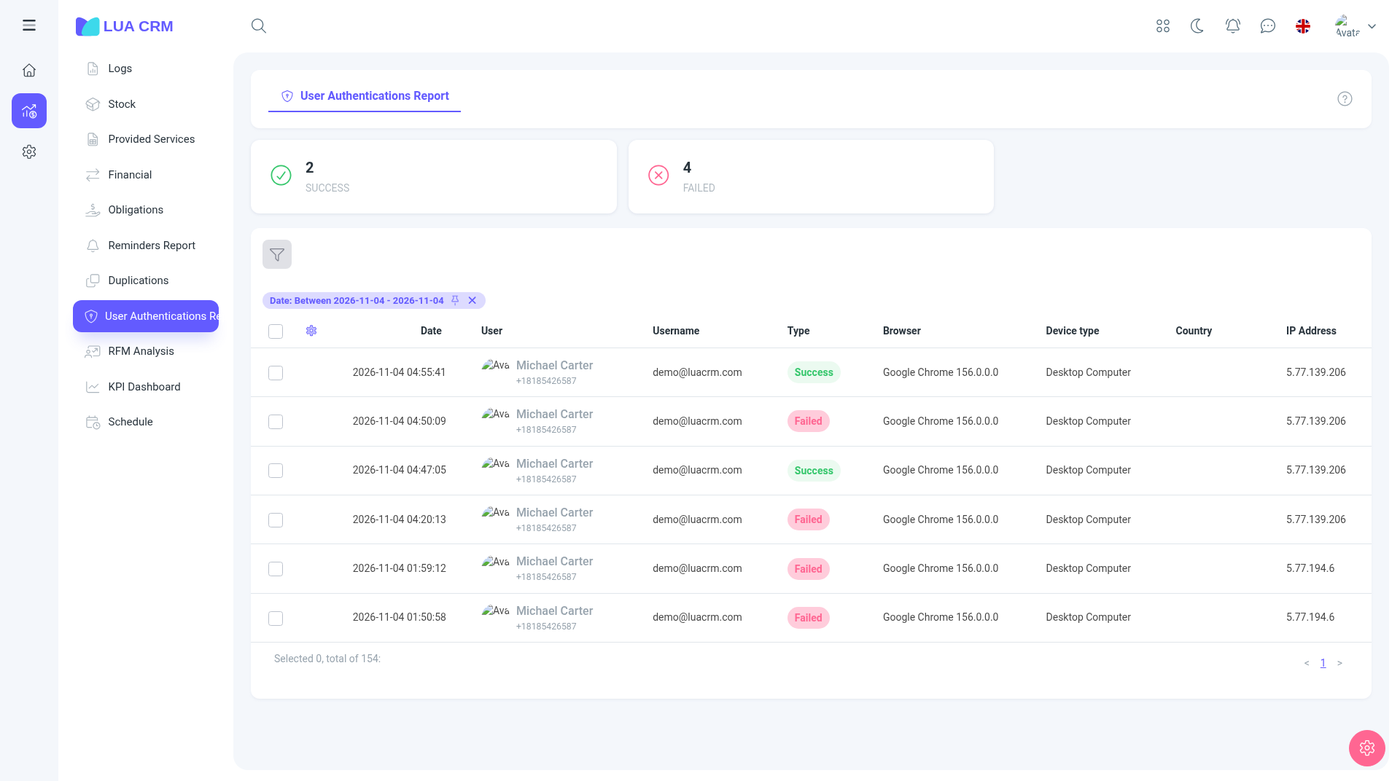
Summary cards at the top count the attempts in the current filter.
Columns
Date, user, username, type, browser, device, country, and IP address. The row number is hidden until you show it.
| Type | Meaning |
|---|---|
| Success | The password (and the second factor, if you require it) was accepted |
| Failed | The attempt was rejected |
This list does not show the password. A failed row is the username they typed, the time, and where it came from.
Filters
| Filter | How it matches |
|---|---|
| Date | A range. The control starts on the current day |
| User | A contact who can sign in |
| Type | Success or failed |
| Username | Contains or equals |
| IP address | Equals or contains |
| Country | A country |
| Browser | Contains |
| Device | Contains |
Permissions
Has access and print. Staff cannot delete a sign-in row. Turn on company-wide two-factor authentication under Configurations → Security if failed attempts are a concern. Each person manages their own second factor under User profile → Security.
Tips
- Many failed rows for one username, then a success from the same IP, is usually a forgotten password.
- A success from a new country is worth checking with that person before you reset anything.
- The user filter only finds people who are contacts. A completely unknown username still appears in the username column of a failed row.