Security and access control
Path: Settings → Configurations → Security & access control (/settings). The section is rendered for a super admin or for user id 0. Each person’s password, login username, and second factor are on User profile → Security.
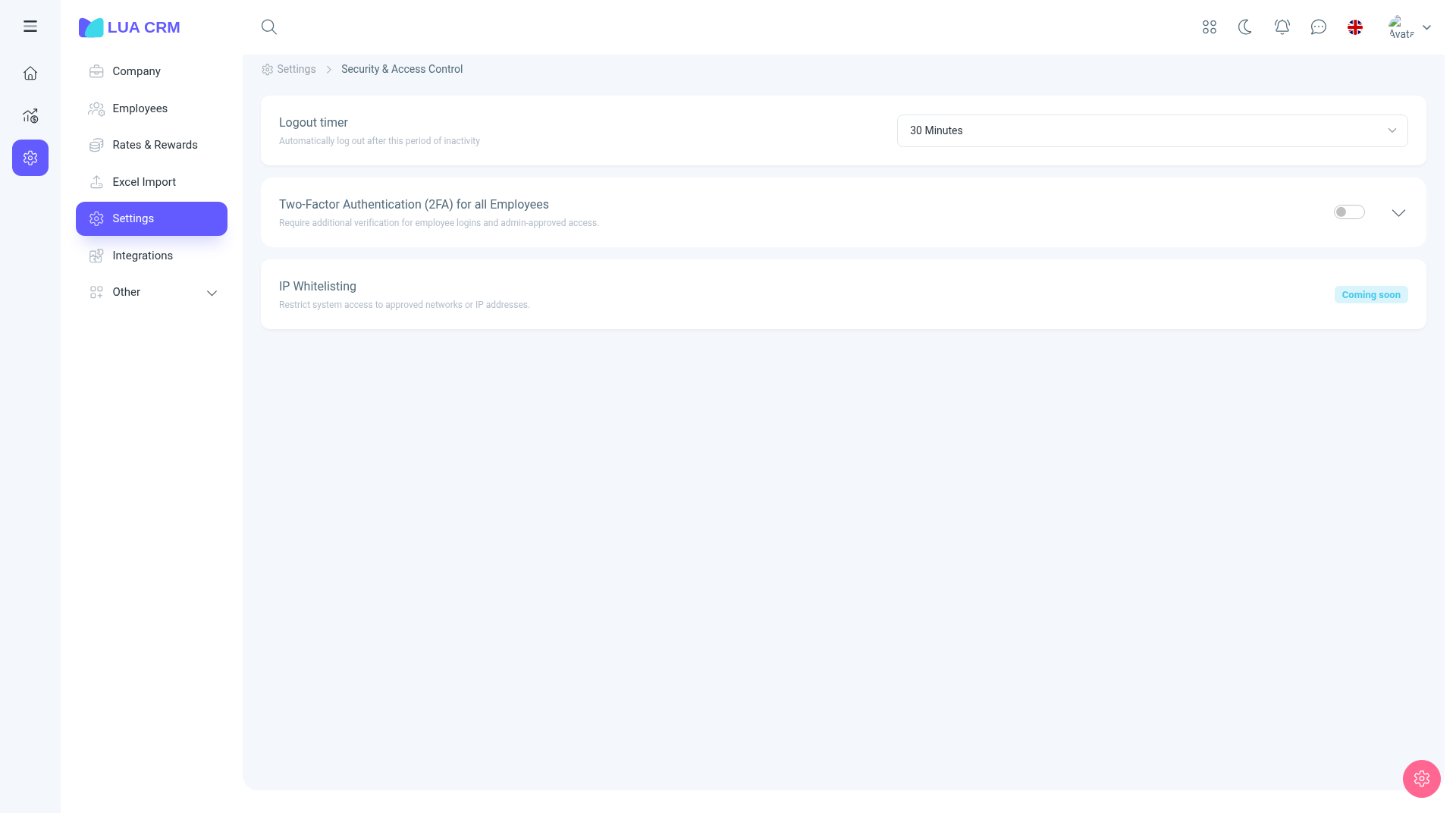
Logout timer
The select is stored as logout_timer_minutes. When the key is missing, the page selects 30.
| Value | Label |
|---|---|
| 10 | 10 minutes |
| 15 | 15 minutes |
| 30 | 30 minutes |
| 60 | 1 hour |
| 120 | 2 hours |
| 0 | Never |
0 does not arm the client timer. Any other positive value does. When the session is about to end, a panel counts down from 30 seconds. Keep logged in stays in the session. Logout ends it. The panel cannot be dismissed with the keyboard or by clicking the backdrop. A separate session file defines a 12-hour storage lifetime and a 5-hour constant named idle timeout. The timer people see is this setting, not that 5-hour constant.
Two-factor authentication for every employee
The switch is require_2fa_for_all_employees. It is off when the key is missing. The BrightSmile screenshot shows it off. Login does not read this key. Sign-in asks for a second factor only when that user’s two_factor_enabled is on, or when admin verification (below) sends the challenge to an administrator. If the person has no verified method, sign-in continues without a second factor.
The chevron opens three more controls. They are on the page whether the switch is on or off.
| Control | Storage | Default when the key is missing | What it does |
|---|---|---|---|
| Require admin verification for login | require_admin_verification_for_login | Off unless the value is 1 | When this is 1, the user is not the organization admin, and an admin contact exists, the challenge uses the admin’s verified method |
| Trusted device duration | trusted_device_duration | The select shows 30 | Options are 1, 7, 14, 30, 60, 90, 180, or 365 days, and the select can be cleared. The value is stored. Issuing a trusted device still uses 30 days for the row and the cookie |
| Revoke devices | Button | — | Sets trusted-device status to 0 for every employee, or for one person from the row menu. The list shows devices that are active and not yet expired, with the count and last login. View login history on the row is disabled |
What Require admin verification for login looks like at sign-in is Two-factor verification. The code goes to the administrator, and the employee enters it on that screen.
A contact marked two_factor_mandatory cannot turn their own second factor off. Methods accepted on a user are email, SMS, and an authenticator app (TOTP). Email and SMS setup send a 6-digit code that expires in 10 minutes, with up to 5 attempts. Backup codes are generated in sets of 10, as XXXXX-XXXXX. A trusted device stops counting once its expires_at has passed. A matching trusted-device token skips the challenge.
IP whitelisting
The card shows the coming-soon badge. There is no address field and nothing is saved from this card.