Custom forms
Custom Forms is a free card in the Forms group on Settings → Integrations (/integrations). A form is a public page in your colors and wording. A visitor passes a bot check, then the submission becomes a contact and a request. The card subtitle is Hosted forms that create contacts and tickets. The card text is Create branded public forms with a unique URL. Visitors pass a bot check, then submissions become a contact and a ticket. There is no cap on how many forms the company can host.
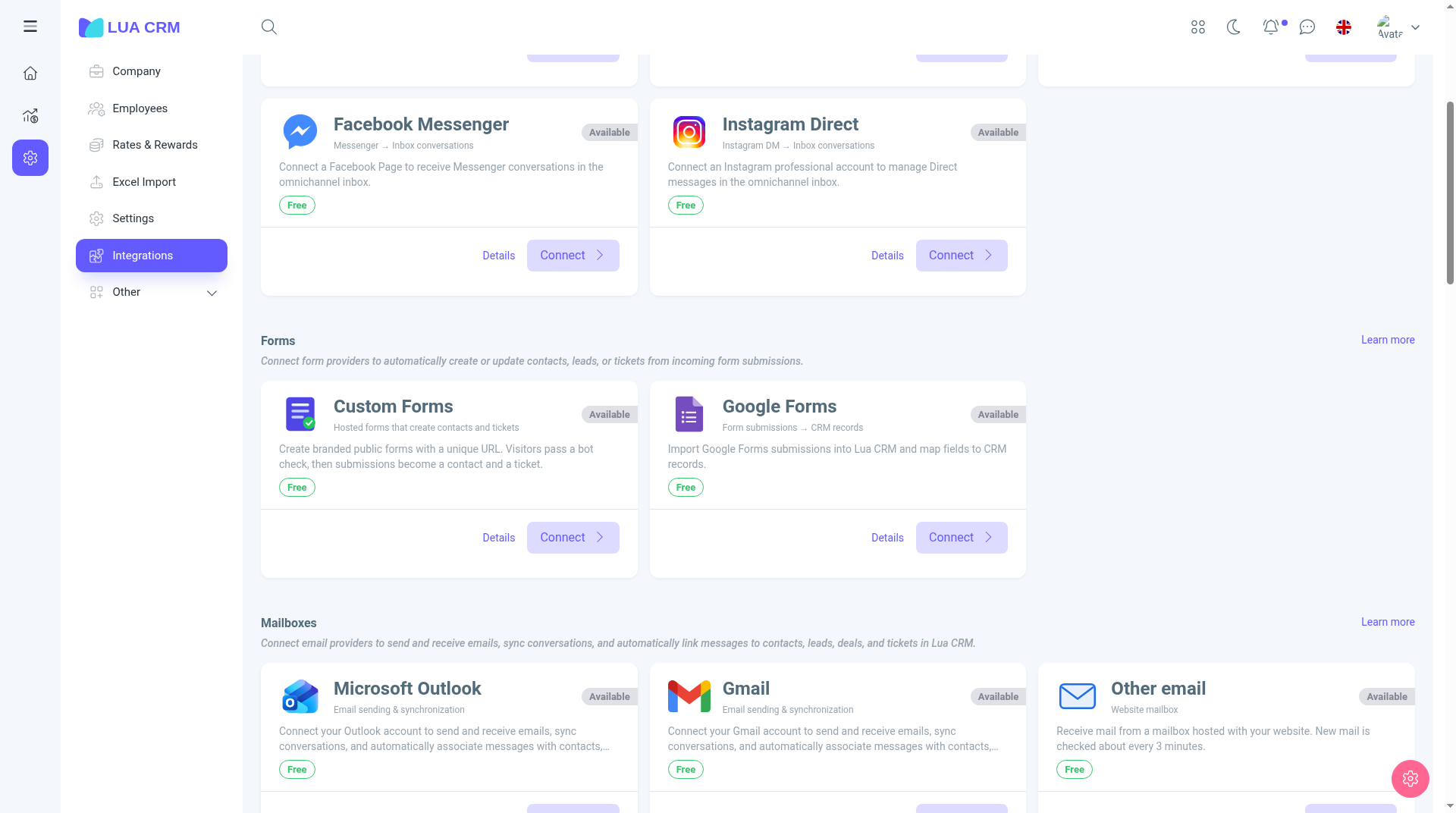
The card shows Connected when at least one form is Active. With every form inactive, or with no forms yet, it stays Available. Connect (and Manage, once you are connected) opens the forms list. An unknown or deleted form address in the builder sends you back to Integrations.
BrightSmile has no forms. The pictures on this page are the card and the empty list. The builder and the public page are the same for every company.
Forms list
The dialog title is Add Integration - Forms • Custom Forms. The introduction reads: “Each form gets a long unique URL. Open the builder to set colors, texts, and which contact and ticket fields appear.”
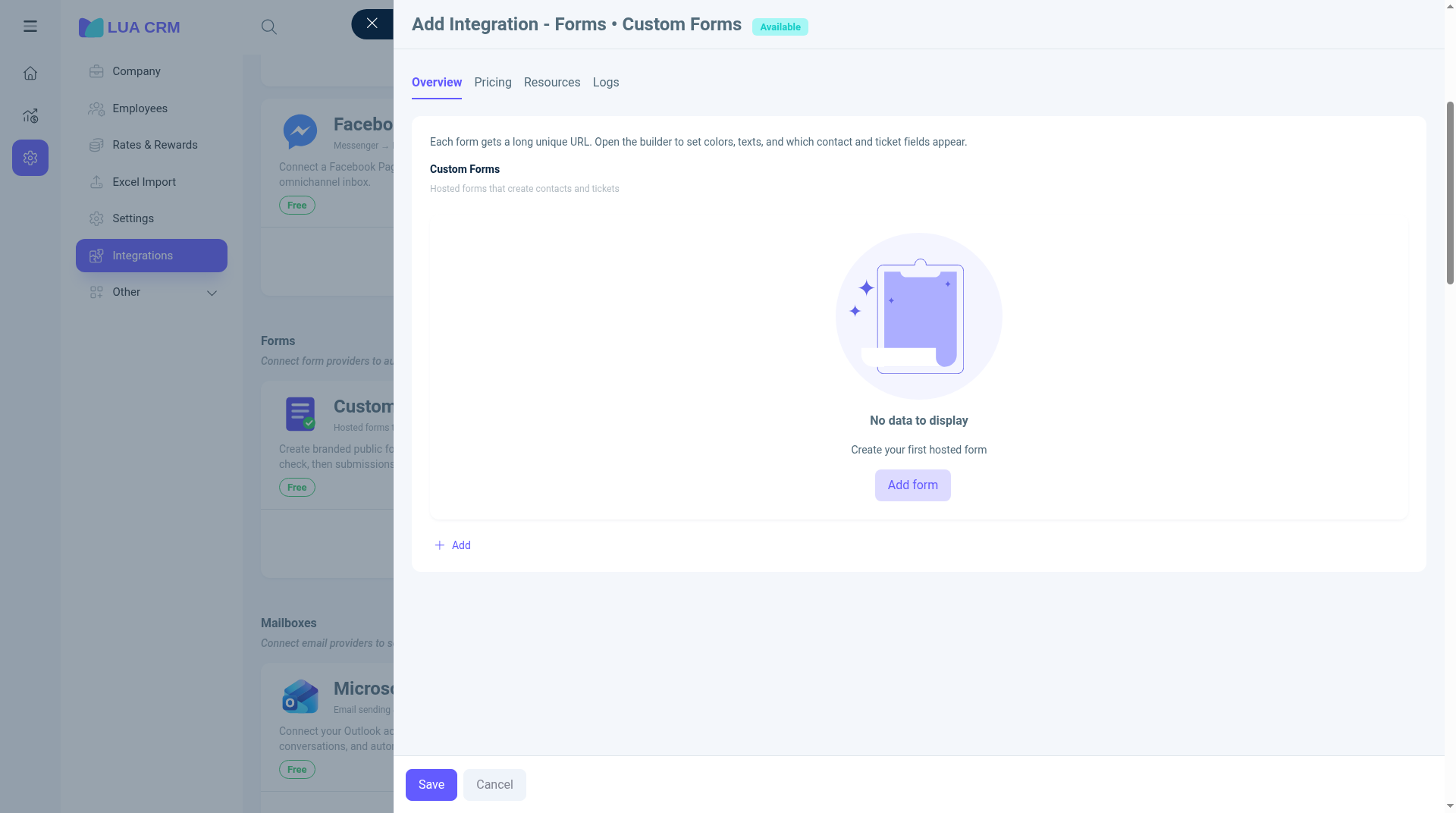
With no forms, the list says No data to display and Create your first hosted form, with Add form and a + Add link under the card.
Once a form exists, the dialog heading is Custom Forms and Add form sits in the header. Each form is its own card:
| On the card | Meaning |
|---|---|
| #1 • the form name | The number and the internal name |
| Project | The project that receives submissions, or a dash when none is set |
| Status | Active or Inactive. The switch saves immediately and turns the public address on or off |
| Design form | Opens the builder |
The card menu (⋮) is Design form, Copy URL, and Delete. Copy URL copies the public address and tells you it was copied. Delete is red.
Add form creates a form immediately. It does not ask for a name. The new form is named Custom Forms, left Inactive, pointed at the first active project, and set to contact type Individual. It already contains Email (required) and Phone, plus a thank-you message you can replace. The builder opens as soon as the form exists.
Delete has no confirmation. The form leaves the list at once, it is turned off, and the public address stops working.
Builder
Design form opens /integrations/custom-forms/builder for that form. The header has a back link, ← Integrations, the form name, Copy URL, and Save. Language tabs appear when the company has more than one language (the company language, plus each language added under Languages and translations). With one language the tabs stay hidden. Text you edit is stored per language.
Save stores the page and shows that it was saved. It does not change Active / Inactive. Turning the public page on is the status switch on the list.
The builder is three columns.
Fields you can add
The left rail is Custom fields: fields that are not on the form yet, in three groups.
| Group | What you can add |
|---|---|
| Built-in | Email and Phone |
| Contact fields | Fields that are visible on the contact form for the contact type you chose (individual or legal entity), built-in and custom. The rail leaves out role, position, responsible manager, commission plan, loyalty plan, price type, acquisition source, placements, status, watchers, and participants |
| Ticket fields | Fields on the request form of the project you chose |
A field can be text, number, paragraph, list, several choices, date, yes/no, tags, or link. Click a field to put it on the form. Changing Contact type or Project reloads this rail. When every allowed field is already on the form, the rail says there is nothing left to add.
Changing the project after you have added ticket questions leaves those questions on the page. They still belong to the previous project’s form.
Page preview
The middle column is a live preview in the form’s colors and font: the header image, the logo, the title, the description, the questions in order, the submit button, and Powered by Lua CRM. The title and the description are edited in place, in the language tab you have open. Drag a question to reorder it. A required question shows a red asterisk. The ✕ on a question removes it. Click a question to select it.
The selected question
With a question selected, the right side shows:
| Control | Meaning |
|---|---|
| Field label | The label on the public page, per language |
| Required | The visitor must answer before the form will submit |
| CRM field | Read-only. The contact or request field this question writes, and which group it came from |
| Remove field | Takes the question off the form |
Page settings
Page settings is the accordion under that card. It opens already expanded.
| Setting | Required | Meaning |
|---|---|---|
| Internal name | Yes | The name on the forms list. Save is refused while it is empty |
| Contact type | — | Individual or Legal entity. Changing it reloads the field rail |
| Project | Yes | An active project. Every submission creates a request in this project. Changing it reloads the field rail |
| Default lead source | No | None, or a lead source. Stored on the contact and on the request |
| After submit | — | Show thank-you or Redirect |
| Redirect URL | When you chose Redirect | Shown only for Redirect. It has to start with http:// or https://. Any other value is dropped |
| Thank-you message | When you chose Show thank-you | The text after a successful submit, per language |
| Submit button label | No | The button the visitor clicks, per language |
| Font | No | System, Inter, Roboto, Open Sans, or Nunito |
| Colors | No | Background, card, primary, and text. A new form starts at #f4f6fb, #ffffff, #4f46e5, and #1f2937 |
| Logo and Header image | No | Choose an image and it uploads immediately. Save keeps it |
| Public URL | — | Read-only, with Copy URL. Regenerate URL asks you to confirm in the browser. The previous address stops opening the form |
The public address looks like https://forms.luacrm.com/ followed by a long token. Adding ?lang= and a language code opens the form in that language.
What a submission does
On the public page the visitor completes the bot check, then the required questions. The form needs an email or a phone. A submission with neither is refused.
Lua CRM then:
- Creates a contact, or matches one that already exists. The contact is a customer. When the form’s project is a lead project, the contact is also a lead. The form’s lead source is set on the contact, and contact questions are saved on that contact.
- Creates a request in the form’s project, at that project’s start status. The title comes from the request-name question, then from the contact’s name, then from the form name. The lead source is copied onto the request. A lead amount is stored when the form asked for one.
- Starts any marketing automation that runs when a custom form is submitted. The automation receives the contact, the request, the phone, the email, and the form title.
- Shows the thank-you message, or redirects, according to After submit.
An inactive or deleted form tells the visitor This form is no longer available.
Tips
- Add form creates a form and opens the builder before you have named it. If you opened it by mistake, go back to the list and Delete that card.
- Delete on the list does not ask you to confirm. The public address stops working immediately.
- Save in the builder does not publish the form. The Status switch on the list does.
- A new form is Inactive until you turn it on, so the public address does nothing useful until then.
- Ticket questions added under one project stay on the canvas after you pick a different project. Remove them if they should not be on the new project’s request.
- The visitor must leave an email or a phone. Other questions are required only when you marked them required.