Sign in and choose a company
Lua CRM signs you in on the website, then opens the company you belong to. When you belong to more than one company, you pick one first. When a security code is required, you enter it before the workspace opens. A new company finishes in a short setup wizard.
Where you sign in
The sign-in form is on luacrm.com. Login is at the top right. The address includes your language, for example https://luacrm.com/en/login. Logout on any of the screens below returns you to that page.
Enter your username or email and your password. Use Google or Facebook when those buttons are offered.
The same page offers a demo and a new company:
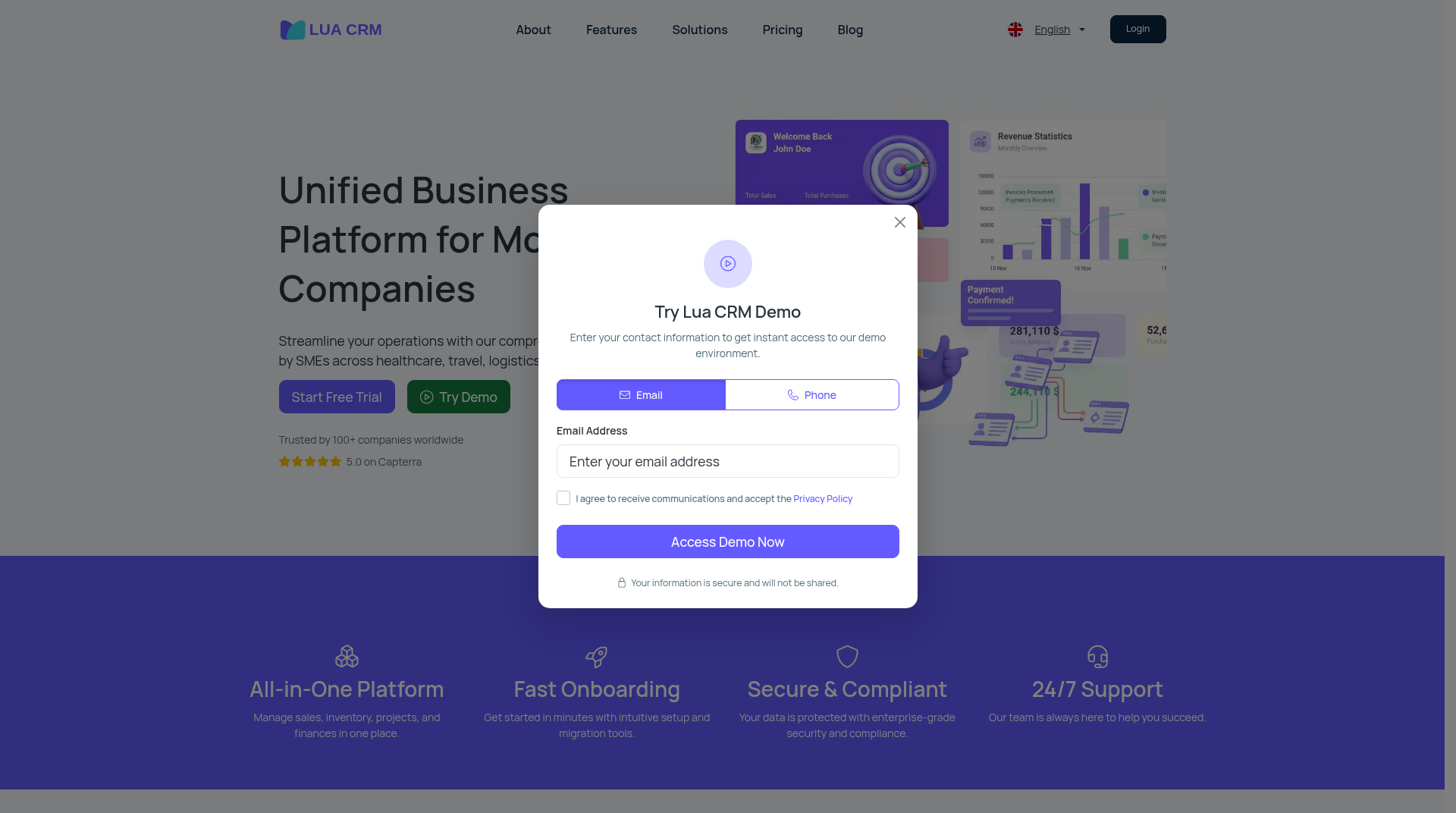
- Try Demo opens Try Lua CRM Demo. Choose Email or Phone, enter it, tick I agree to receive communications and accept the Privacy Policy, and press Access Demo Now. That opens a demo environment. The dialog says your information is secure and will not be shared.
- Start Free Trial registers a new company, then opens the onboarding wizard.
After your password is accepted
Lua CRM then opens the next screen that applies to you:
- When your user is connected to two or more active companies, Select Profile opens.
- Lua CRM checks the company you picked, or your only company. A disabled account in that company is refused with This account is disabled. When two-factor verification applies for you in that company, Security verification opens.
- When your user, or the company you are entering, still has first-time setup to finish, the onboarding wizard opens.
- Otherwise the dashboard opens. If your role cannot open the dashboard, Lua CRM sends you to the first page you can use. See Navigation.
Select Profile
Select Profile is shown only just after you sign in, and only when you belong to two or more active companies. Archived companies are not listed. The heading is Select Profile, and the line under it is Choose a profile to continue.
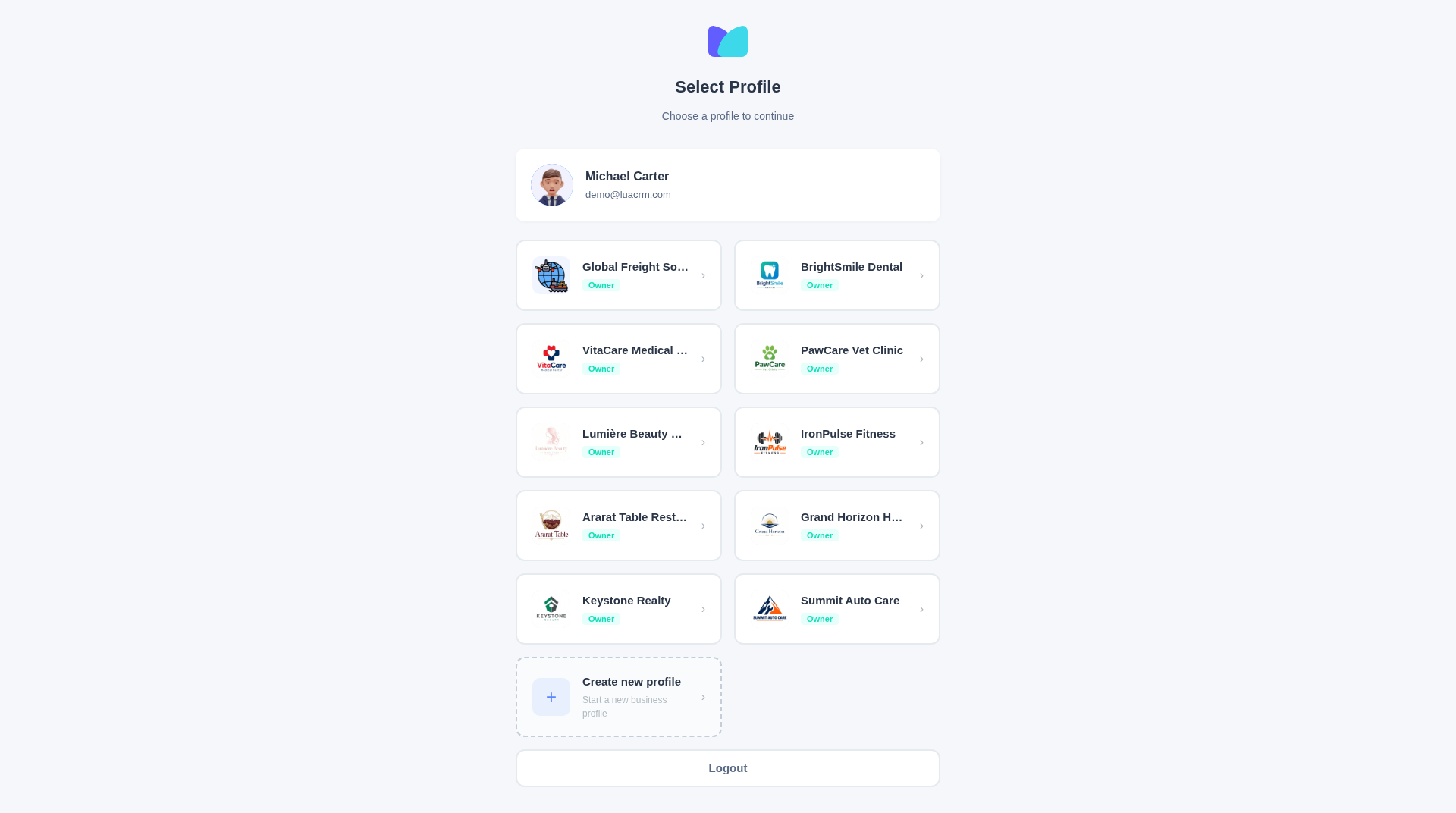
Your card shows your photo, or your initials, then your name and your email (or your phone, when that is how you sign in).
Each company is its own card: the logo, or two initials when there is no logo, the company name, and a badge. A long name is cut on the card. The full name shows when you hover. The badge is Owner when you are that company’s owner, and Member when you are not. Click a card. After you click a company, Lua CRM may ask for the security code for that company. A disabled account shows This account is disabled and you stay on the page. An archived company shows an error and leaves you on this page. When the checks pass, you enter that company: the onboarding wizard when setup is still open, or the dashboard.
Create new profile is the dashed card, Start a new business profile. It asks you to confirm under Attention!, with a short explanation, your current password (the eye shows the password), and a note. Confirm with Yes, create new company. A wrong password shows Incorrect current password. On success Lua CRM creates a new empty company with you as the owner and opens the onboarding wizard.
Logout ends the session and returns to the luacrm.com login page.
This page stays valid for 10 minutes. After that, or if you open the address directly, you are sent back to the login page and sign in again.
The companies listed here are the ones under Your profiles in the avatar menu, where you switch company after you are inside the app. See User profile and the profile menu.
Two-factor verification
This step runs for the company you are entering: the company you clicked on Select Profile, or your only company. It runs when two-factor authentication is on for your user under User profile → Security and you have a verified method. It also runs when the company has turned on Require admin verification for login and you are not the organization admin. In that case the code is sent to the administrator’s method, and you need the administrator to read it to you. See Security. A trusted device skips the step for 30 days.
The screen has a shield icon and the title Security verification. It asks you to enter the code from your email, SMS, or authenticator app, and shows where the code was sent, with the address masked (for example m***@…). You type the code in six boxes. A countdown reads Code expires in 10:00. Trust this device is a checkbox. Verify code submits the code. Resend code sends another one. Having trouble? offers Try another method and Use backup code. Back to login is at the bottom.
Email and SMS codes are 6 digits and last 10 minutes. When the countdown ends, a new code is sent. Five wrong attempts sign you out. An authenticator app uses the code currently shown in the app.
Try another method lists your other verified methods: Email verification, SMS verification, and Authenticator app, each with the destination masked. Choosing one switches to it, sends a fresh code, and restarts the countdown. With only one method, the message is No alternative methods.
Use backup code asks for one of the 10 backup codes from your profile. The format is XXXXX-XXXXX, and the hyphen is added as you type. Each backup code works once.
Trust this device stores this browser for 30 days so the next sign-ins from it skip the code. The trusted-device duration under Security does not change that 30 days.
After a successful code you reach the dashboard, or the onboarding wizard when setup is not finished.
Onboarding wizard
The wizard opens on its own after sign-in when your user has not finished onboarding. For the company owner it also opens when the company setup is not finished. A new company always starts here. Opening the wizard’s address later, once setup is finished, sends you to the dashboard.
The steps are numbered at the top. Back returns to the previous step. A problem is shown as a red message.
1. Welcome
The heading welcomes you to Lua. Short highlights follow: AI-powered, All-in-one solution, Easy setup, Team collaboration, Secure access, and AI assistant, with links to the feature pages on luacrm.com. Get started continues.
2. Personal details
This step is shown only while your own setup is still pending. The heading is Set up your profile.
| Field | Required | Notes |
|---|---|---|
| Photo | No | Upload a picture |
| First name | Yes | |
| Last name | Yes | |
| Position | Yes | Pre-filled with CEO for the owner of a new company. A position that does not exist yet is created |
| Time zone | No | |
| Yes | ||
| Phone | No | Checked before it is stored |
Next saves and continues. When there is no company step, this is the last step you fill in, and the button reads Complete setup.
3. Company details
This step is shown only to the owner, and only while company setup is still pending. The heading is About your company.
| Field | Required | Notes |
|---|---|---|
| Company logo | No | |
| Company name | Yes | |
| Industry | Yes | The industry changes the wording of the app as soon as you finish. A dental company, for example, shows contacts as patients |
| Primary currency | Yes | Also sets the currency of the main cash account |
| Default interface language | Yes | Switches the language of your session. The main branch and the standard operation types are named in that language |
| Website | No | See the note below |
| Full address | No | Expand opens Postal code, Country, State/Region, City, Street, and House. The address can be looked up on the map |
Complete setup saves the company. Saving also creates the walk-in contact, sets the default role of a new contact to Customer, and creates the Leads project. A dental company also gets a Treatment plan project.
The website is saved with the company setup.
4. Your workspace is ready
The last step welcomes you by name, shows a progress bar, and opens the dashboard on its own after about two seconds.