Company structure
Settings → Company, then Company Structure (/company_structure). The same tabs are Company Overview, Billing, Company Structure, and Wallets. /branches and /workplaces open this structure page. The company profile, including tax fields, is on Company.
Opening the structure page needs the branches module. Creating, editing, deleting, and reordering a branch use the branches permission. Saving a workplace uses the workplaces permission. Billing uses the same company permission as the overview. Wallets use the wallets permission.
A banner at the top is the subscription with Lua CRM. Trial banners can be dismissed. Debt, overdue, and blocked banners stay. BrightSmile’s structure and billing screens show a free-trial banner.
Structure overview
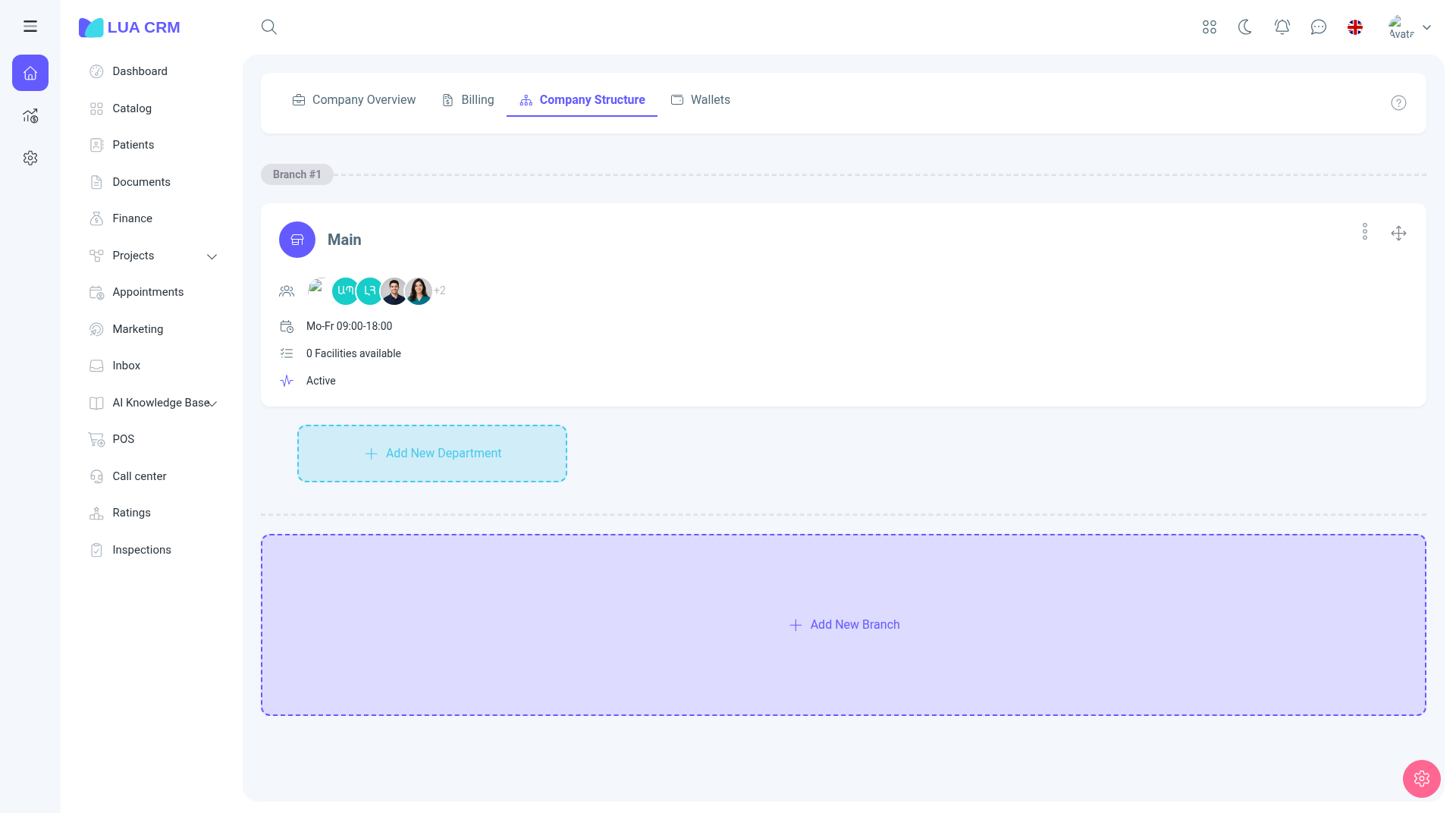
Each branch is a block labelled Branch #1, Branch #2, and so on, in the saved order. The card shows the branch name, employee avatars, the main address, the main phone, and the main email when those exist. Status is Active or Inactive.
Two lines on every branch card are fixed text. The hours line always reads Mo-Fr 09:00-18:00. The facilities line always reads 0 plus the facilities-available label. Neither line is read from the branch. Appointment hours are Working hours. Facilities are saved from the branch form and are not counted on the card.
Employees with no branch assignment are drawn on every branch. An employee who is assigned to one or more branches is drawn only on those branches.
Under the card, each department is its own card: name, description, how many workplaces it has, and status. Workplace badges sit on the department. A workplace with no department is listed under the branch in its own block, titled as workplaces without a department. For a condominium company the workplace icon is a door and workplace services are hidden. Other industries use an office-chair icon.
Add New Department is on every branch. Add New Branch is the large dashed card at the bottom. Add workplace is on each department card. The dashed Add new workplace card under a branch is drawn only when that branch already has at least one workplace with no department.
Branch menu
The … on the branch card has Edit and Delete. The arrows beside it are the drag handle. Dragging a branch saves the new order and renumbers the badges. Reordering needs permission to edit branches.
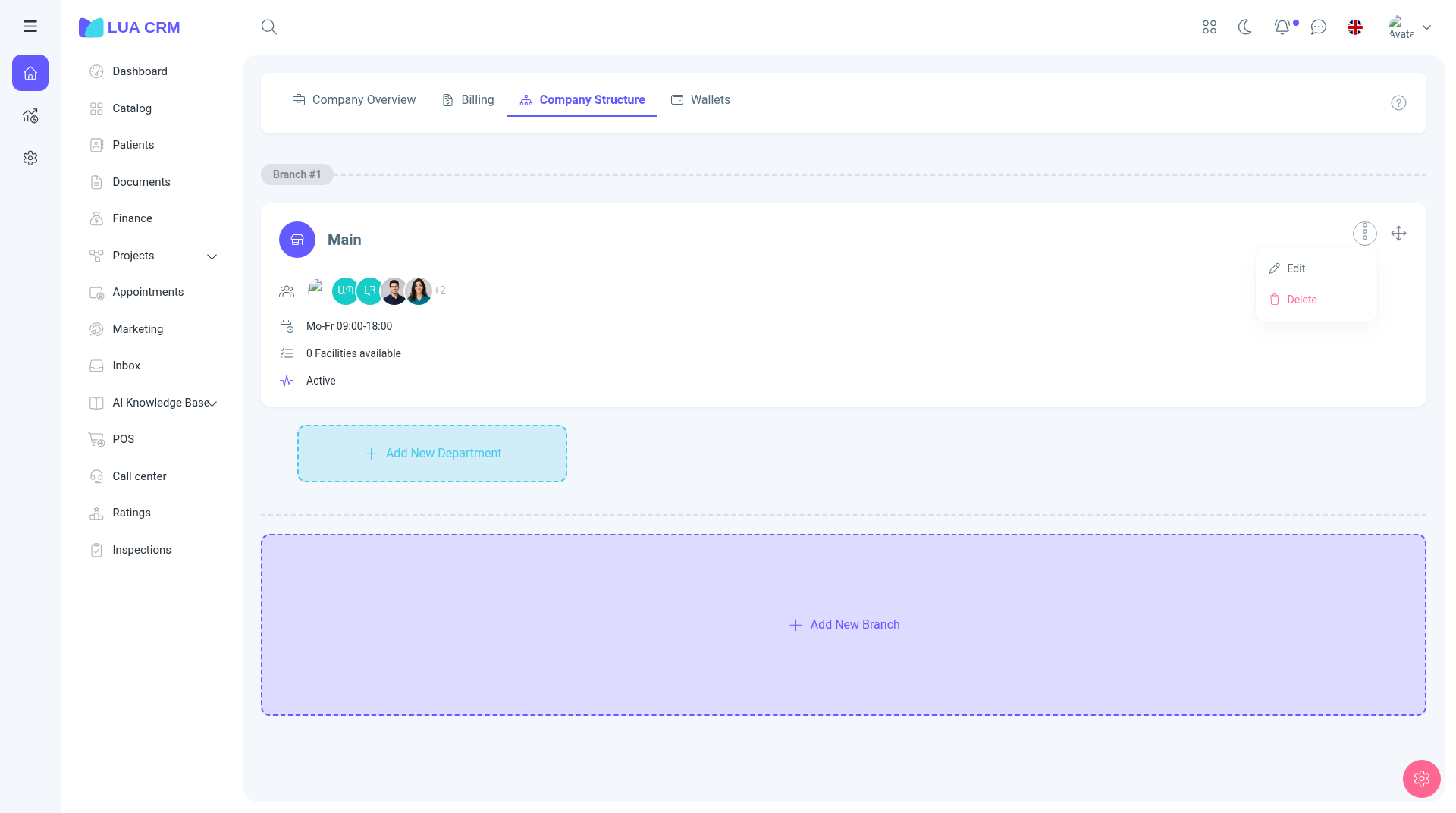
The menu is shown whenever you can open the page. Edit and Delete are checked again when you save. Without edit or delete, the server refuses that action.
Edit opens the branch form filled in. Delete asks you to confirm, then marks the branch deleted. Departments and workplaces on it are not removed by that action.
A department card has the same Edit and Delete. A workplace card and a workplace badge do too. Edit on a workplace opens the workplace form. Delete marks that workplace deleted.
Add or edit a branch
Add New Branch opens a form. Name is required on the form. Allow negative stock is a switch that starts on. The hint on the switch explains that stock may go below zero. Point of Sale and documents use this switch: a sale or a catalog add that would take stock below zero is refused when the switch is off. Address, phone, email, and an image are optional.
| Tab | What you set |
|---|---|
| Basic | Name, negative stock, address, phone, email, image |
| Employees | Who works at the branch, their workplace, and one responsible manager. The count in the tab title is how many people are ticked |
| Contacts | Other contacts attached to the branch, each with an optional workplace. Search adds a row. The row menu removes it |
| Branch facilities | Checkboxes grouped by facility group, with Select all on each group |
| Available services | Services and memberships, each with an Available checkbox. The tab title counts how many are on |
Save writes the branch. Facilities are replaced with the boxes that are ticked. Services are stored as stock rows for this branch: a ticked service is available, an unticked one is not. Only boxes you change on this visit are sent, so leaving a box as you found it keeps the stored value. Employees who are ticked are the only employees linked to this branch after save. Contacts on the Contacts tab replace the previous contact list for this branch.
Clearing every phone, every email, or every address and then saving does not remove the previous rows. The save sends those lists only when at least one row is still filled in.
Add a department
Add New Department asks for a name (required), a branch (required), an optional description, and an optional parent department. The parent list is the departments of the branch you picked, and it reloads when you change the branch. Editing a department leaves that department out of its own parent list.
Workplaces
A workplace stores its name, its own hours text, square meters, services, and status. Hours and square meters on a workplace are the values you typed. They are not the fixed hours line on the branch card. Adding a workplace from a department fills that department in. Adding one from the branch block, when that block is shown, leaves the department empty.
Billing
Billing (/company_billing) is what the company owes Lua CRM. Customer debt stays in Obligations. There is no Add. You do not create customer invoices here.
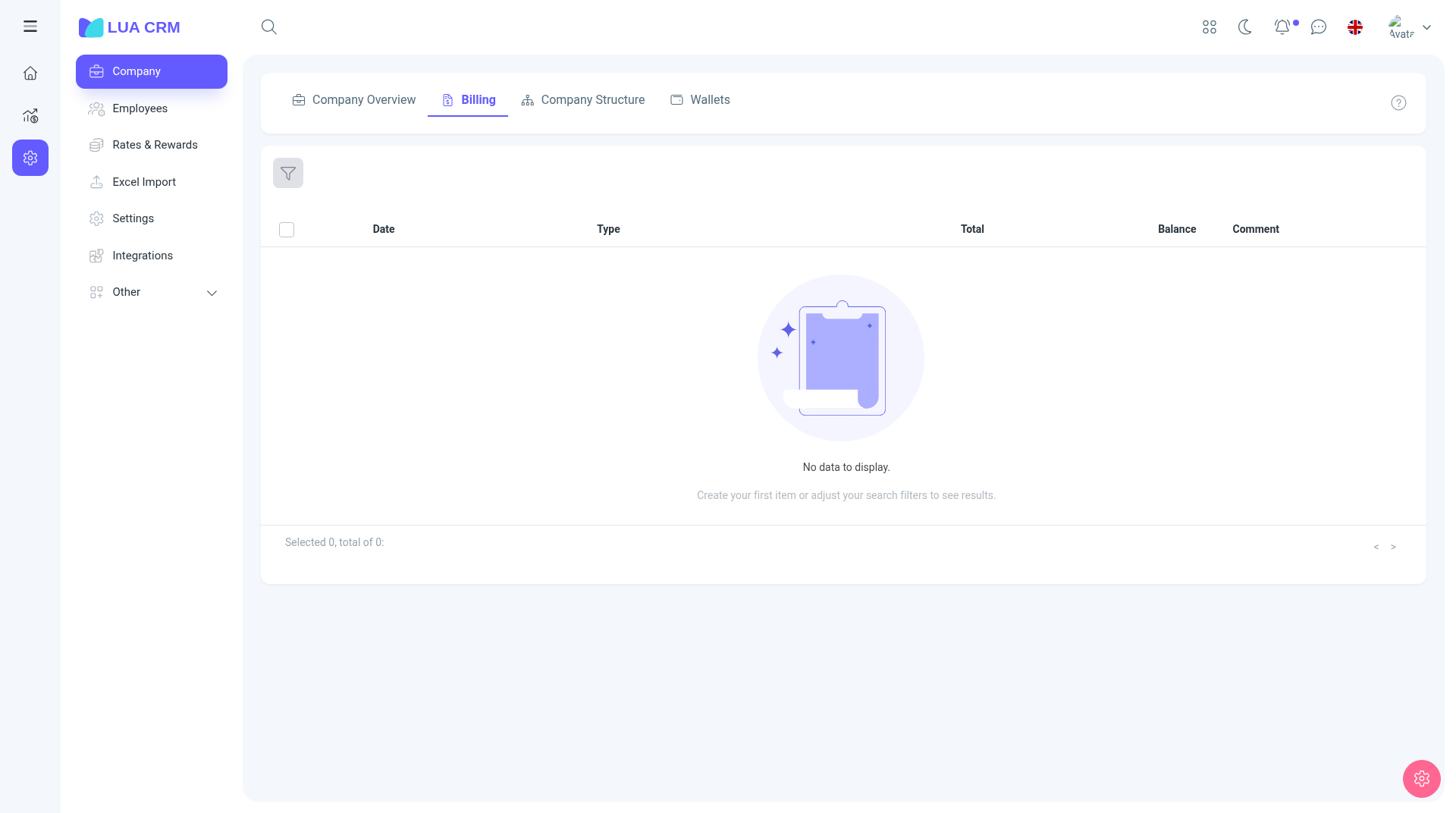
The BrightSmile list is empty. The empty text says to create a first item or change the filter. There is no button on this tab that creates a row. Charges and payments are posted by the subscription, not by this screen.
| Column | Meaning |
|---|---|
| Date | When the row was posted |
| Type | Stored as 0 or 1. The list shows type 0 as added and type 1 as a payment. The filter calls type 0 a charge and type 1 a payment |
| Total | The amount of that row |
| Balance | What is still open on the subscription after this row |
| Comment | The note on the charge or the payment |
ID and user start hidden. Filter by ID (equals), user (equals), type (charge or payment), sync (0 or 1), comment (contains), and a date range. The list does not sort or reorder columns.
Wallets
Wallets (/wallets) are the cash and bank places Finance and Point of Sale post into. BrightSmile has one row: Cash, currency AMD, branch Main, performed by Lua CRM, active.
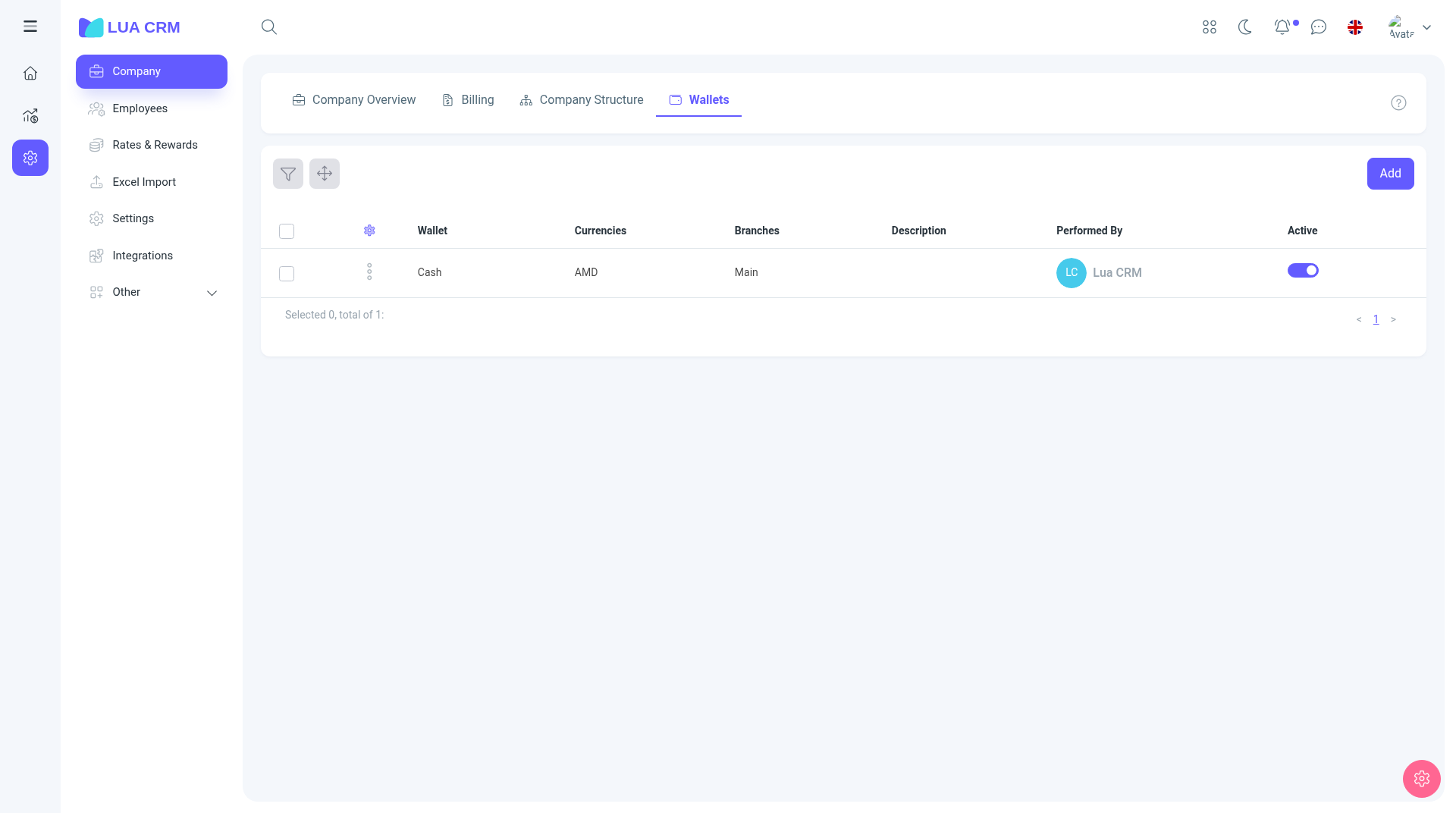
Columns that start visible: wallet, currencies, branches, description, performed by, and active. ID, ordering, and date are available and hidden until you show them. You can drag rows to reorder wallets. The new order is saved.
Filters: name, description, currency, and ID (contains or equals).
What a wallet is
Each wallet you add is stored as one or more money accounts, one per currency, sharing one group. For every ticked branch, Lua CRM also creates a branch account on that currency. Finance lists active money wallets and posts money in, money out, and transfers onto those branch accounts. Point of Sale Pay uses the wallets of the sale’s branch. A purchase on the register does not move a wallet. A wallet with no branch ticked is saved, and it has no branch account, so Finance and POS cannot post to it.
The wallet created with the company is id 1 and is named cash in the company currency. A fiscal receipt treats that wallet as cash. Every other wallet is sent as card, whatever name you gave it. POS still allows only one cash line on a split payment. See Point of Sale.
An inactive wallet stays in this list with the switch off. Finance offers only wallets that are still active. The Active switch updates that wallet row.
Add a wallet
Add needs permission to create wallets.
| Field | Required | Default | Notes |
|---|---|---|---|
| Name | Yes on the form | Empty | The server stores the name it receives, including a blank name if the form check is skipped |
| Description | No | Empty | |
| Currency | Yes, at least the first row | Active on | The list is the primary currency plus additional currencies. Add appends another currency. The first row cannot be removed. A row with no currency is skipped. If every row is skipped, the save still reports success and no wallet is created |
| Branches | Yes on the form | None ticked | Select all is the header checkbox. An empty list is not rejected |
Two currencies become two wallet rows in one group. The list shows them together. Each currency gets its own branch accounts.
Wallet row menu
The … on a row has Edit and Delete.
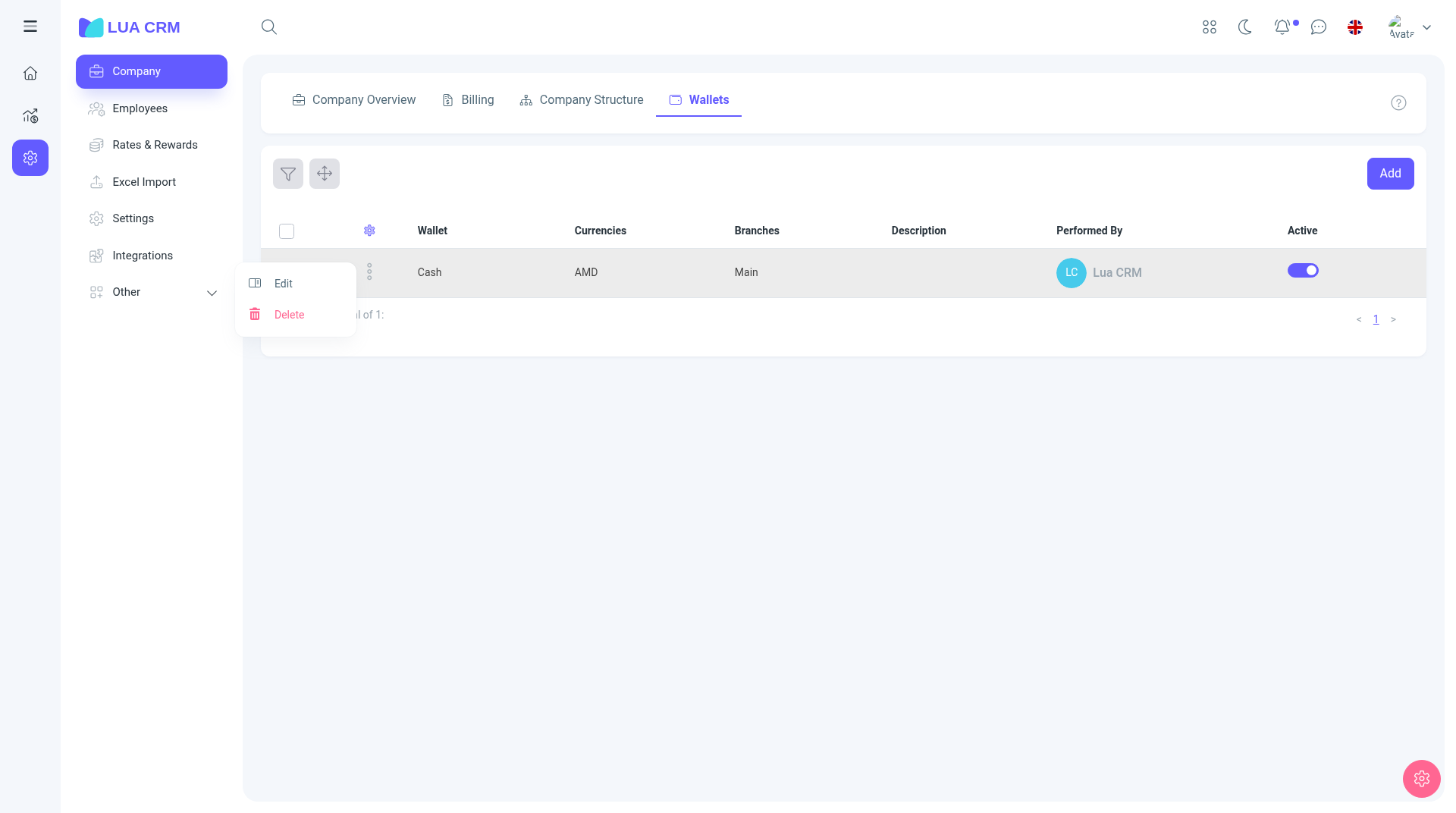
Edit needs permission to edit wallets. It opens the same form for the whole currency group. Saving updates the name and description on every currency in the group. A currency you turn off is marked inactive, and its branch accounts are marked inactive with it. A currency you remove from the form is marked deleted, and its branch accounts are marked deleted. A new currency is added with branch accounts for the branches you ticked. Unticking a branch marks that branch’s accounts deleted. Ticking a new branch creates accounts for each currency still in the group.
Delete needs permission to delete wallets. It asks you to confirm, then marks every currency in the group deleted. The branch accounts it marks deleted are the accounts of the row you clicked. Accounts that belong to another currency in the same group are left in place.