Project automations
A stage automation runs when a request enters a stage, leaves a stage, or moves from one stage to another. You attach it to a stage on the project board. The board itself, the columns, and Move to project are on Projects.
Some industries rename labels. The pictures on this page are from BrightSmile Dental. There a contact is a Patient, items are Services, and requests on the Treatment plan project are Planning of services. The placeholder group for that request reads Planning of service. This page uses the generic names. The pictures use the dental ones.
Open the editor
On the board, open the gear and choose Manage statuses. The panel is Board Statuses. Each stage is a card, with Status Name, Status Category, and Start point. A finished stage also has Outcome Type. At the bottom of the card, Automations lists what already runs on that stage. A stage with nothing set says No automations configured.
+ Add opens New Automation. An automation already on the card opens in the same panel.
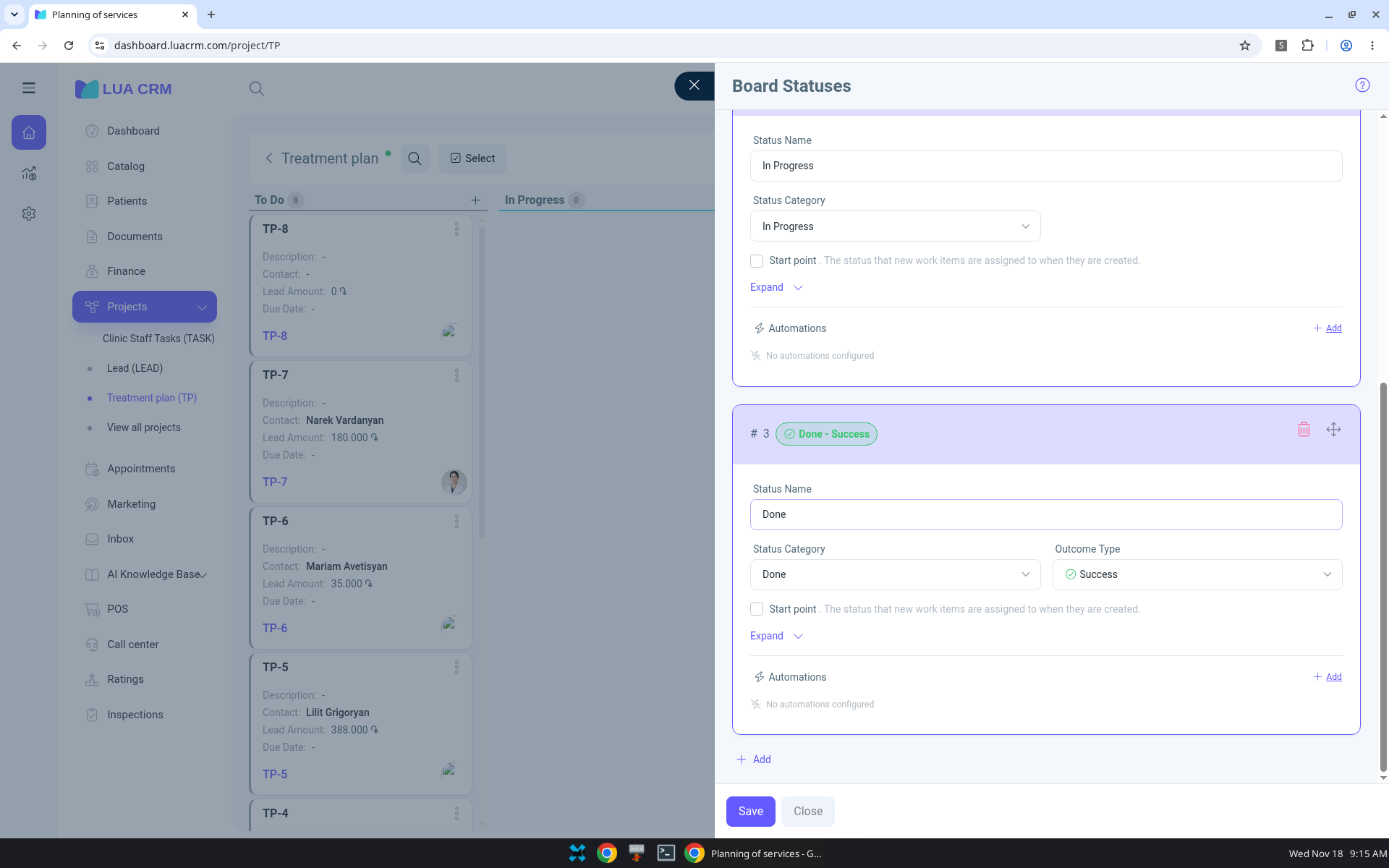
Save on Board Statuses stores the stages. Save inside New Automation stores that automation. Close leaves the panel you have open.
Name, trigger, and settings
| Field | Required | What it does |
|---|---|---|
| Automation Name | Yes | The name on the stage card |
| Description | No | A note for people editing the automation |
Trigger Settings decide when it runs.
| Field | Required | What it does |
|---|---|---|
| Trigger Type | Yes | When entering status, When leaving status, or On specific transition |
| To Status | — | The stage the trigger uses |
When entering status runs as a request arrives in To Status. When leaving status runs as a request leaves that stage. On specific transition runs when a request moves from one stage to another. You set the stage it leaves and To Status as the stage it arrives in.
Settings has two checkboxes, and both start ticked:
- Requires Confirmation – Show popup before executing. The move waits until someone confirms or skips this automation. On a drag, cancel puts the card back.
- Enabled – Automation will run when triggered. Clear it to keep the automation on the stage without running it.
The footer is Save and Close.
Conditions
Conditions (Optional) limit which requests the automation accepts. Add Condition adds a row. Each row has Field Type, Field, Operation, and Value, and a remove control.
| Field type | What it looks at |
|---|---|
| Ticket | Fields on the request, such as Priority and ID |
| Contact | Fields on the request’s contact |
| Ticket custom fields | Custom fields on the request |
| Contact custom fields | Custom fields on the contact |
| Items | Lines on the request |
Operations are Equals, Not Equals, Greater Than, Less Than, Greater or equal, Less or equal, Is Empty, and Is not empty.
The word between two conditions reads And until you click it. A click switches it to or. Conditions joined by And stay in one group. or starts the next group. The automation runs when every condition in any one group is true. Two pairs, with And inside each pair and or between the pairs, mean (A and B) or (C and D).
The value control follows the field:
| Field | Value control |
|---|---|
| Priority | A dropdown: Highest, High, Low, Lowest |
| Is flagged | Yes or No |
| Branch | The active branches |
| A select custom field | That field’s own options |
| A yes/no custom field | Yes or No |
Other fields use a text box, a number, or a date, matching the field. For the dropdown fields above, Is Empty and Is not empty mean the field has no value set. Those two operations hide the value box.
Actions
Actions is required. Add Action opens Select Action Type.
These actions can be used:
| Action | What it does |
|---|---|
| Create Sales Document | Creates a sales document from the request |
| Send Email | Sends an email. See Email, SMS, and reminders |
| Send sms | Sends an SMS. See Email, SMS, and reminders |
| Create ticket | Creates a linked request. Details below |
| Create Reminder | Creates a reminder. See Email, SMS, and reminders |
| Change Responsible | Changes the person responsible for the request |
| Move to Status | Moves the request to another stage. The destination stage’s automations then run. See when automations run |
| Update Field | Writes one or more values onto the request. Details below |
On a project that allows manufacturing, Create manufacturing document is available as well. On other projects it is shown with the actions that are not available yet. Those cards read We will add this in a future update: Create Purchase Document, Create manufacturing document (when the project does not allow manufacturing), Create Appointment, Note, Webhook, and Create Notification.
Each action has a remove control. Project and status lists inside an action can be searched.
Create ticket
Create ticket adds a new request in a project and stage you choose, and links it to the request that triggered the automation.
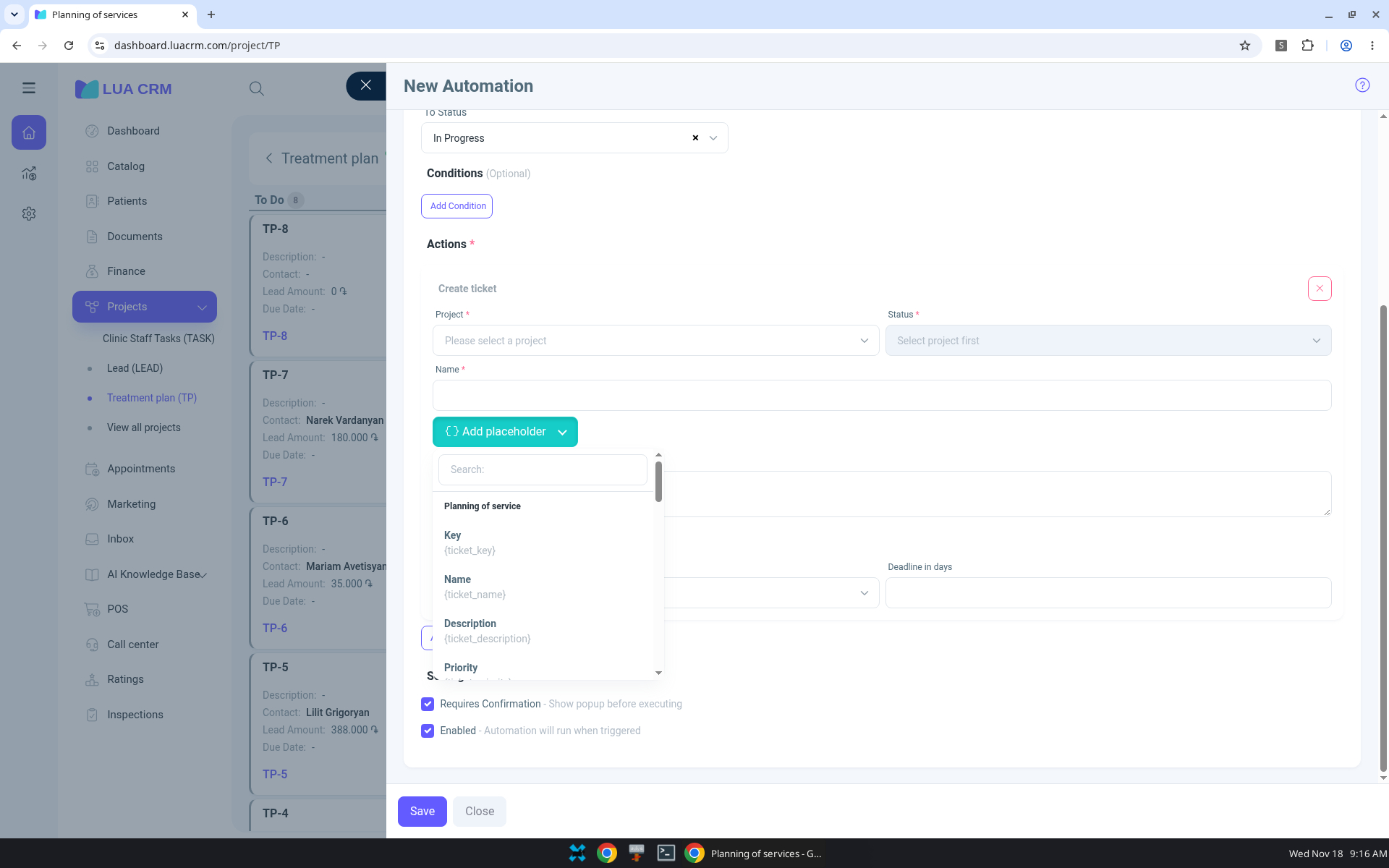
| Field | Required | What it does |
|---|---|---|
| Project | Yes | Active projects. The placeholder is Please select a project. The Leads project is left out. Saving a Leads project is refused with the message that the project is not available |
| Status | Yes | Stages of the project you picked. Until a project is chosen the placeholder is Select project first. A stage from another project is refused |
| Name | Yes | The new request’s name, up to 100 characters. Add placeholder inserts a value from the source request |
| Description | No | The new description. It has its own Add placeholder |
| Assignee | No | An employee. The placeholder is Select employee…. Someone who is not an active employee is refused |
| Deadline in days | No | A number of 0 or more. The due date is that many days after today |
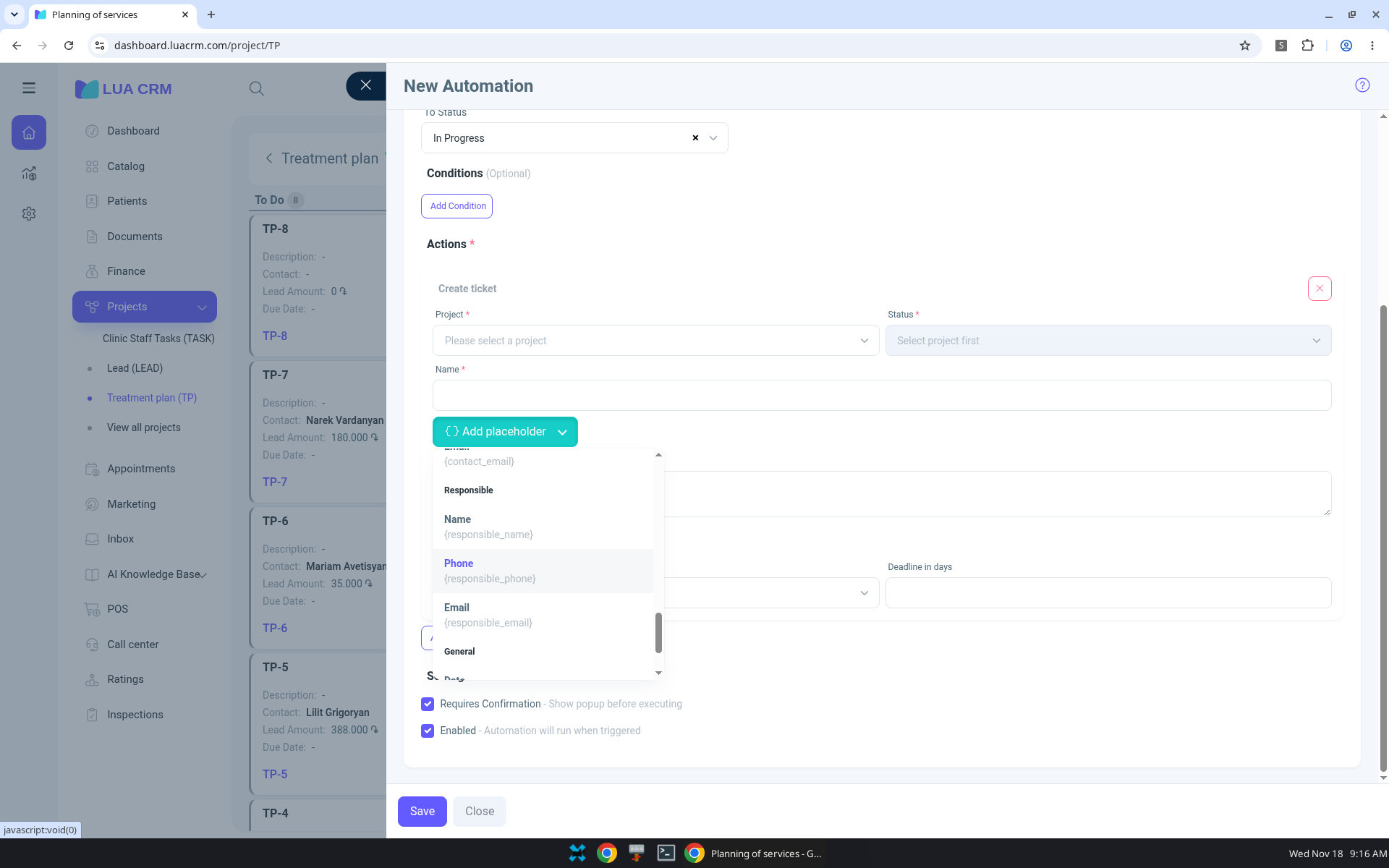
Add placeholder opens a searchable list. Each entry is a label with a token in curly braces under it. Choosing the entry inserts that token at the cursor. A token with one pair of braces and the same token with two pairs are both filled in when the automation runs. A date is filled as DD/MM/YYYY. A date-and-time custom field is filled as DD/MM/YYYY HH:MM:SS, and a date range as DD/MM/YYYY - DD/MM/YYYY. A side of a date range that had a time keeps that time. An empty date is left blank. A time is filled as HH:MM.
| Group | Entries |
|---|---|
| The request. On BrightSmile this group reads Planning of service | Key, Name, Description, Priority, Status, Project Name, Project Key, Start date, End date, Create Date, Ticket amount, Lead Amount, Lead Source |
| The contact. On BrightSmile this group reads Patient | Name, Firstname, Lastname, Phone, Email |
| Responsible | Name, Phone, Email |
| General | Date, Time |
When the request has custom fields, those fields are listed in their own group.
When the automation runs it creates the request in the chosen project and stage, with the filled name and description, the assignee, and the due date. The new request has no contact. The reporter is the person whose action caused the automation to run. The two requests are linked. The link is listed on the activity tab described below.
The new request does not run the automations on its own starting stage. It still records that first stage in its history, so a Create ticket action does not create another request from itself.
Save is refused when the project, the status, or the name is missing.
Update field
Update Field writes values onto the request that triggered the automation. One action can set several fields. Each row is a Field (placeholder Select field) and a Value. + Add Field adds a row. The remove control on the row deletes that row. The same field cannot be used twice. The message says the field is a duplicate. Every row needs a value, so this action cannot clear a field.
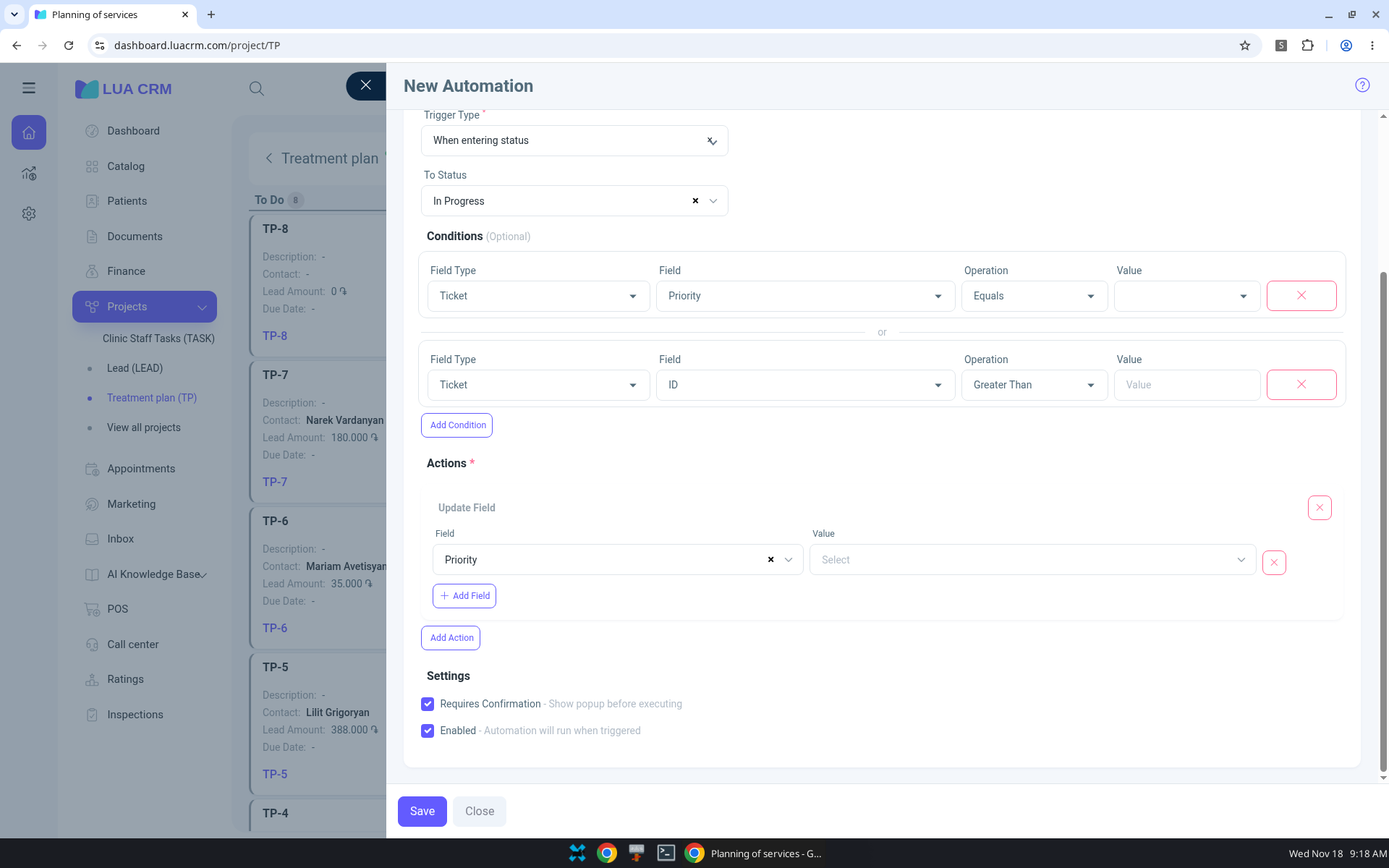
| Field | Value |
|---|---|
| Name | Text, up to 100 characters |
| Priority | Highest, High, Low, or Lowest |
| Flagged | Yes or No |
| Start date | A date |
| Due date | A date |
| Custom fields | Text, number, select (that field’s options), yes/no, date, employee, or contact. Other custom-field types are not offered |
The value control matches the field: a text box, a number, a dropdown, a date, or a search for an employee or a contact.
A due date that falls before the start date is refused. The check uses the dates already on the request together with the dates in this action. The message says the end date is before the start.
When the automation runs, the values are saved, the change is written to the request’s Audit logs, and open boards refresh. If Requires Confirmation is on, the popup lists each field and the value it will write.
Email, SMS, and reminders
Send Email, Send sms, and Create Reminder each have a Content mode.
- Template shows the template list only. Saving with no template chosen is refused with Select template.
- Custom text shows the subject and the message only.
On Create Reminder, the template list follows Notification types. With only email ticked, the list is email templates. With only SMS ticked, the list is SMS templates. The After delay is one field: the number and the unit together.
When an automation runs
These moves run the automations on the stage the request arrives in: the ones set to When entering status, and the ones set to On specific transition when the move matches.
- Drag a card to another column.
- Move to project, on the card or on the request.
- A Move to Status action, which moves the request and then runs the destination stage.
A chain of moves stops after five levels. A move that already happened in that chain does not run again.
After Move to project, automations that ask for confirmation are skipped. There is no confirmation popup on that path. Automations that do not ask for confirmation still run. A drag still waits until you confirm or skip an automation that asks for confirmation.
Linked requests
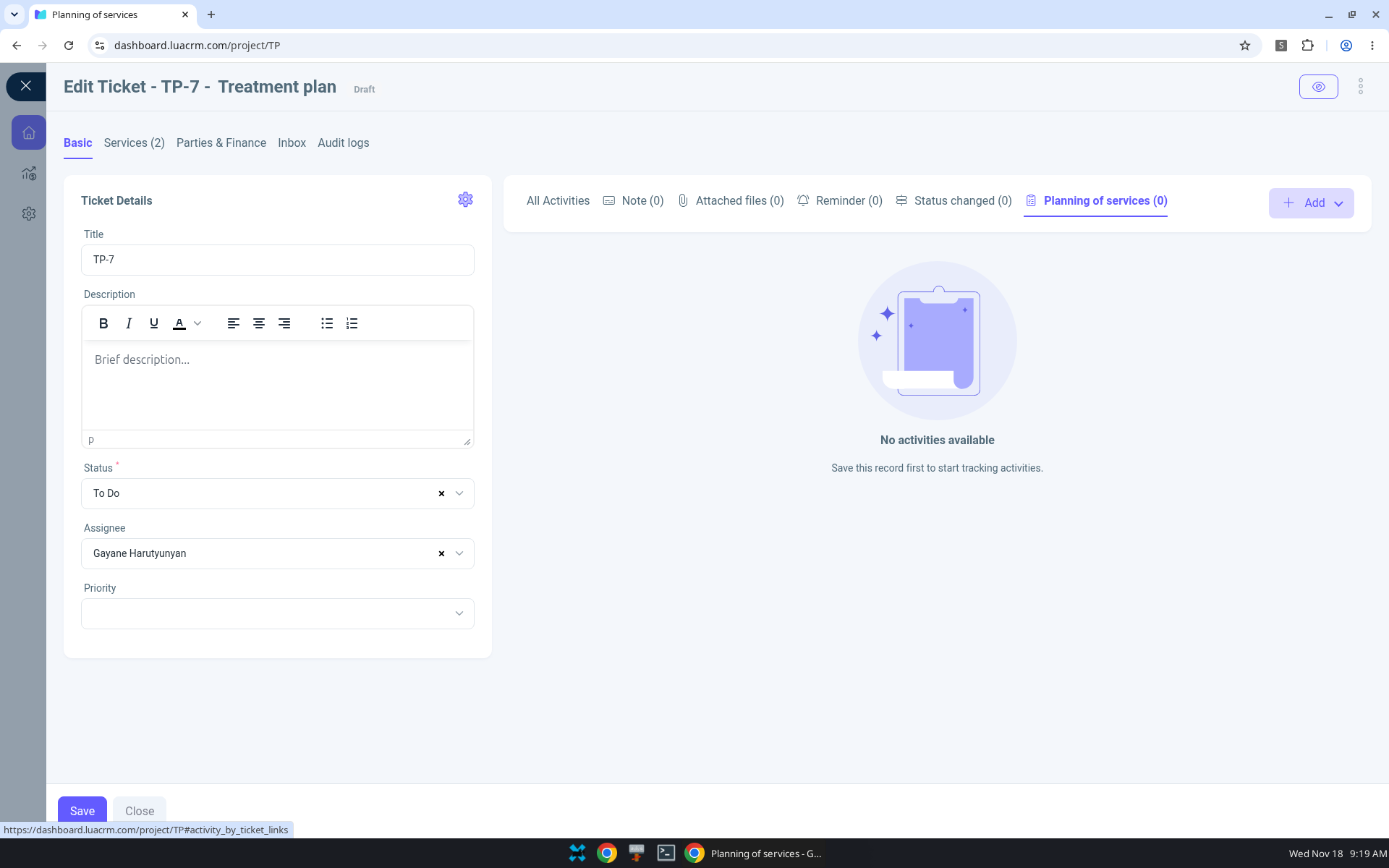
The request’s activity panel has a tab named after the project’s request type, with a count. On a project whose requests are called tickets, the tab reads Tickets. On the BrightSmile Treatment plan project the tab reads Planning of services.
The tab lists requests linked by Create ticket. On the request that ran the automation, each card is labelled Created ticket. On the new request, the card is labelled Created from. A card shows the project, the request key and name, the status, the start date, and who linked it and when. View details opens that request, including an archived one. The list includes only requests you are allowed to open. The links are created by the automation.
When the tab has nothing to show, it reads No activities available.
Set up an automation
- Open the project board, then the gear, then Manage statuses.
- On the stage card, choose + Add under Automations.
- Enter Automation Name. Set Trigger Type and To Status.
- Choose Add Condition when the automation should run only for some requests. Click And to switch a joiner to or.
- Choose Add Action. For Create ticket, pick the project, the status, and a name. For Update Field, pick a field and a value, and use + Add Field for another field.
- Leave Requires Confirmation on when a person should approve the action. Leave Enabled on when it should run.
- Save.
If a save is refused
- Status stays on Select project first until Project has a value.
- Create ticket refuses a missing project, status, or name, the Leads project, a stage from another project, and an assignee who is not an active employee.
- Update Field refuses a field chosen twice, an empty value, and a due date before the start date.
- Template mode on an email, an SMS, or a reminder refuses a save until a template is chosen.