Price revaluation
Home → Documents → Price revaluation (/documents/price_revaluation) changes catalog prices for many items in one document, for one price list at a time, and keeps a record of who changed what. The catalog stays as it is until you confirm. The document does not move stock and does not move money.
The tab sits at the end of the document strip, with a tag icon. You see it when your role can view Price revaluation under Documents. Add New opens the form.
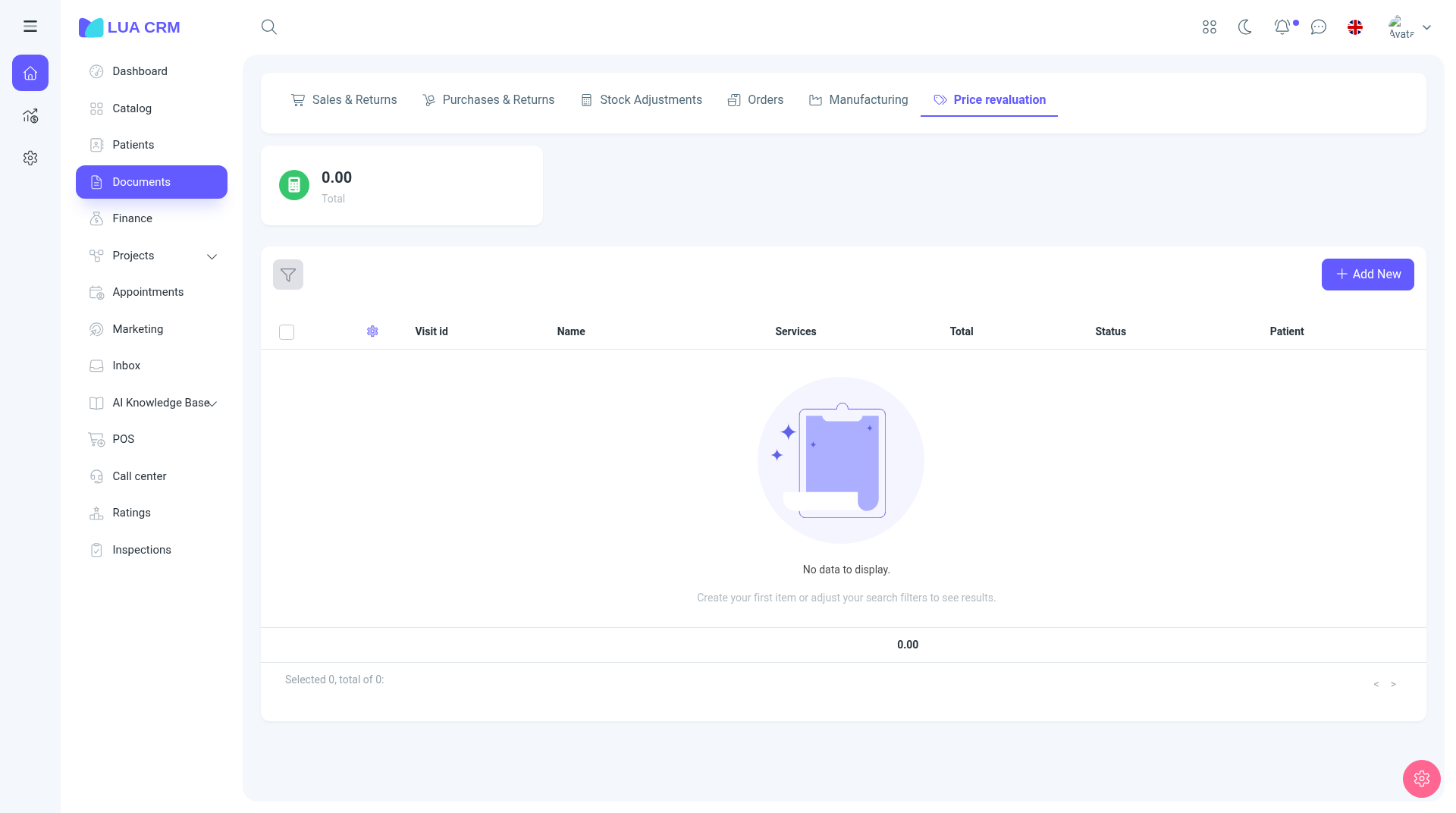
Some industries rename labels. A dental company shows Responsible manager as Doctor, a contact as Patient, and Document products as Provided Services. This guide uses the generic names. On the list above, Visit id, Services, and Patient are the document number, the items, and the contact.
The list
The list has one summary card, Total. There is no Paid card and no Balance card. The columns are the document number, name, items, total, status, and contact. Paid, balance, and payment status are not on this tab, and the filters for payment status, amount paid, and currency are not offered.
The header search includes these documents. With custom numbering turned on, the type abbreviation is PRV.
The form
Add New opens Add - Price revaluation. The tabs are Basic, Items, and Audit logs. The count of lines is part of the Items label, so a new document shows Items (0).
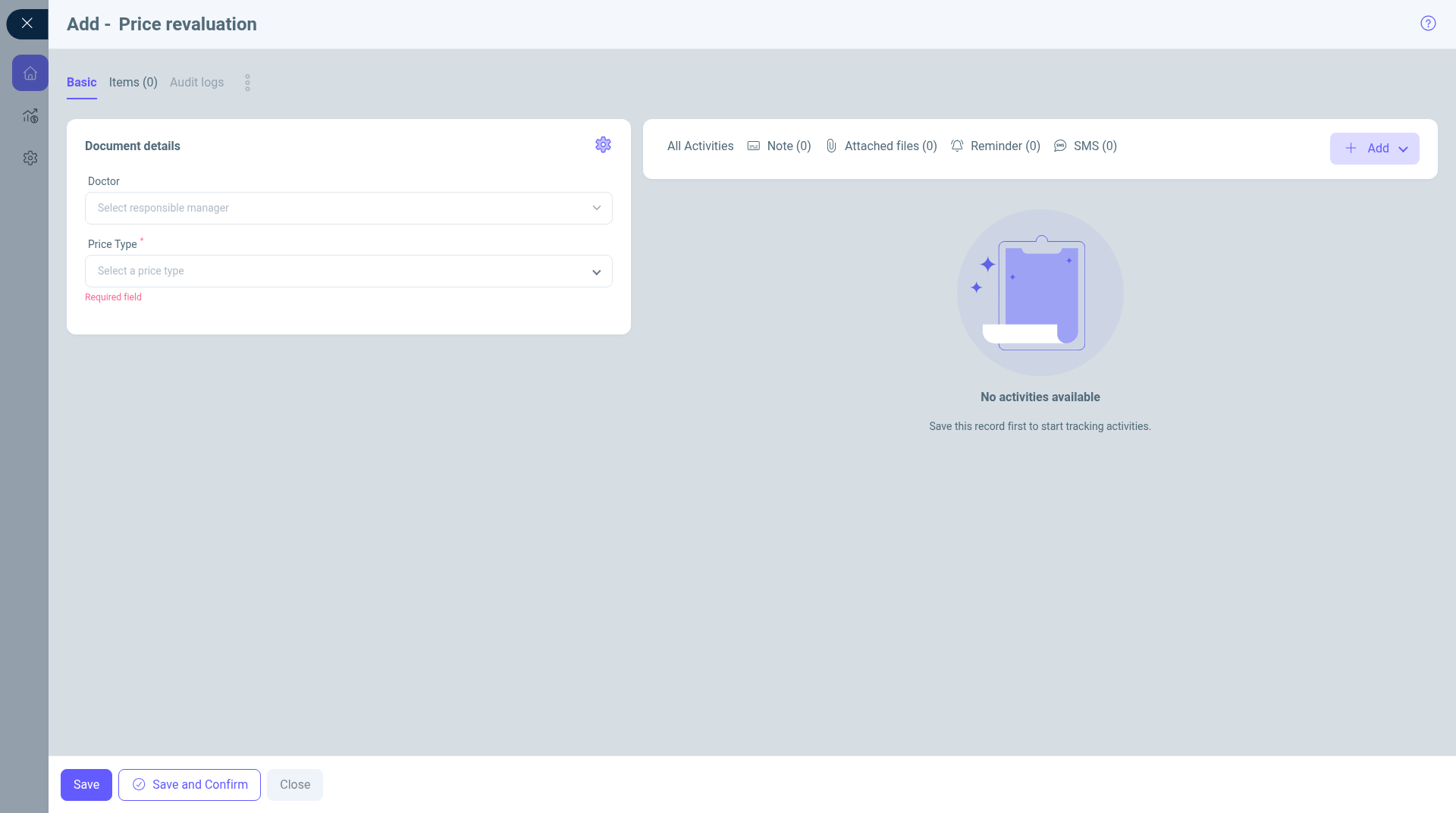
The right side is the activity list used on other records: All Activities, Note, Attached files, Reminder, and SMS. A document that has not been saved yet says No activities available. There is no customer on this form, and there is no payment section.
The footer of a new document is Save, Save and Confirm, and Close.
Basic
Document details holds the header. The gear on that card opens field settings when you may view custom fields. The same form is Price revaluation under Custom fields.
| Field | Shown by default | What it does |
|---|---|---|
| Price Type | Yes, and required | The price list this document updates. The placeholder is Select a price type. An empty field shows Required field. The list is the active price lists that store a fixed price on each item. On BrightSmile the choices are Purchase Price and Selling Price. A price list that calculates the price (a markup, a markdown, or commission plus tax) is left out. See Price lists. Once the document has lines, this field is locked, and a later change of price list is refused |
| Responsible manager | Yes | Defaults to you. The placeholder is Select responsible manager |
| Supplier | Hidden until you turn it on | Optional. When it is set, Load all items loads only items that have this supplier, on the item or on its parent |
| Description, Created on, Created by | Hidden until you turn them on | The same kind of notes and dates as on other documents |
Branch and currency are filled in for you (the first branch, and the company currency) and stay off the form.
Items
Open Items after Price Type has a value. The tab has the usual catalog picker, plus Load all items.
Load all items asks you to confirm. It saves the document if the document is not saved yet, then adds every active product, service, membership, and material that does not itself have variations. Add variations one by one. Items already on the document are skipped, and salary items are left out. When Supplier is set, only that supplier’s items are loaded. On a large catalog this can add thousands of lines.
Group by sits on the Items toolbar, next to Load all items. The choices are None, the default, and Supplier.
With Supplier, lines sit under a shaded header for each supplier. The supplier’s name is in the Item column. When the document’s Supplier field is set, every line is under that one supplier. When it is empty, a line uses the item’s first catalog supplier, in supplier order. A variation uses the parent item’s first supplier. Lines with no supplier stay outside the groups.
Each supplier header has its own box in the New price column, with the currency beside it and a minimum of 0.01. Type a price and leave the box, and that price is copied into New price on every line of that supplier. Save and Confirm writes those header prices onto the lines before it saves. A price of zero or less stops the save with the message that the price must be greater than zero. On a confirmed document the header box is read-only. The header price is not stored on its own. Reopen the document and the box is empty. The line prices are what was saved. Group by is not remembered. Reopening the form returns it to None.
Picking one item adds one line. The quantity is always 1, including when the line comes from the catalog picker, and the line has no quantity. Picking a parent item that has variations adds each active variation. A salary item is refused, with the message that salary items cannot be revalued. Adding the same item again is refused, with the message that it is already added. You need a price type before any item can be added.
| Column | Meaning |
|---|---|
| Checkbox and gear | Tick the line for a bulk action. The gear sits on the line |
| # | The line number |
| Item | The catalog item |
| Barcode | The item’s barcode |
| Current price | The catalog price for the chosen price type at the moment the line was added. A dash when the item had no price in that list |
| New price | The price you want. You can edit it. The currency is shown beside the number, and the minimum is 0.01. It starts equal to the current price, or at 0 when the item had no price |
| Price difference | New price minus current price. A higher new price is shown with a plus sign |
The footer shows Total, the number of lines, and the sum of the price differences.
Apply price change is the bulk action with a percent icon. It appears when lines are ticked and the document is not confirmed. It opens a side panel, Apply price change:
| Control | Meaning |
|---|---|
| Mode | Increase by %, Decrease by %, Add amount, or Subtract amount |
| Value | The percent or the amount. The minimum is 0.01. The suffix is % or the currency |
The new price is worked out from the current price, not from a new price you already typed. Running a 10% increase twice still leaves the line 10% above the current price. A line with no current price is left as it is by Increase by %, Decrease by %, and Subtract amount, and it is named in the warning that prices were left unchanged. Add amount starts from zero and sets the new price to the amount. A line whose result would be zero or less is skipped, and those lines are named in that same warning.
Delete removes the ticked lines.
Save, confirm, and return to draft
Save keeps a draft. Catalog prices stay as they are.
Save and Confirm posts the prices. The document needs at least one line, and every new price must be greater than zero. A price that is not is refused with the message that the price must be greater than zero. A document whose price differences add up to zero can still be confirmed.
On confirm, each line sets the catalog price of that item’s main unit, in the chosen price list, to the new price. A change of one cent is applied, so a catalog price of 10.00 with a new price of 10.01 is written. Each change is written on the item’s price change history: the old price, the new price, the person who confirmed, and a link to this document. On the item card that link is the Document column. See Catalog.
The price updates are saved together. If that update fails, the catalog prices stay as they were and the message is Failed to update prices.
Close leaves the form.
Cancel is available on a confirmed document when your role has Cancel confirmed documents, the same switch as on other document types. It returns the document to draft. For each line, if the catalog price is still the price this document set, the previous price is restored and the change is written to the price history. If the item had no price in that list before, the price is removed. If someone changed that catalog price after you confirmed, the later price stays in the catalog. Returning the document to draft leaves that line’s prices on the draft as they were. The message reports how many prices were restored and how many were kept: Prices restored: N. Prices kept: M.
Change prices for one price list
- Open Price revaluation and choose Add New.
- Choose Price Type. Set the responsible manager if it should be someone else.
- Open Items. Add items from the catalog, or choose Load all items.
- Type a New price, tick lines and choose Apply price change, or set Group by to Supplier and type one price per supplier.
- Save to keep the draft, or Save and Confirm to write the catalog prices.
Permissions
Price revaluation has its own view, create, edit, delete, and print rights under Documents. Those rights can be limited to your department. Save and Save and Confirm use create on a new document and edit on an existing one. Cancel needs Cancel confirmed documents.
Roles that were already in the company were given the same Price revaluation rights they had for stock adjustments. An administrator can change those rights afterward, the same way as for any other document type.
Limitations
- One price list per document. Choose it in Price Type before you add lines. After that the field is locked.
- Only price lists with a fixed price per item are offered.
- Only the item’s main unit price changes. Prices on other units stay as they are.
- Lines have no quantity. The document does not move stock and does not create an amount owed.
- Catalog prices change when you confirm, and only then.
- Apply price change always starts from the current catalog price.
- A line with no current price is left alone by Increase by %, Decrease by %, and Subtract amount, and it is named in the warning. Add amount sets that line to the amount.
- Load all items can add a very large number of lines.
If Items will not open
Clicking Items (0) on a blank new form saves the document first. When Price Type is still empty, that save fails and the message is Failed to save document. Choose the price type, then open Items.