Contact card
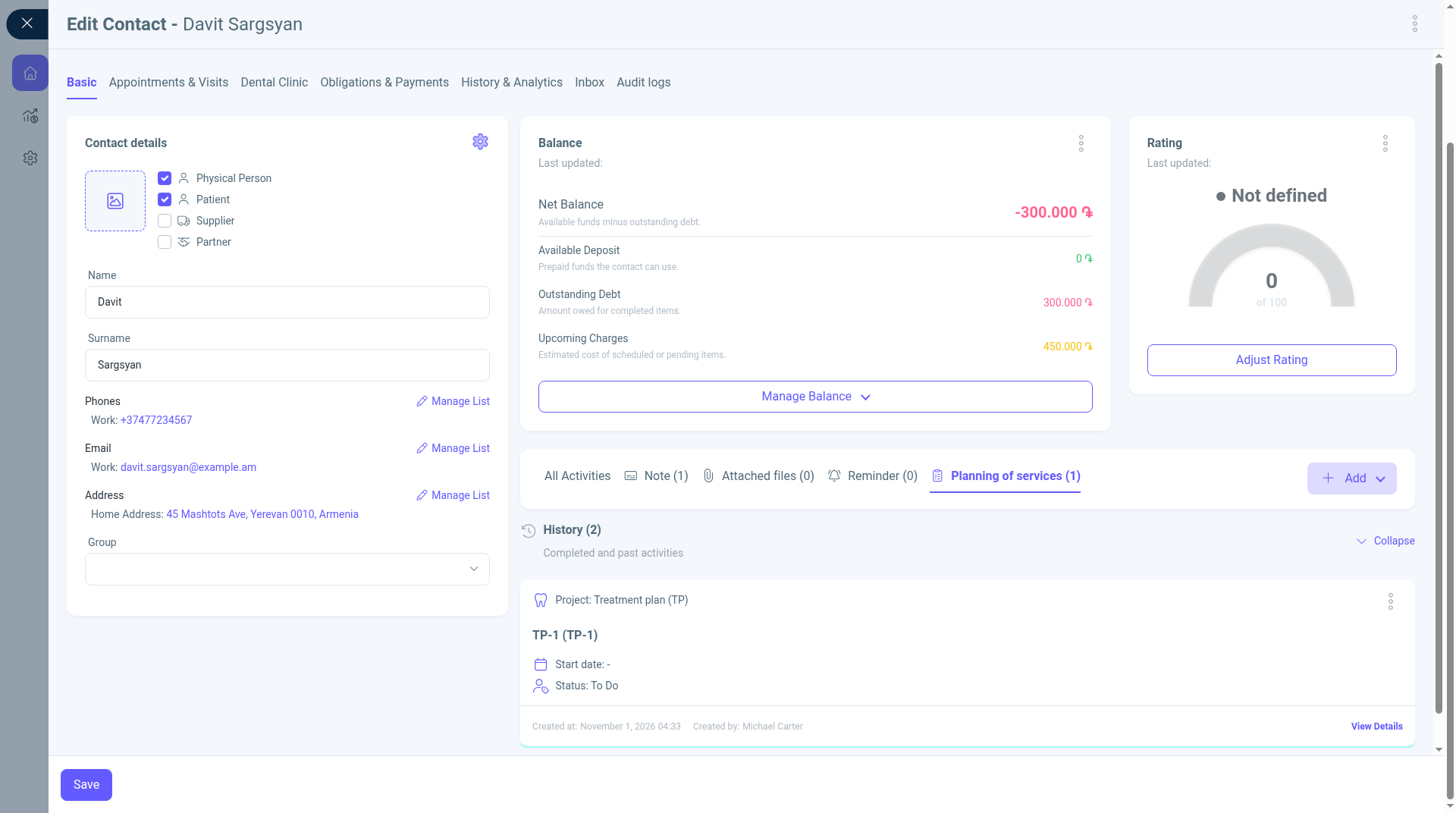
The contact card is the panel that opens when you click a row on Customers. The address stays /contacts. The panel title is Edit Contact, then the person’s name. Save at the bottom writes the fields on Basic. Close discards unsaved edits on that form.
Screenshots are from the BrightSmile Dental demo, English interface, patient Davit Sargsyan. That company is a dental clinic, so the customer role is labeled Patient and the menu says Patients. Another industry keeps the Customer label from Customers. Amounts in the pictures are in AMD (֏).
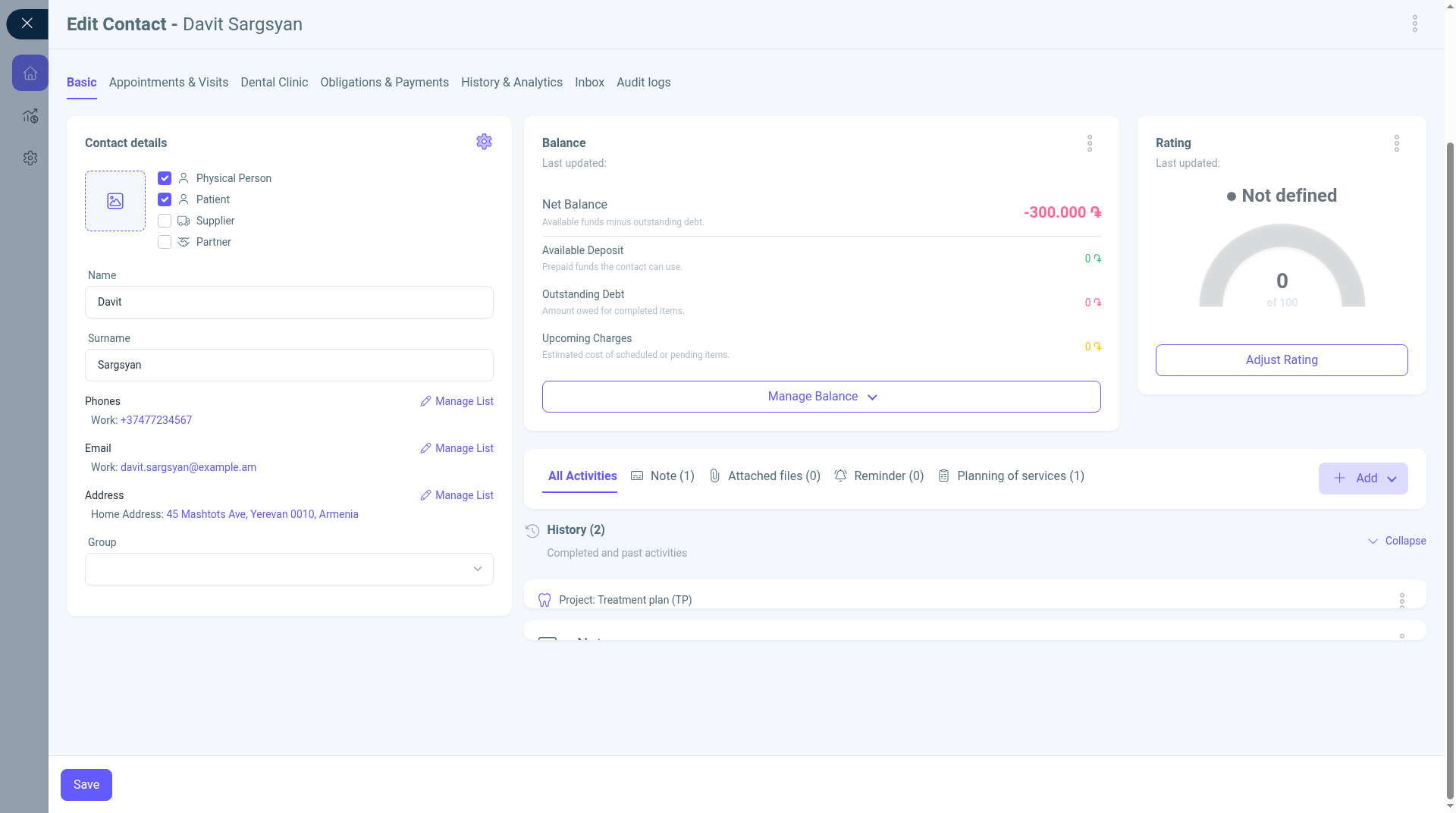
A brand-new contact opens on Basic with the detail form. The header menu stays disabled until the first successful save. Balance and rating load after that save. Choosing Add in the activity list saves the contact first and reopens the card; if a required field is empty, the save stops and the note or file is not stored.
A compact contact picker, used when another screen adds a person inline, shows the detail fields only. Appointments, money, history, inbox, audit, and industry tabs stay on the full card.
Tabs
| Tab | What it is for | When it is on the card |
|---|---|---|
| Basic | Details, balance, rating, activity | Every full card and the compact picker |
| Memberships | Assigned memberships. See Memberships on the contact card | Contacts, and only when memberships are on for the industry. Hidden for dental (industry 2), financial services (industry 23), and industry 51 |
| Salary | Ongoing and one-time salary | Employee cards (/users) only |
| Schedule | Weekly schedule for one branch | Employee cards opened on the full Employees page |
| Appointments & Visits | Visits booked for this person | Full card, except financial services (industry 23) |
| Dental Clinic | Chart, treatment plans, clinic forms | Dental companies (industry 2) that have an active project for that industry, and only if you can view tickets |
| Obligations & Payments | What is billed and what is paid | Full card, except financial services (industry 23) |
| Workers | People employed by this company | Legal entities, on the full card. Hidden on a person |
| History & Analytics | Transactions, planning, purchases, and (where memberships exist) usage | Full card |
| Inbox | Conversations linked to this record | Full card |
| Audit logs | Who created and changed the record | Full card, and only if you can open Logs (module access used by Reports → Logs) |
Financial services still have the standalone Visits and Finance pages. Those tabs are only removed from the card.
Header menu
The kebab at the top right is the actions menu. Every item is disabled on a contact that has never been saved.
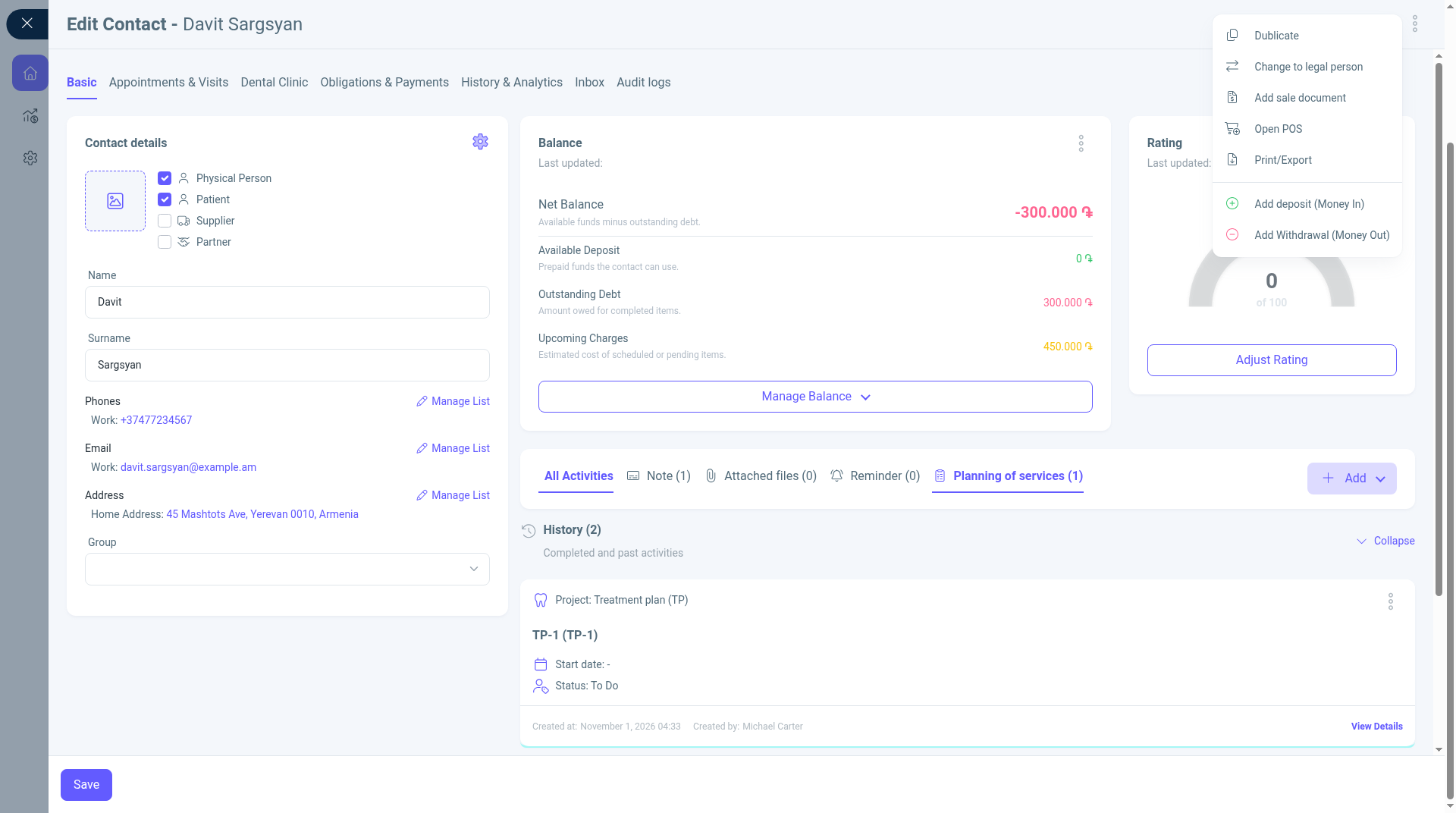
| Action | What it does | Who sees it |
|---|---|---|
| Duplicate | Loads a copy into an unsaved new card. You still have to Save | Anyone who can open the saved card |
| Change to legal person | Converts a person into a company after you confirm | Saved cards you may edit. On a company the same item reads Change to physical person |
| Add sale document | Opens a sale with this contact already chosen | Sales: create |
| Open POS | Opens Point of Sale with this contact already chosen | POS: create |
| Print/Export | Opens the template picker | Saved cards |
| Add deposit (Money In) | Records a deposit or a deposit obligation | Saved cards. On the obligations tab the same action is hidden when the card is read-only |
| Add Withdrawal (Money Out) | Records a withdrawal or a withdrawal obligation | Saved cards |
Duplicate copies the last saved record. Typing that is still unsaved on the open form stays out of the copy. The copy has no id, no login access, an empty public-services number, an empty tax ID, and empty phone and email lists, so a phone or email that must stay unique is cleared. Header actions disable again because the copy is a new card until you save it.
Change to legal person asks you to confirm, then reloads the card as a company. Workers appears after that conversion. Changing a company back uses Change to physical person.
Add sale document and Open POS need the contact id. The BrightSmile walkthrough opened POS on /pos and closed it without a sale. The same pass opened a sale panel titled Edit - Sale #9 and closed it without Save. Whether that open alone stored a draft was not confirmed.
A further item, Create sales document, is added to this menu only when a project is set up to turn a plan into a sale. The BrightSmile header that was captured did not show it. That flow uses the treatment-plan editor with the tooth chart omitted and then posts a confirmed sale. It is separate from Add sale document.
Print and export
Print/Export opens the template picker used elsewhere in Lua CRM.
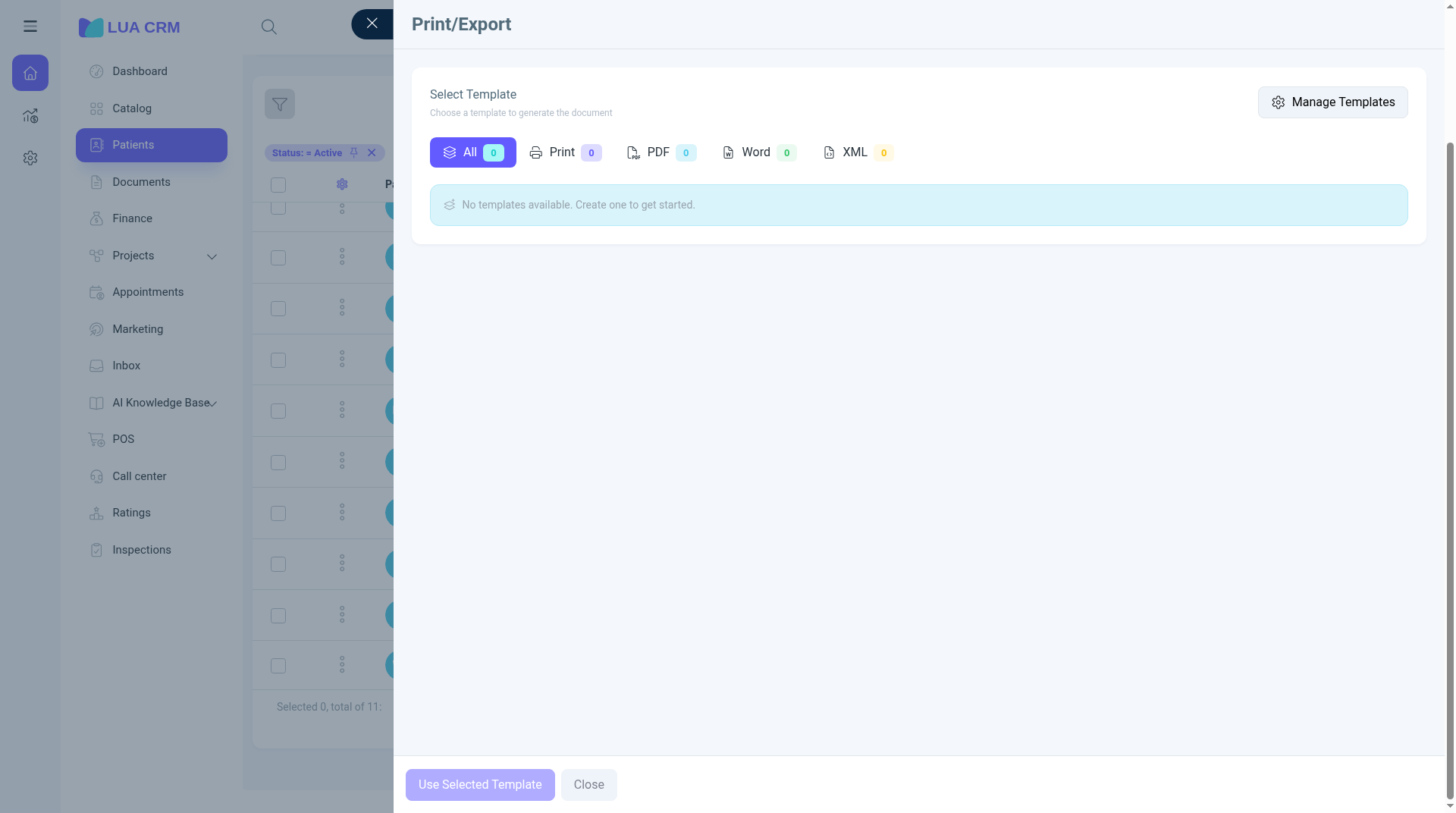
Tabs are All, Print, PDF, Word, and XML. Each tab shows how many templates match. Use Selected Template stays disabled until you select one. Manage Templates opens template setup. Close leaves the card unchanged.
The BrightSmile company had no contact templates, so every count was 0 and the picker said No templates available. Layouts are built under Document templates. A template is offered only for the document types it was marked for.
An obligation card on Obligations & Payments has its own Print/Export, aimed at the sale.
Basic
The left card is Contact details. The gear opens field management for this form (the same control as Custom fields). The full field list, required rules, and filters are on Customers. The short form in the screenshot is the one BrightSmile shows.
Physical Person or Legal Person is checked and locked. Use the header action to switch. Role checkboxes are Patient (customer), Supplier, and Partner. At least one role that your company shows must stay on. Clearing the last one is refused and the box is turned back on. A role tab your permission hides is removed here as well.
Name and Surname are the person’s first and last name. Phones, Email, and Address each have Manage List for more than one value. Group picks a contact group. Save writes this form.
When your role has Hide contact connection methods, phones, emails, addresses, links, channels, and messenger IDs are removed. Invite to My Lua appears on a saved contact only when My Lua is turned on for the company. It offers sign-in by the phone or email already stored, and Revoke My Lua access replaces it after an invite. The BrightSmile card in the screenshots did not show that button.
Balance
Balance sits beside the details. Last updated is the time the figures were loaded.
| Row | Meaning on the card |
|---|---|
| Net Balance | Available funds minus outstanding debt. A negative figure is red. Zero and a surplus are green |
| Available Deposit | Prepaid funds this contact can use |
| Outstanding Debt | Amount owed for completed items |
| Upcoming Charges | Estimated cost of scheduled or pending items |
| Points balance | Loyalty points. The row is present only when loyalty is on, and it is omitted on employee cards |
Manage Balance offers Add deposit (Money In) and Add Withdrawal (Money Out). The same two actions are in the header. The deposit and debt rows are omitted on an employee card; net balance remains. The whole balance card is omitted for financial services (industry 23).
The kebab on the balance card opens View obligation history (/reports/obligations?contact_id=…) and View transactions history (/finance?contact_id=…), each in a new tab.
On Davit the card showed net −300,000 ֏, deposit 0 ֏, outstanding debt 300,000 ֏, and upcoming charges 450,000 ֏. Several currencies become extra columns on the same rows.
Rating
The rating card shows the segment name, a gauge, and Last updated. With no score the segment is Not defined and the gauge is 0 of 100 on the BrightSmile customer scale. Segments are set under Configurations → Rating settings. The scale itself is described on Ratings.
Adjust Rating opens a small form.
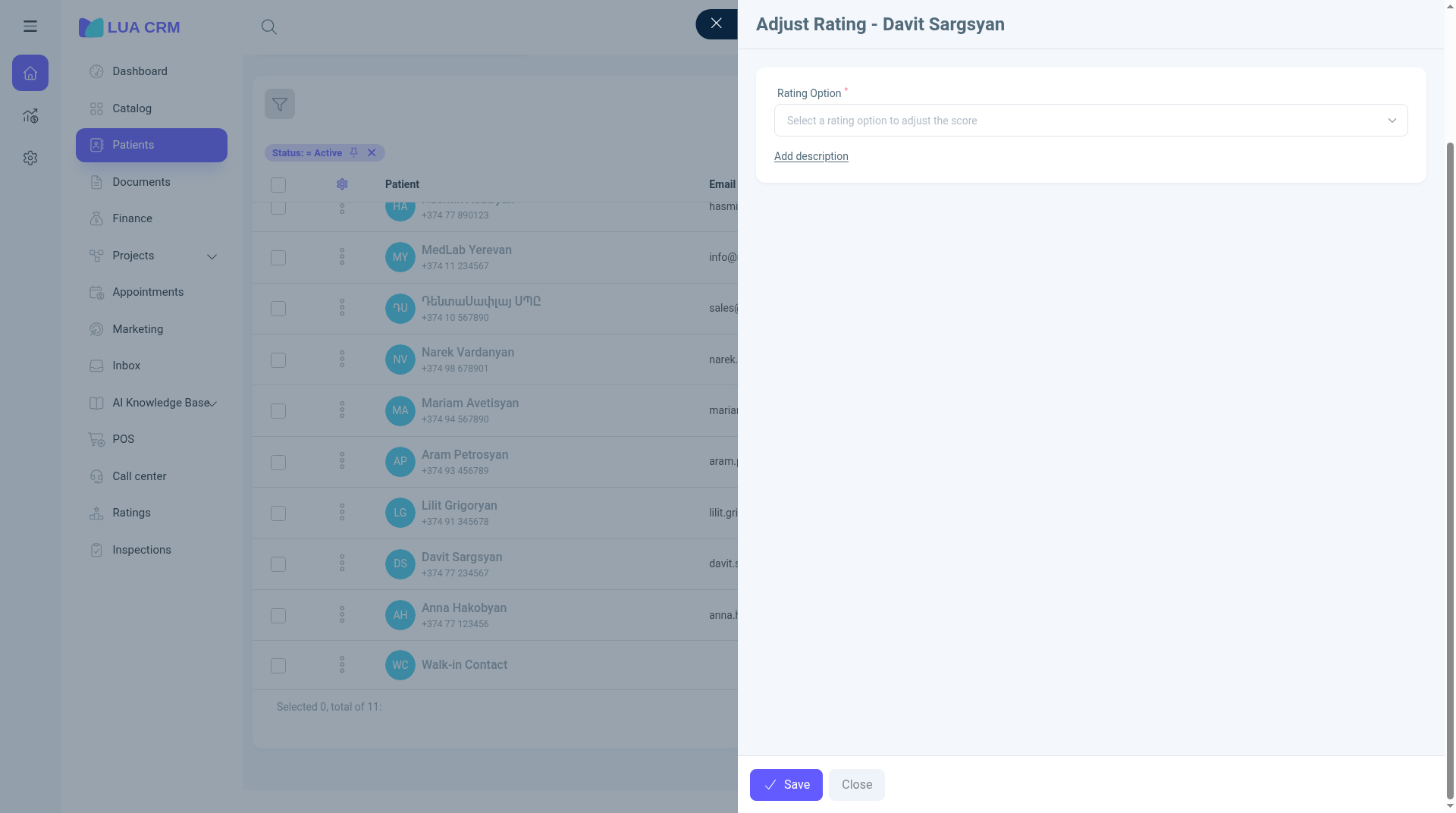
| Field | Required | Meaning |
|---|---|---|
| Rating Option | Yes | An active option whose target is customers or both. The list shows the name and the plus or minus value |
| Add description | No | Opens a description box. Staff see it. The customer does not |
Save adds that option’s value to the current score and writes a history row. You cannot type a free score. Close drops the form. The walkthrough closed it without saving.
The kebab opens View rating history (/rating_options/history?contact_id=…).
Activity
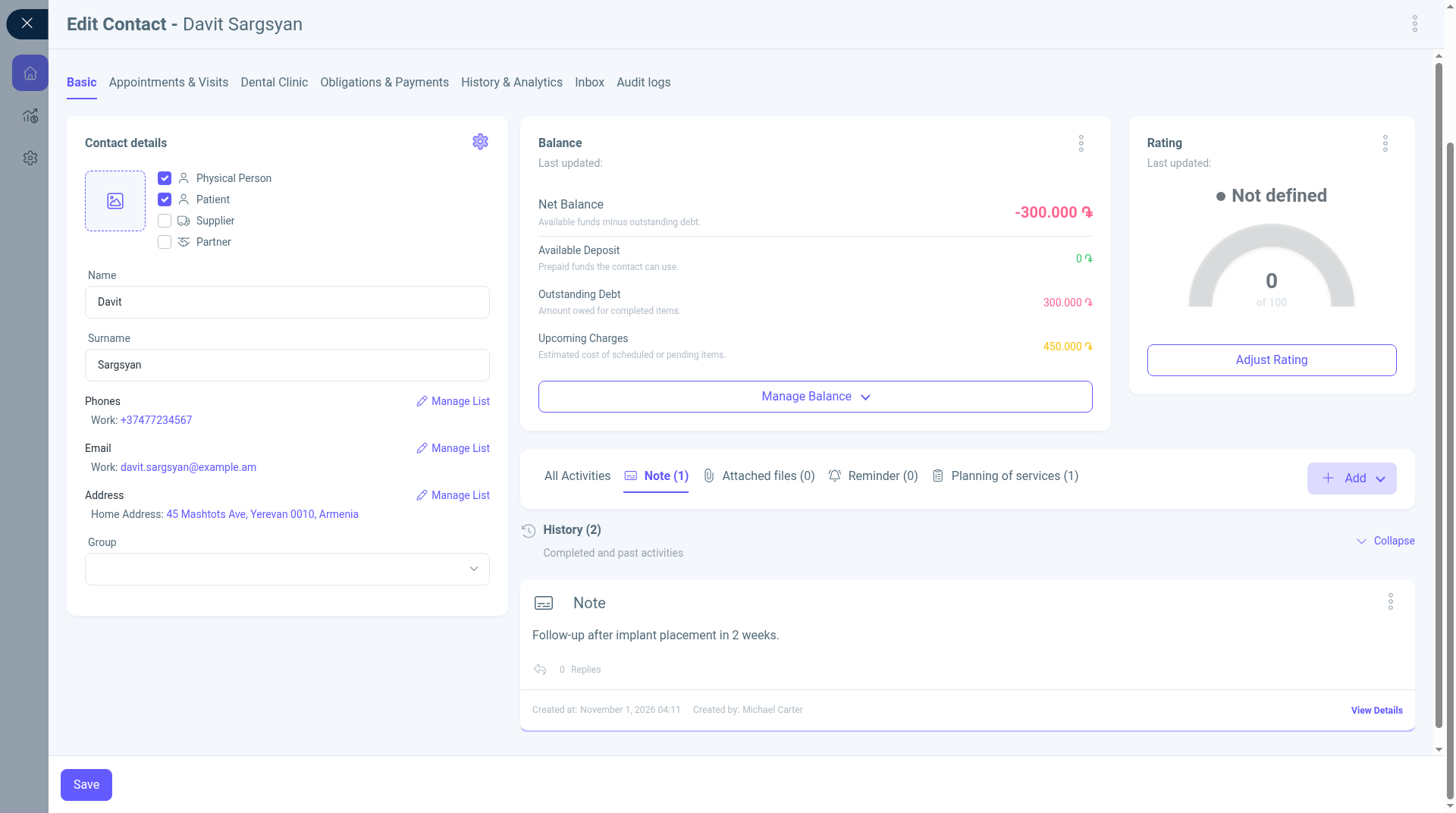
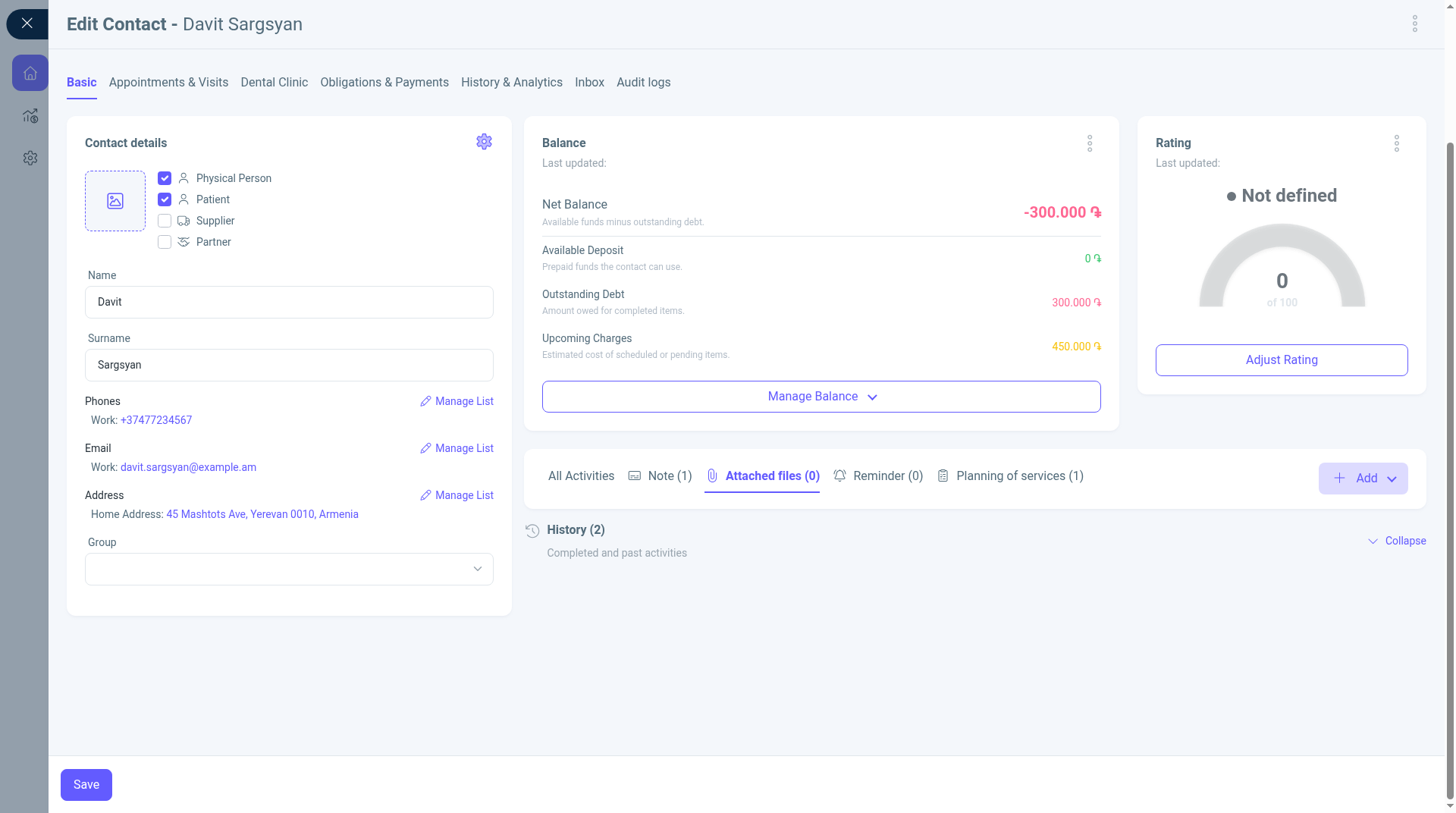
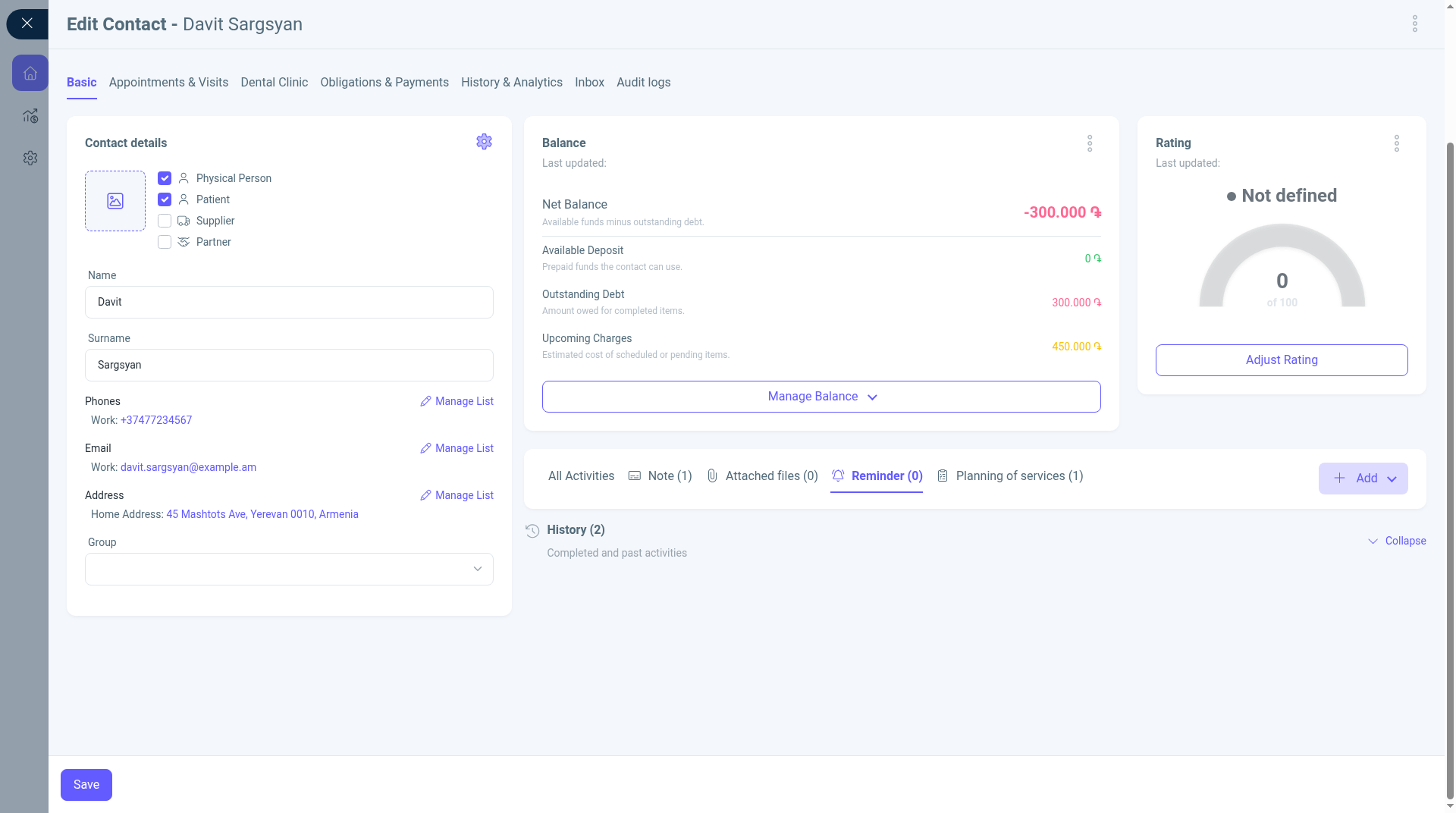
Under balance and rating, the activity list filters All Activities, Note, Attached files, Reminder, and Planning of services. The count is in the label. All Activities groups past items under History, with Collapse. Each item has a kebab and View Details. Those two controls were visible on Davit and were not opened, so the commands inside them are not listed here.
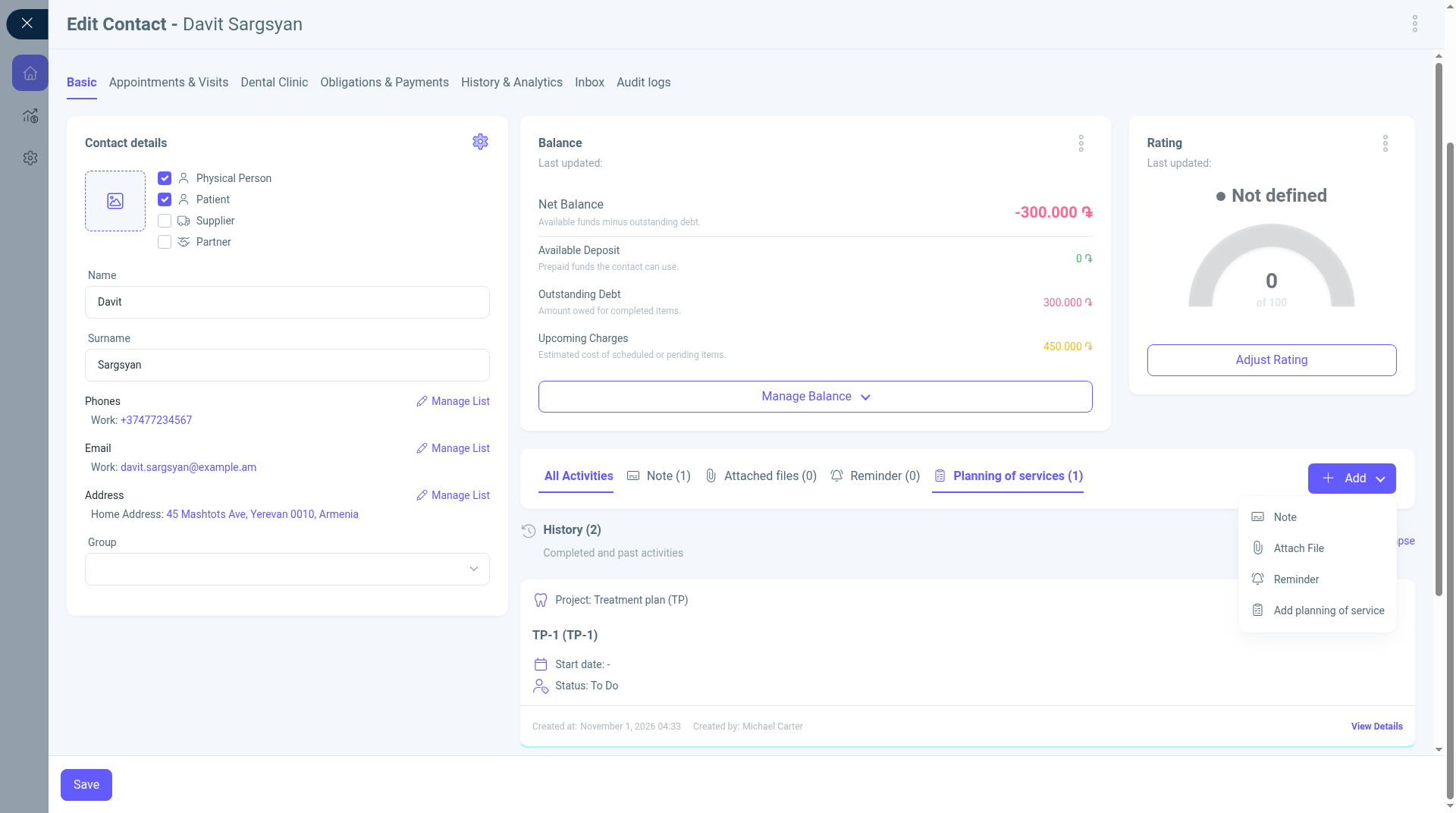
Add offers:
| Choice | When it is listed |
|---|---|
| Note | Always |
| Attach File | Always |
| Reminder | Always |
| Send SMS | SMS integration is on, and your role does not hide contact methods |
| Click to call | A phone integration is on, and contact methods are not hidden |
| Add planning of service | You can create tickets, and at least one active project (other than the lead project) allows you to create one |
BrightSmile’s menu showed Note, Attach File, Reminder, and Add planning of service. SMS and click-to-call were not in that menu.
Davit’s list had one note, “Follow-up after implant placement in 2 weeks.”, with 0 replies, and one planning row TP-1 on project Treatment plan, status To Do.
Add a note
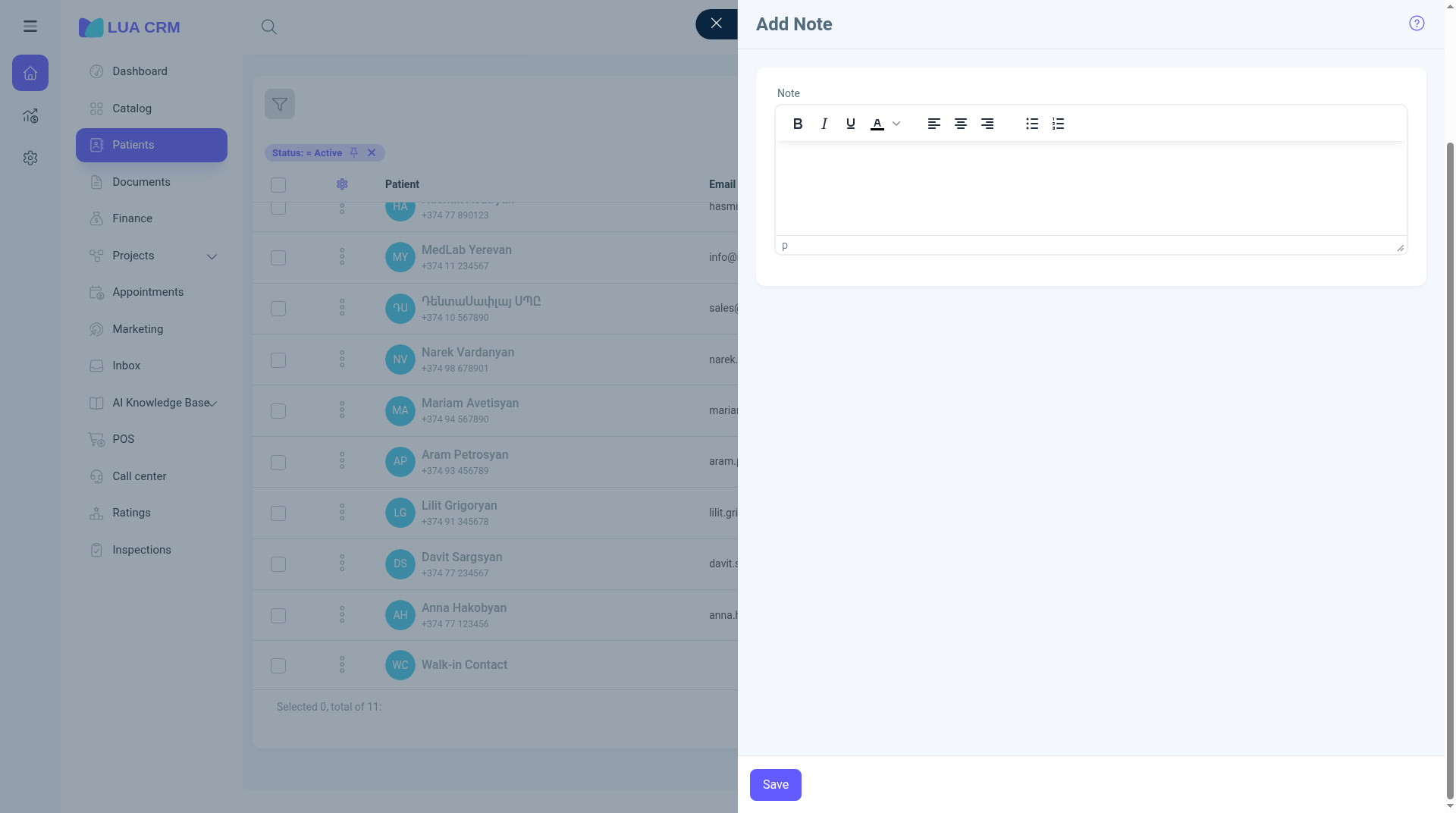
The editor has bold, italic, underline, text color, alignment, and bullet and numbered lists. Add note information expands extra fields. Save stores the note. The walkthrough closed the form without saving.
Attach a file
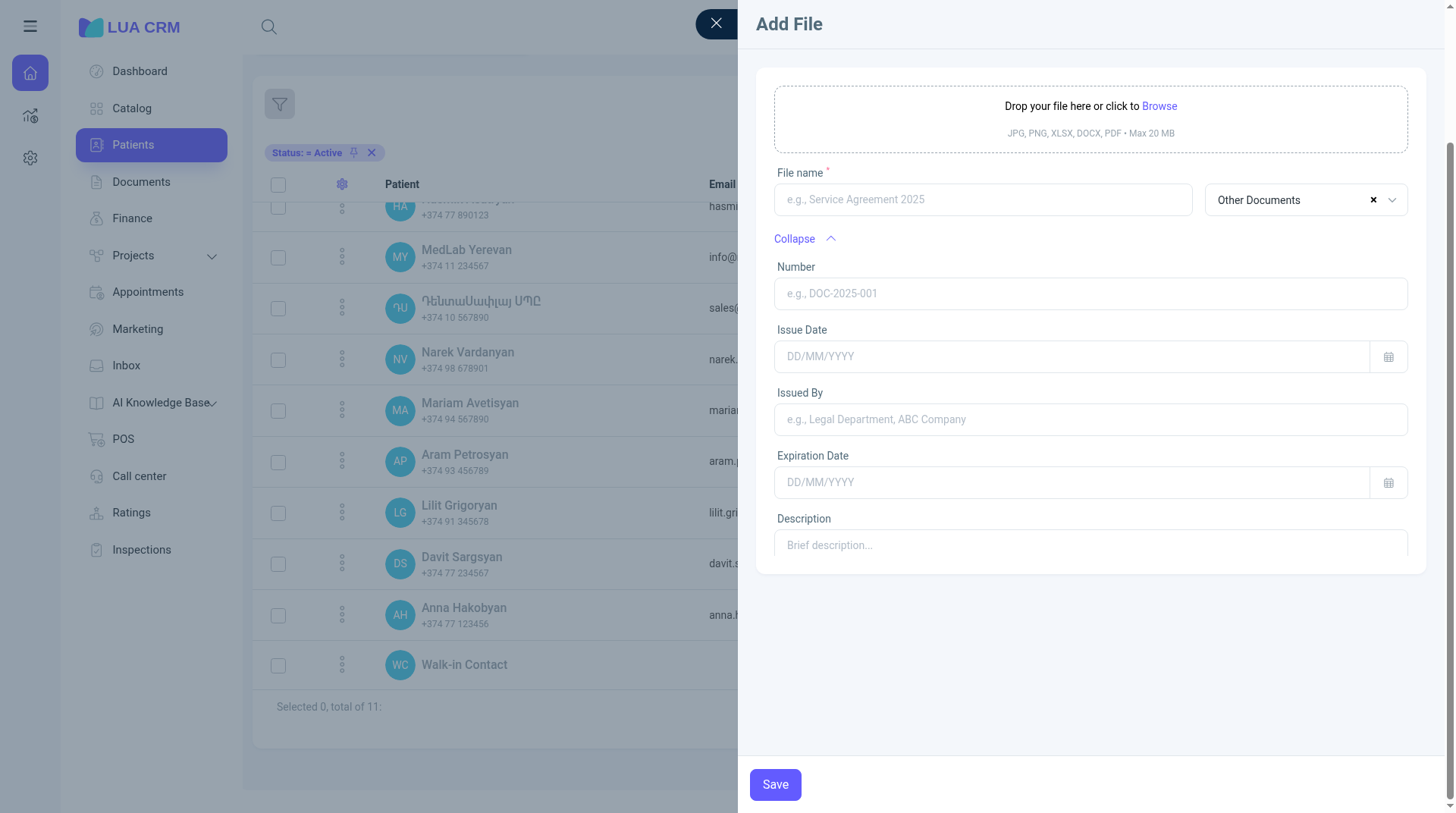
The drop area accepts JPG, PNG, XLSX, DOCX, and PDF, up to 20 MB, which is the limit the form itself shows. File name and type are required. Expand reveals Number, Issue Date, Issued By, Expiration Date, and Description. The walkthrough did not select a file.
Saved image files show a thumbnail in the activity list. Clicking one opens the image viewer with the other images of that block. Other files open in a new tab.
Add a reminder
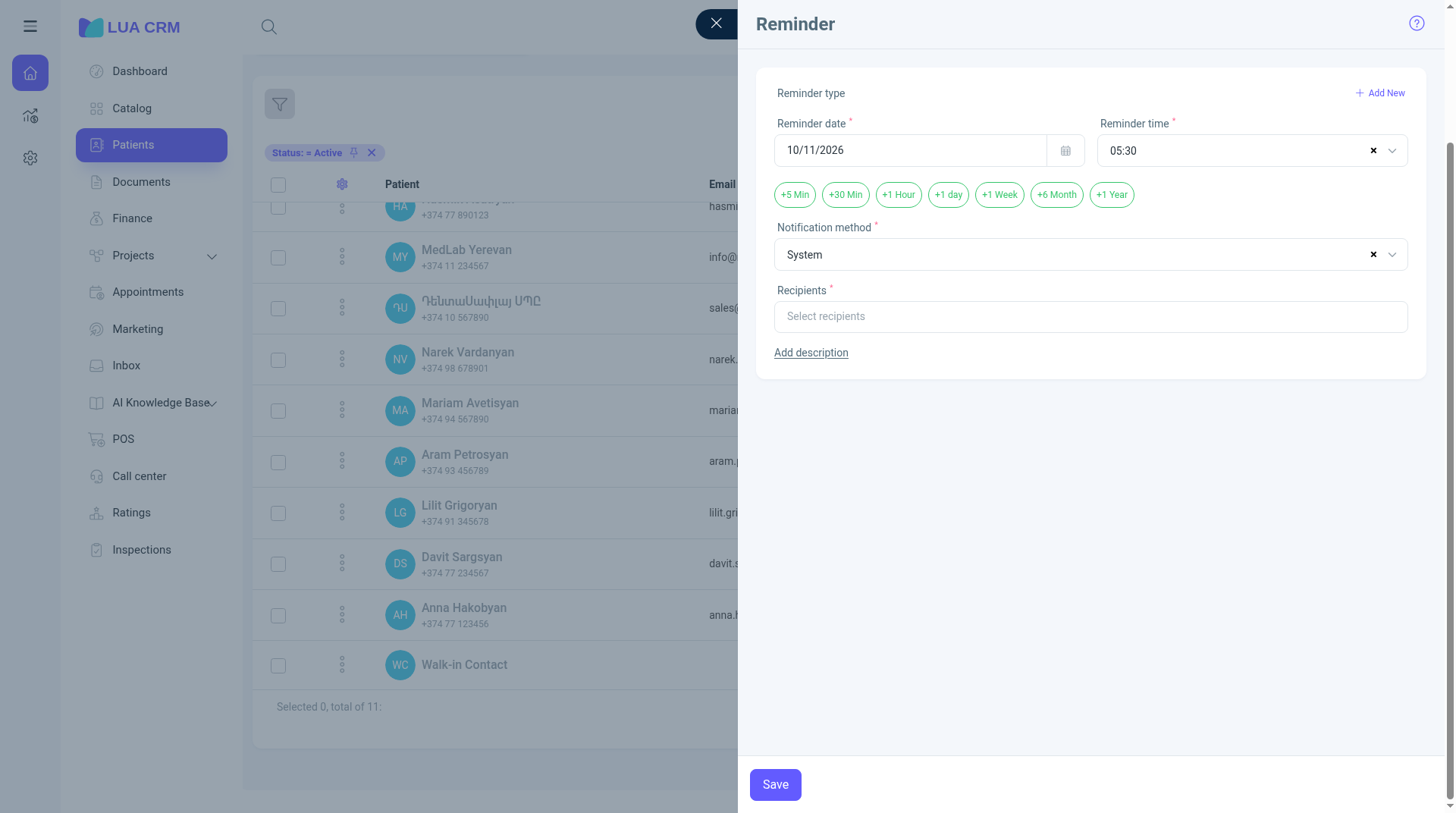
| Field | Required | Meaning |
|---|---|---|
| Reminder type | As set on your type list | Types come from reference data |
| Date and time | Yes | Quick steps: +5 Min, +30 Min, +1 Hour, +1 day, +1 Week, +6 Month, +1 Year |
| Notification method | Yes | System, SMS, or Email |
| Recipients | Yes | Who is notified |
| Description | No |
Save stores it. The walkthrough closed the form without saving. Company-wide reminder reports are under Reports → Reminders.
Add planning of a service
Add planning of service opens Please select a project. Choosing Treatment plan on BrightSmile opened Add Ticket - Treatment plan Draft. That draft is a project request linked to this contact. The walkthrough closed it without saving. The same requests are the rows under Planning of services and, on a dental company, the treatment plans on Dental Clinic.
Appointments & Visits
This tab lists visits where this contact is the patient. It is the same data as Visits. While Several clients on one appointment is on, the tab also lists visits where this contact is a linked client. With that switch off, those extra visits stay off this tab. The stored links are unchanged.
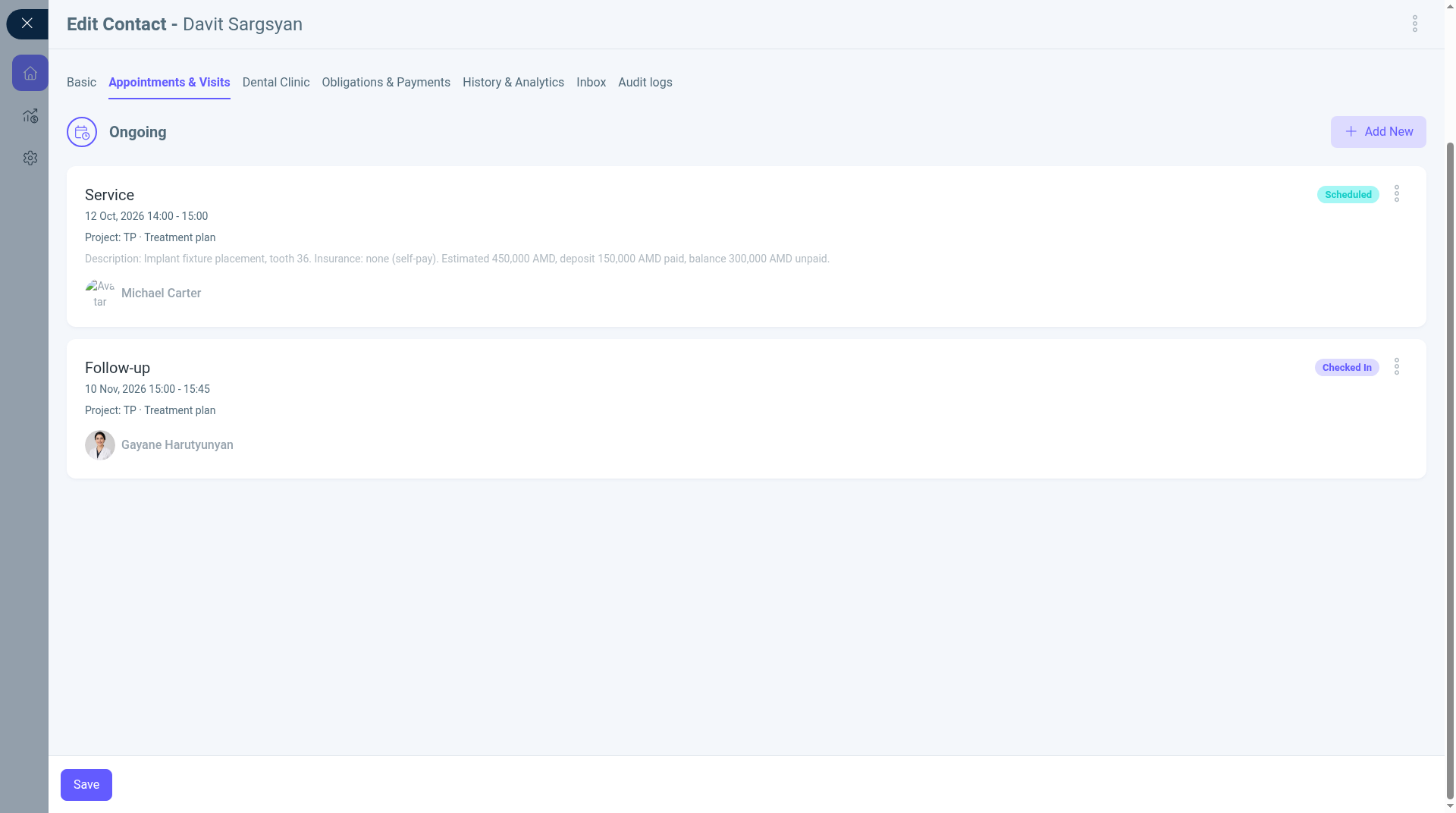
Ongoing has Add New when you may create appointments. Each visit is a card: type, date and time, project, description, status, and the employee. The card kebab was not opened in the walkthrough.
When this contact is a linked client on the visit, a second status sits beside the visit’s own status badge. It lists the active appointment statuses, the same list as on Appointments, each with its color dot. With nothing chosen yet it reads Status. Choosing one saves at once. The list has no entry that clears it. Someone who can view the card and cannot edit it sees the control only after a status is set, and cannot change it. This status belongs to that client. It is separate from the visit’s own status, and editing the visit keeps it for each client who stays on the visit. Client links are stored only for visits saved while Several clients on one appointment was on, so a visit saved with the switch off has no second status. A status already saved still shows after that switch is turned off. The same control is on an employee card (/users). BrightSmile’s visits in the screenshot were booked for one patient, so the control is not in that picture. The coloured dot on the calendar is described on Appointments.
Davit had two visits, both on project TP · Treatment plan:
| Visit | When | Status | With |
|---|---|---|---|
| Service. Implant fixture placement, tooth 36. The description records insurance none (self-pay), estimate 450,000 AMD, deposit 150,000 AMD paid, balance 300,000 AMD unpaid | 12 Oct 2026, 14:00–15:00 | Scheduled | Michael Carter |
| Follow-up | 10 Nov 2026, 15:00–15:45 | Checked In | Gayane Harutyunyan |
Add New opens Add Appointment - Draft.
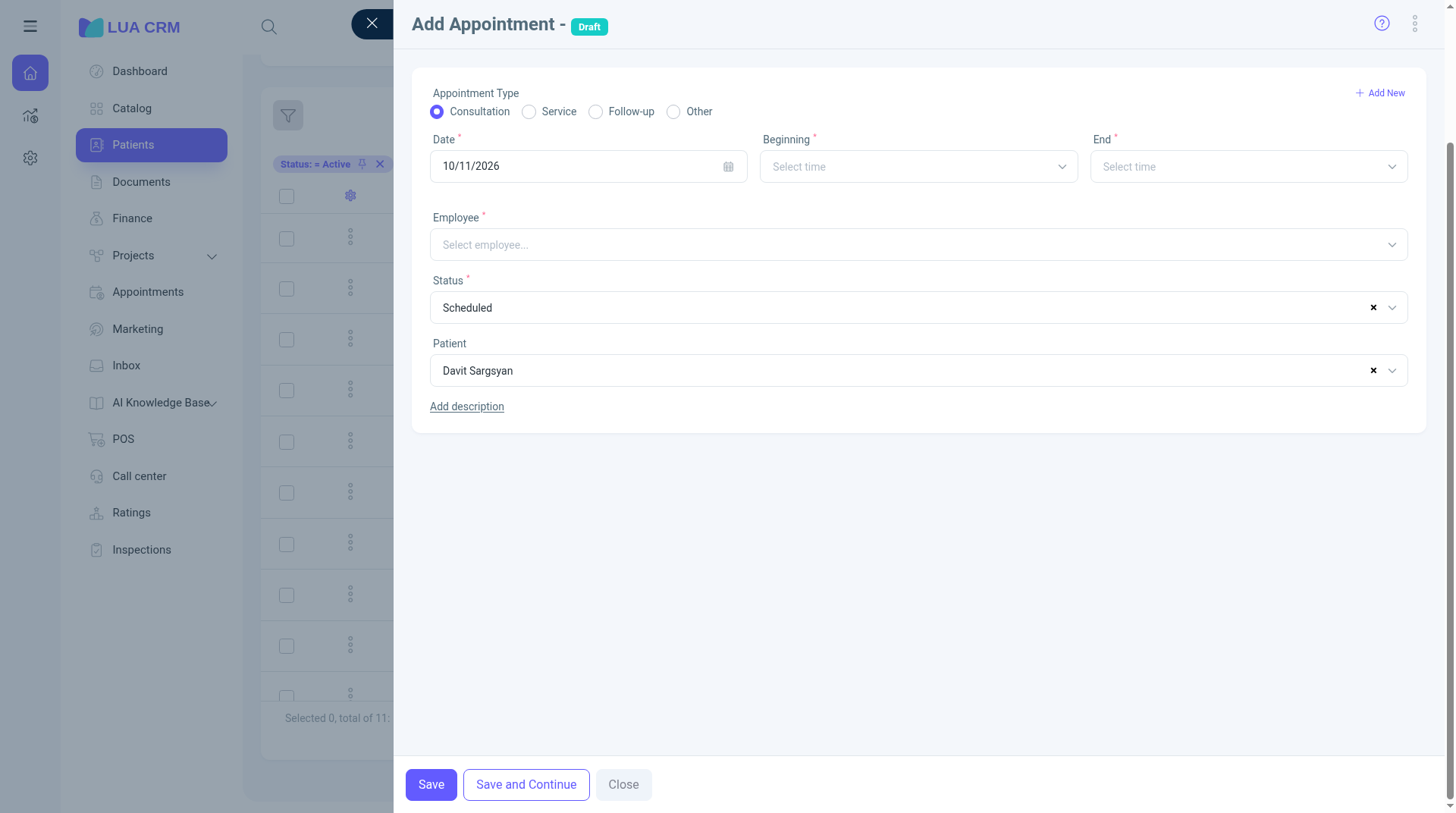
| Field | Required | Meaning |
|---|---|---|
| Appointment type | No | Consultation, Service, Follow-up, or Other in the demo. Add new creates a type. The list is under Configurations |
| Date | Yes | Day of the visit |
| Beginning and end | Yes | End must be after the start, inside that employee’s schedule |
| Employee | Yes | Who the visit is booked with |
| Status | Yes | New visits use the status marked as the start of the pipeline. The usual set is on Visits |
| Patient | Filled from this card | Hidden entirely if your role has Hide appointment contact. With Several clients on one appointment on, you can add more clients. The first client is the one membership, points, and reminders use. See Appointments |
| Description | No |
Save stores the visit. Save and Continue stores it and keeps the form open. Close discards unsaved edits. Overlaps, membership charging, and blocked time follow the rules on Visits. An empty card says there are no appointments and offers Add appointment only when you may create them.
Dental Clinic
Dental Clinic is the industry tab for a dental company (industry id 2). It also needs an active project whose industry is that same id, excluding the lead project, and tickets view permission. Anyone else does not get the tab. With tickets view limited to your own records, the specialist list on a plan is only you.
The tab is three cards.
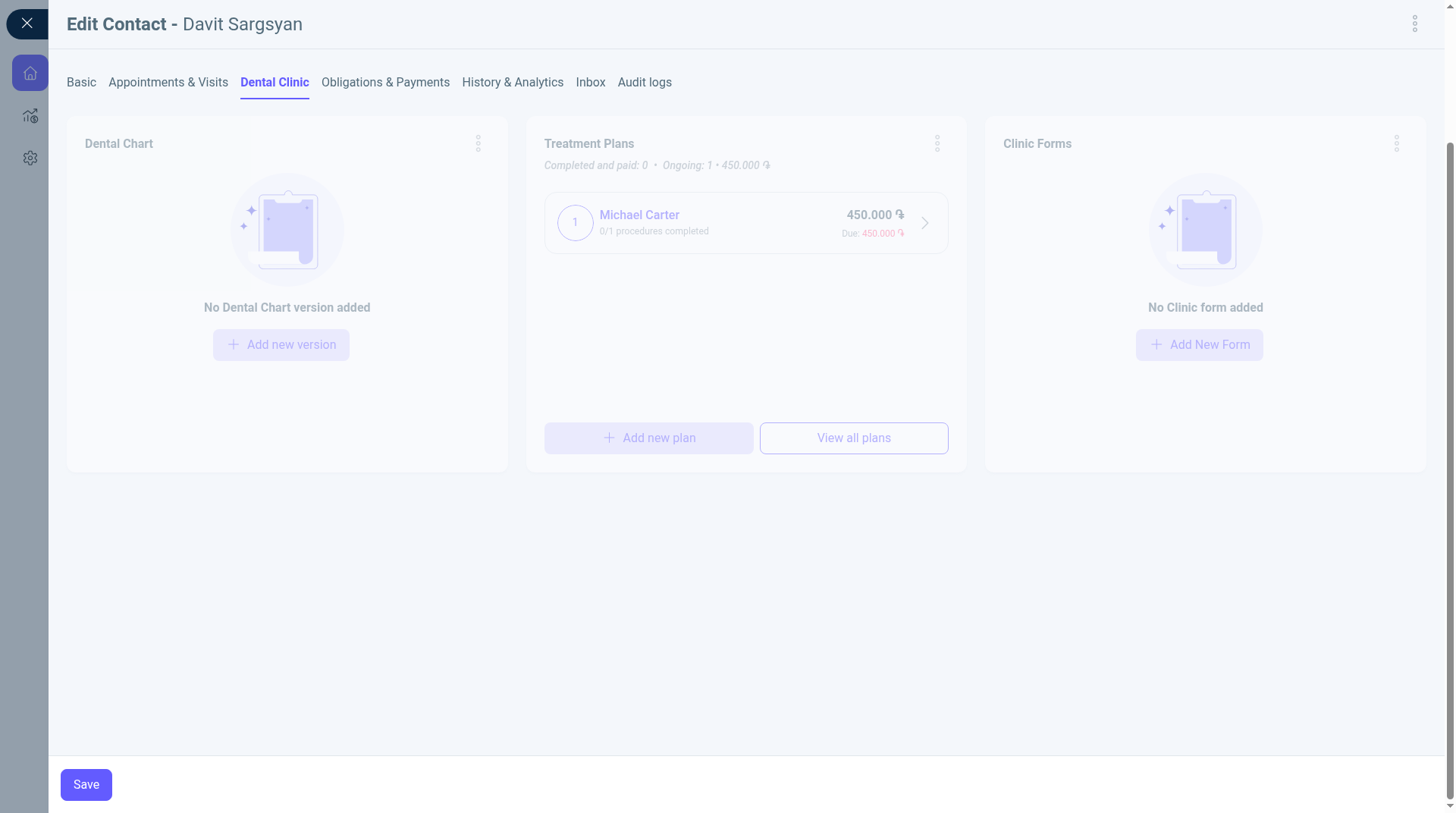
Dental chart
The card title is Dental Chart. With no version, it says No Dental Chart version added and offers Add new version. The card menu has Add new version and View history.
Both actions currently show a Feature coming soon notice. The request that fills this tab always returns an empty chart, so a saved version, a condition legend, and a per-tooth menu on the chart itself are not available. Davit had no chart version, which matches that. The renderer can outline a tooth whose stored condition is anything other than healthy, but nothing on this tab sends those conditions.
Tooth numbers and per-tooth clicks are on the treatment-plan editor below. The chart card on this tab has no tooth menu.
Treatment plans
The card shows Completed and paid and Ongoing, with the ongoing total. A plan counts as completed and paid when the request is done (its project status is a done status, or every procedure is invoiced) and the patient’s own payments cover the plan total. Anything else stays under Ongoing. The ongoing list shows the assignee, procedures completed out of the total, the amount due, and the currency.
Davit had completed and paid 0, ongoing 1, total 450,000 ֏. Plan 1 is assigned to Michael Carter, 0/1 procedures completed, 450,000 ֏ due.
Add new plan and View all plans are on the card and in its menu. View all plans replaces the three cards with a searchable list (search, All filters, Add new plan, and a way back). That list was not opened in the walkthrough. Each procedure row there uses a status:
| Status value | Name | What you can do with the row |
|---|---|---|
| 0 | Draft | Same hourglass styling as in progress |
| 1 | In Progress | Same styling as draft |
| 2 | Done | Can be selected when a sale is created from the plan |
| 3 | Delayed | |
| 4 | Cancelled | |
| 5 | Invoiced | A sale already exists. The row cannot be selected. The chevron opens that document |
The plan’s own status (Davit’s plan is To Do) is the project’s ticket status, which a company can rename. It is separate from the procedure status.
Add a treatment plan
Add new plan opens Add Treatment Plan. The header badge is Draft until you save. Save and Cancel are at the bottom. Cancel closes without writing the plan.
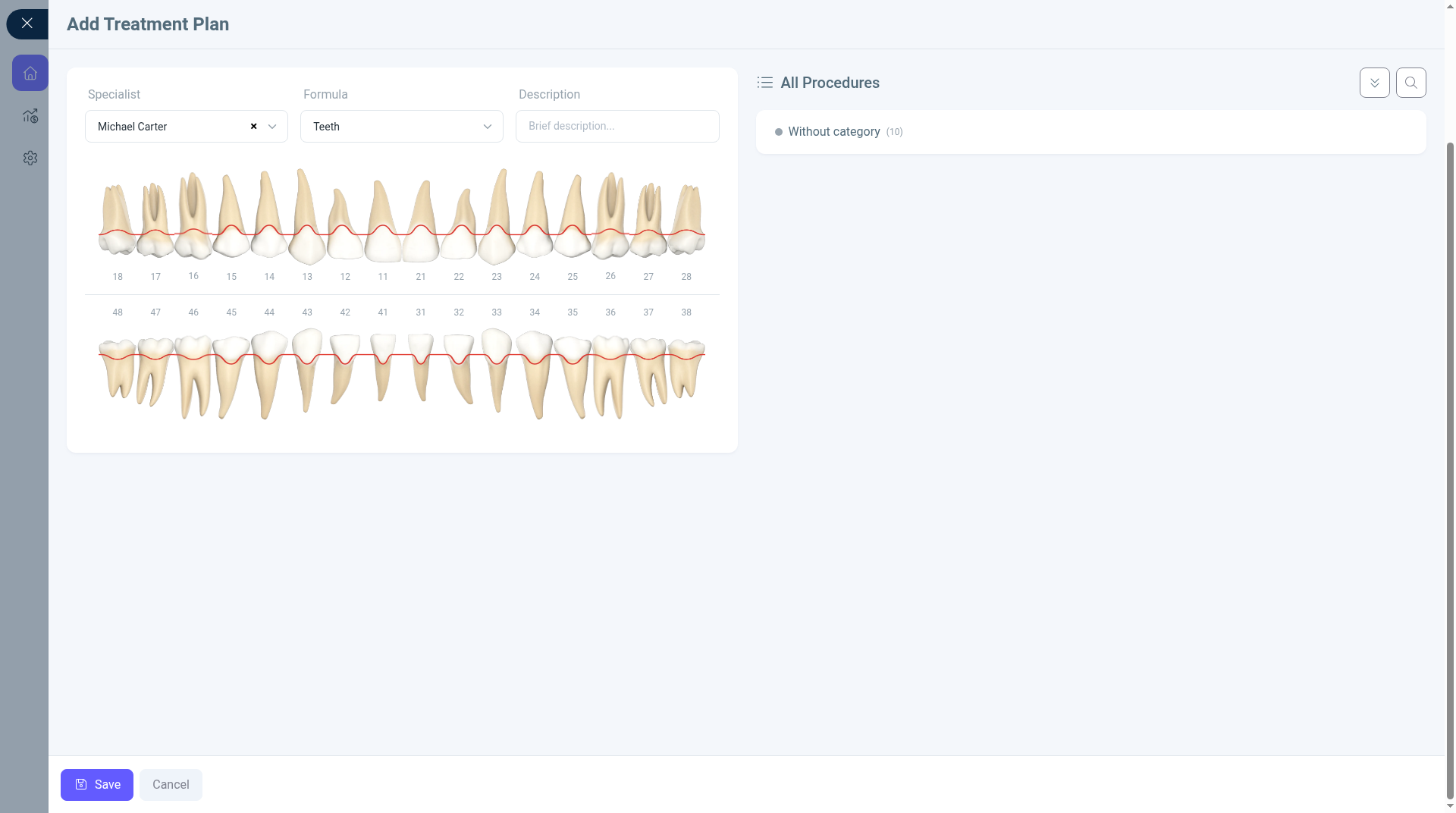
| Field | Required | Meaning |
|---|---|---|
| Specialist | Yes on save | Employees. On a private project, only members of that project. With “own records” ticket view, only you |
| Formula | Yes as a mode; the default is Teeth | How the chart selection is stored. See the table below |
| Description | No | Up to 10,000 characters |
Formula options on a dental company:
| Formula | What a click does |
|---|---|
| Teeth | Selects individual permanent teeth. Click again to clear that tooth |
| No formula | The chart is shown and cannot be selected. The procedure is stored with no tooth code |
| Sextant | Selects one of six groups. Sextant 1 is 18–14, 2 is 13–23, 3 is 24–28, 4 is 34–38, 5 is 43–33, 6 is 48–44 |
| Quadrants | Selects a quadrant. Upper right 18–11, upper left 21–28, lower left 31–38, lower right 41–48 |
| Jaws | Upper jaw or lower jaw |
| Mouth | The whole adult mouth. The plan stores that as one selection |
| Child Teeth | Primary teeth. Upper 55–51 and 61–65. Lower 85–81 and 71–75 |
| Child Jaws | A child jaw |
| Child Mouth | The whole primary dentition |
Adult numbers are FDI: upper right 18 to 11, upper left 21 to 28, lower left 31 to 38, lower right 41 to 48. The upper numbers sit under the teeth. The lower numbers sit above them.
A selected tooth shows Selected: and the number, with a clear control. The BrightSmile pass selected tooth 36.
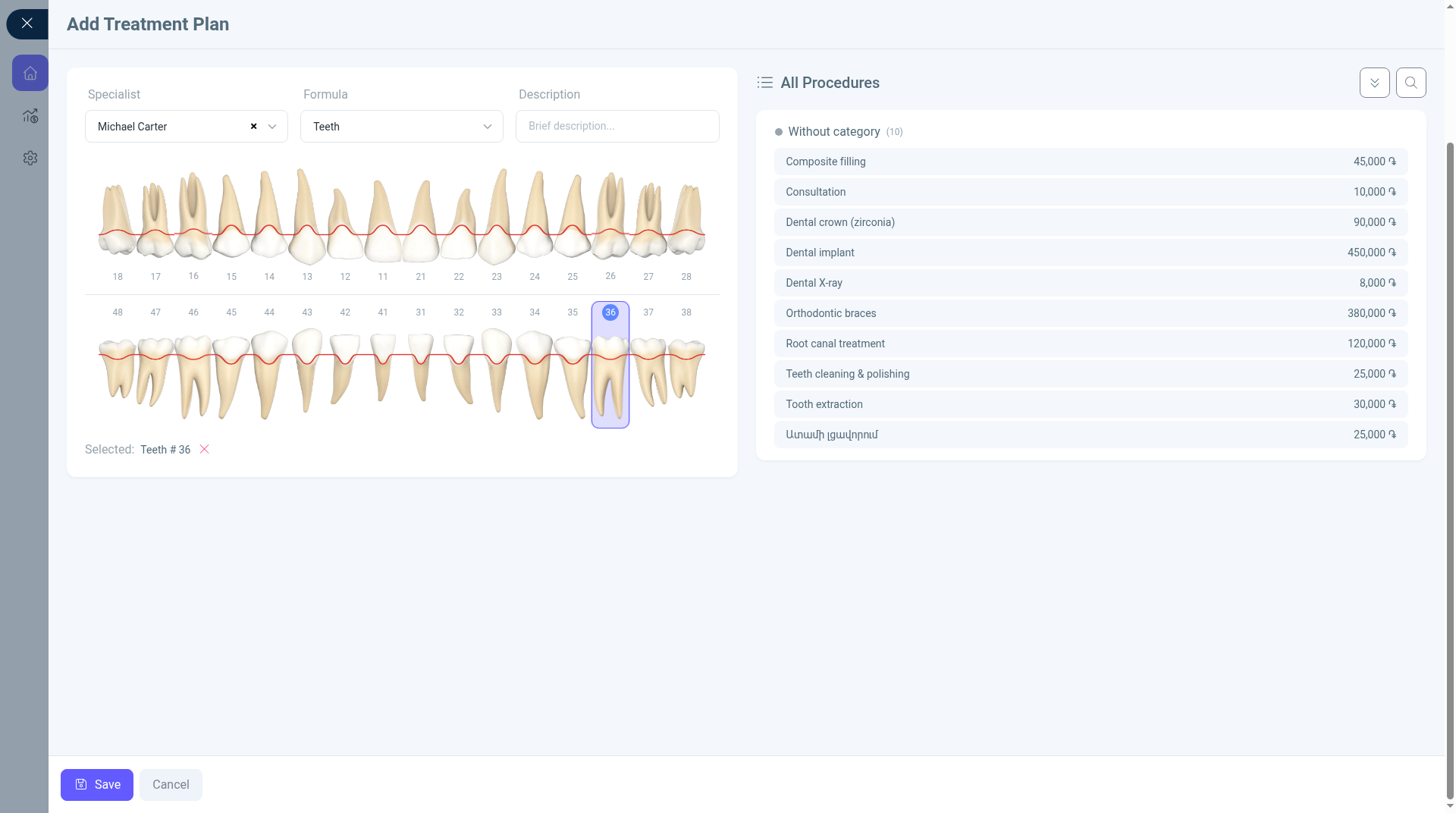
The right side is All Procedures, the active catalog services, priced with this contact’s price type. Search is the magnifying glass (name, barcode, or price). The chevron expands or collapses every category. A category with no group is Without category. BrightSmile showed Without category (10): Composite filling, Consultation, Dental crown (zirconia), Dental implant, Dental X-ray, Orthodontic braces, Root canal treatment, Teeth cleaning & polishing, Tooth extraction, and one Armenian name. Those names come from the BrightSmile catalog.
Clicking a service adds it to the plan:
- With teeth or groups selected, you get one line per selection.
- With nothing selected, you get one line and no tooth code.
The lines appear under Added procedures. Columns are the selector, the formula, name, comment, discount, insurance, laboratory, and price. Comment, insurance, and laboratory follow company settings. Defaults are fixed catalog prices, insurance on, laboratory off, and comments off. Keys are tp_allow_custom_service_prices, tp_insurance_enabled (on when unset), tp_laboratory_enabled, and tp_comments_enabled.
A line menu can delete the line, set a discount, or change its formula. Selecting several lines shows Set discount and Delete. Insurance opens a coverage form: partner rows, then a live preview of base price, insurance price, effective insurance price, coverage amount, coverage percent, and the contact’s share. Under Insurance price, each partner row shows the price from that partner’s price list. A checkbox on the row switches that price to a number you type. The box starts off. The typed amount is capped at the procedure line total (quantity times the gross unit price). A higher amount is reduced to that total with no warning. Discount still applies to the typed amount, and coverage and the contact’s share use that discounted result. Changing the partner, or clearing the partner, turns the box off and clears the typed price, the discount, and the coverage. Duplicating the plan copies the checkbox and the stored price. Laboratory, when enabled, records a partner cost against the base price and the price-list price. The BrightSmile editor was closed before any line was added, so those columns were not on the screenshot.
Save requires at least one procedure, a specialist, and the contact. The plan is created as a ticket on the industry project, in that project’s start status, named from the contact when you leave the name blank. The description on the form is the ticket description. Closing with Cancel writes nothing. After a successful save the tab reopens on View all plans.
Selecting procedure lines in the editor shows Set discount and Delete. Insurance and laboratory each have their own save on the coverage dialog. Those columns follow the settings named above.
On View all plans, a plan that is not done has Edit, Print/Export, and Delete. Delete is omitted once a sale exists for the plan (a procedure is invoiced, or the plan already points at a document). A done plan hides that menu. The status pill lists the other statuses your role may move to. If none are allowed, the pill is not a menu. Drag rules for the same statuses are on Projects.
Selecting procedures on that list shows:
| Action | What it writes |
|---|---|
| Plan for next time | Procedure status delayed |
| Mark not done | Procedure status in progress |
| Mark done | Procedure status done |
| Generate sale | Needs at least one selected procedure. Then branch and create date (not a future date). Posts a sale from the plan |
An invoiced procedure cannot be selected. Its chevron opens the sale in a new window. All filters is on that list header. Search matches the plan name, the description, the procedure name, the SKU, prices, and the dental formula.
When the industry is anything other than dental, Create sales document still opens this editor with the tooth chart omitted and the formula forced to No formula. The procedure list in that flow is every active catalog item.
Clinic forms
The third card says No Clinic form added and offers Add New Form. The menu has the same add action. Add new form, and opening a form if one existed, show Feature coming soon. The loader does not read a forms table. A completed form would be badged Completely filled; anything else would be Draft. That list cannot be filled from the card today.
Obligations & Payments
Four tiles summarize money for this contact: Total obligations, Total paid, Total Due, and Available deposit.
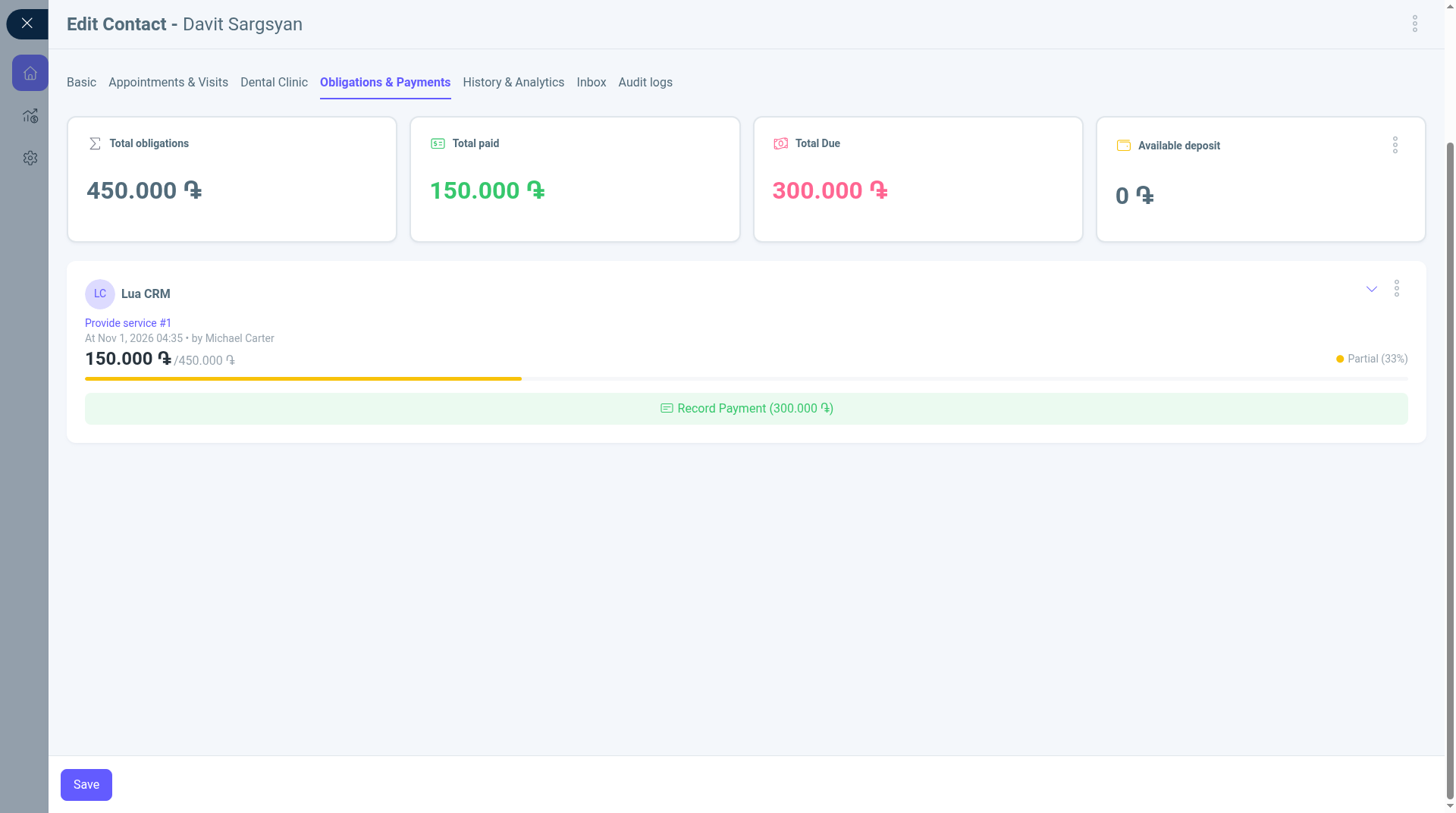
Davit’s tiles were total obligations 450,000 ֏, total paid 150,000 ֏, total due 300,000 ֏, available deposit 0 ֏.
The deposit tile’s menu has Add deposit, View balance history, and Create sales document when a project is set up for that flow. Balance history is a panel titled with the contact: columns Type, Operation, Basis document, Amount, and Balance After, the last rows, and View full report which opens Finance filtered to this contact.
Each obligation is a card. Davit’s card is a sale, Provide service #1, showing 150,000 / 450,000 ֏, Partial (33%), and Record Payment (300,000 ֏). The paid amount, the percent, and the bar come from paid divided by the obligation total. Record Payment is shown while something remains and you may edit the contact. A read-only role does not get the button.
The card header links to the document (/documents/sales?id=… for a sale). A deposit or withdrawal obligation links to Obligations instead, because those have no document page. Expand the card for line items and for each payment (transaction number, date, wallet, amount). A payment with a file can be opened. A payment you may delete has a trash control, which asks for the usual delete confirmation.
The card kebab includes:
| Item | Effect |
|---|---|
| Open | Opens the document. Disabled when there is no document |
| Record payment | Same as the button. Disabled when nothing is due, and hidden when you cannot edit |
| Add expense | On a dental company, when the obligation is tied to a ticket. Opens an expense form for that ticket. The walkthrough left it closed, so the fields on that form are not listed here |
| View basis ticket | Opens the project request. Disabled when there is no ticket |
| View payments history | Opens the History & Analytics tab |
| Print/Export | Template picker for the sale |
| Delete | Deletes the obligation document when you may edit |
An empty tab says the contact has no financial obligations.
Record a payment
Record Payment opens Record Payment.
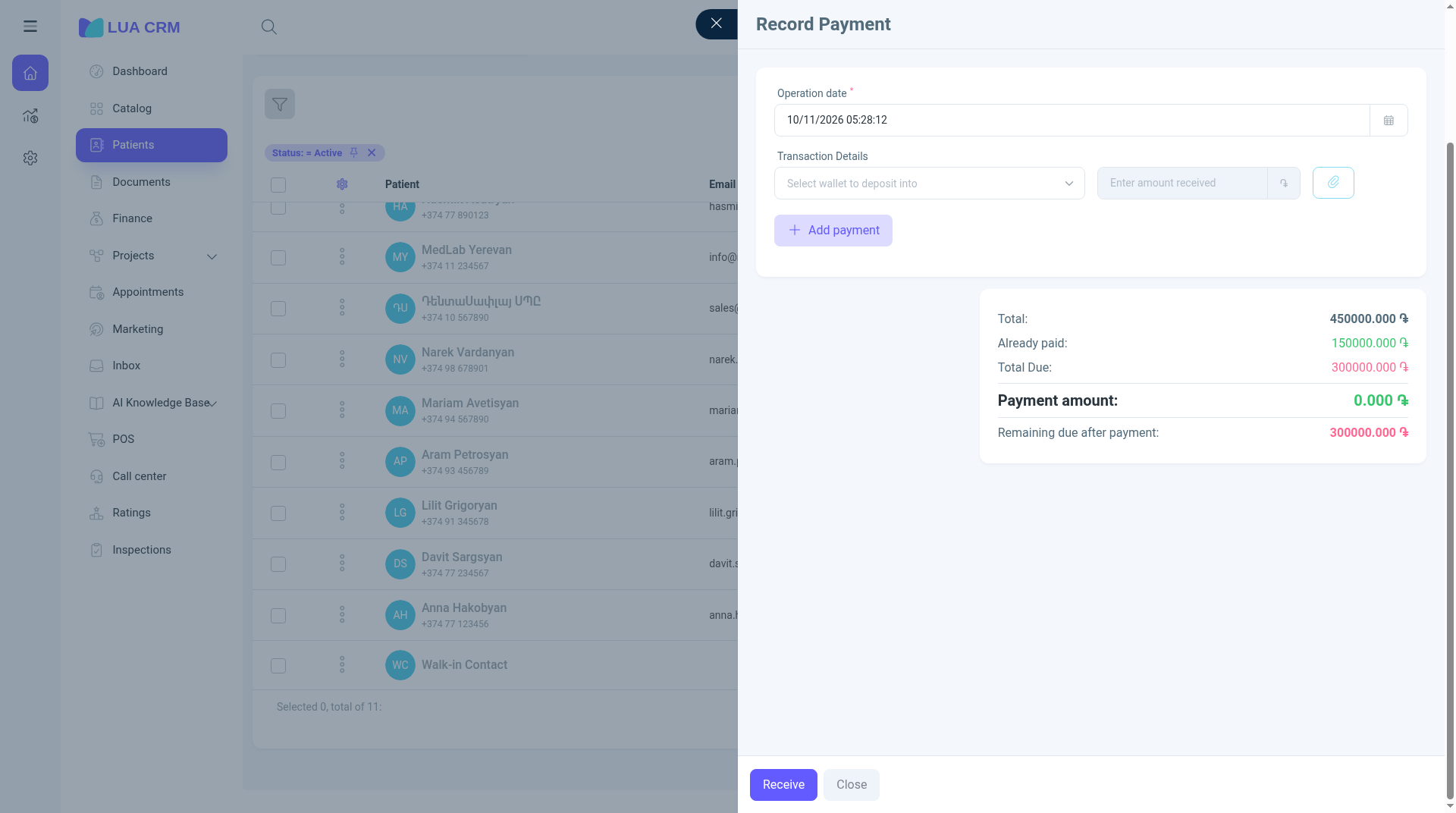
| Field | Required | Meaning |
|---|---|---|
| Operation date | Yes | Defaults to now, with seconds. Format DD/MM/YYYY HH:mm:ss |
| Wallet | Yes on each payment row | Placeholder Select wallet to deposit into. Wallets load for the document’s branch |
| Amount | Yes on each payment row | Placeholder Enter amount received. Minimum 0.01. Stays disabled until a wallet is chosen |
| Paperclip | No | Attaches a file to that payment row |
| Add payment | No | Adds another wallet and amount row |
The totals card shows Total, Already paid, Total Due, Payment amount, and Remaining due after payment. A payment larger than the due amount shows how much it exceeds the due. With more than one currency, the form is wider and can show an exchange rate and a converted amount. Change rate edits that rate. Cash banknotes, a fiscal switch, a POS-receipt switch, and a loyalty “gather points” switch appear only when those features are on for the company. BrightSmile’s captured form showed the date, one wallet row, Add payment, and the totals.
Receive posts the payment onto the obligation and the chosen wallet. Close leaves the obligation unpaid. The walkthrough selected neither a wallet nor an amount. After the panel closes, the card reopens on this tab.
Add a deposit or a withdrawal
Add deposit - Money In and Add Withdrawal - Money Out use one form. The title names which one you opened.
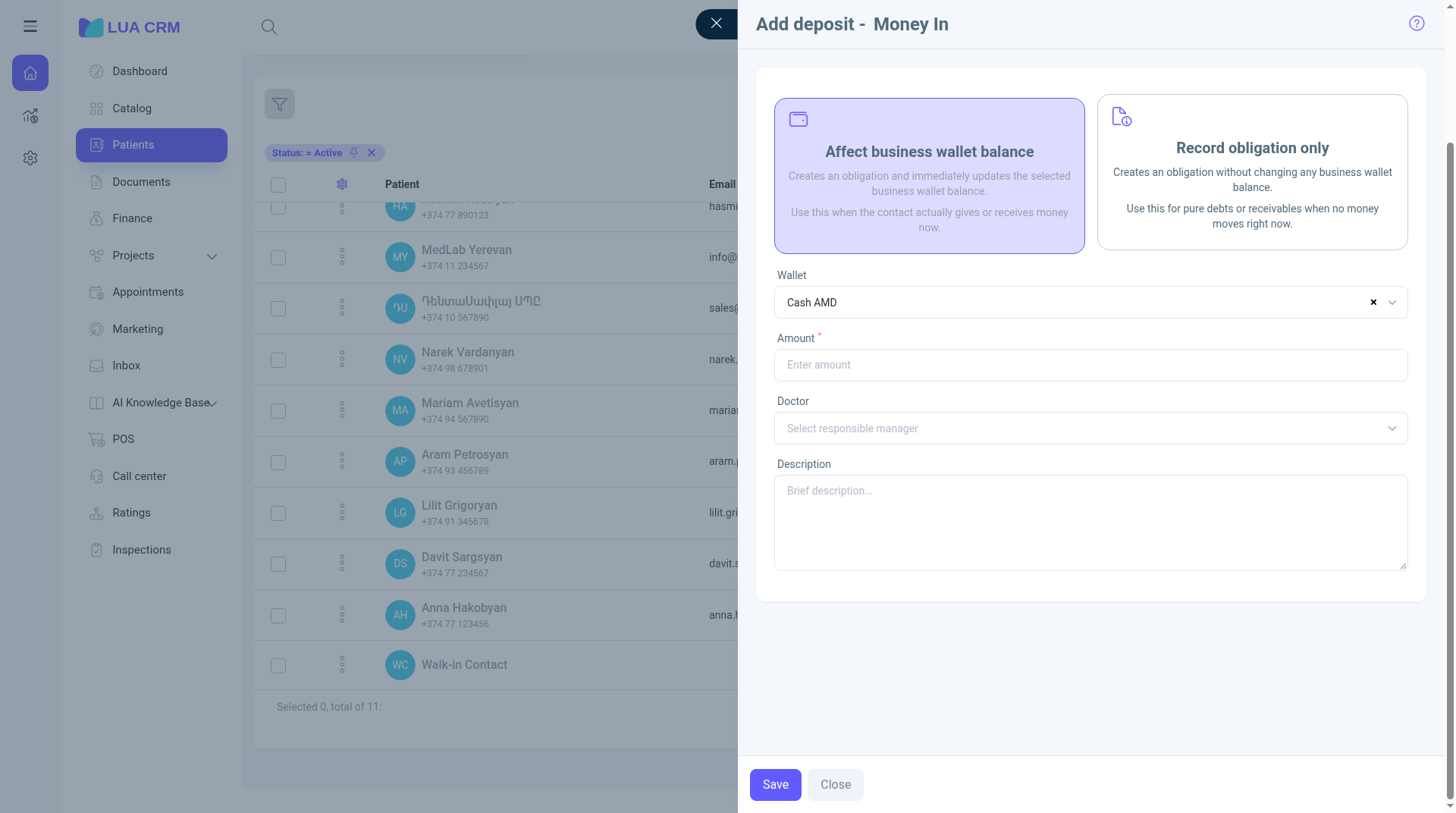
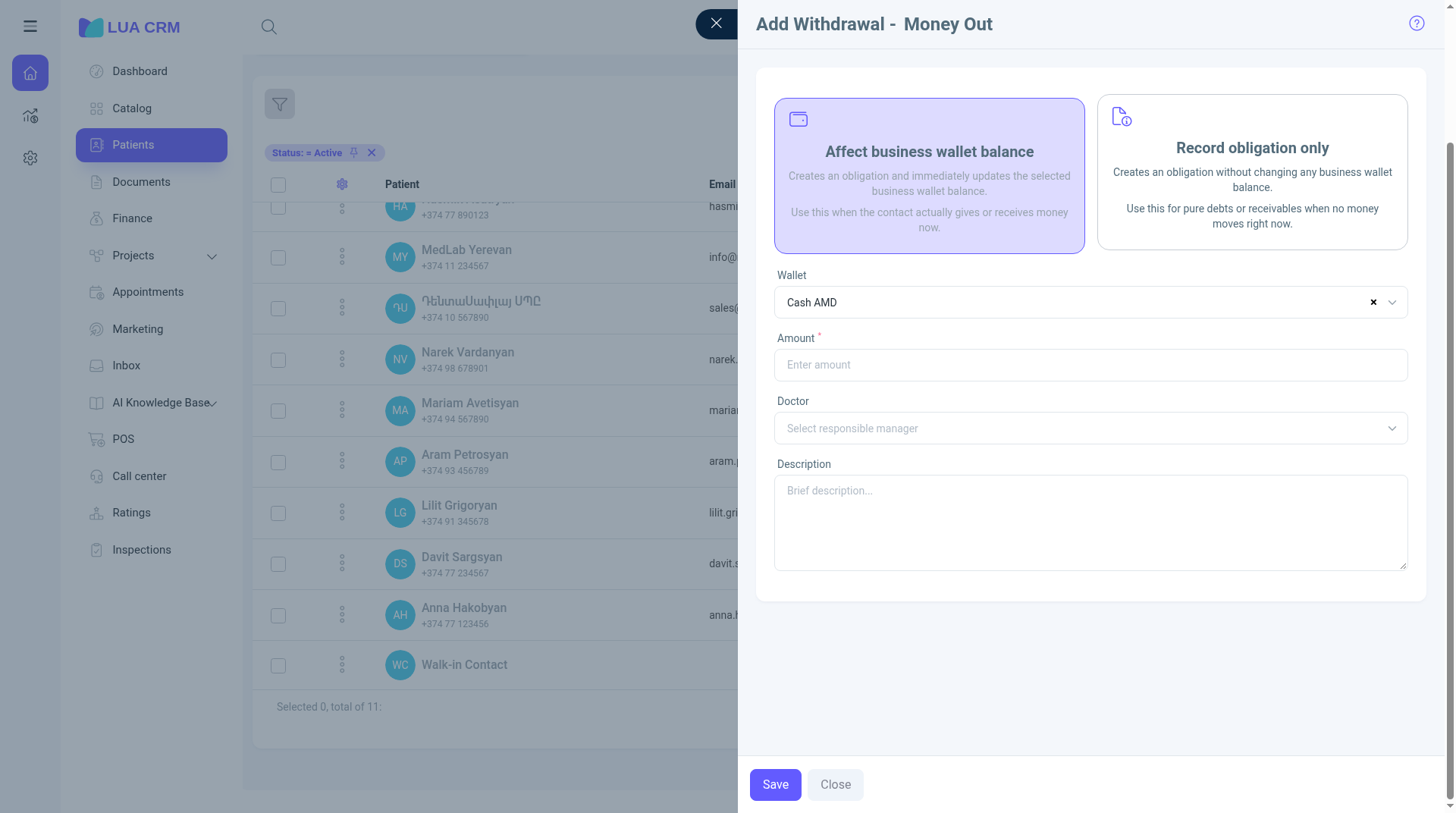
Two modes:
| Mode | What save does |
|---|---|
| Affect business wallet balance | Creates the obligation and updates the selected wallet now. Use it when money actually moves. This mode starts selected |
| Record obligation only | Creates the obligation and leaves every wallet unchanged. Use it when you are recording a debt or a credit and no cash has moved |
A role can hide Record obligation only on contacts, or hide Affect business wallet balance on employees. The hidden mode is not offered, and the remaining mode is applied for you.
| Field | Required | Meaning |
|---|---|---|
| Branch | Yes when the company has several branches | Hidden when there is only one, and that branch is used |
| Wallet | Yes when the mode updates a wallet | Wallets of the branch. BrightSmile showed Cash AMD |
| Currency | Yes when the company has several currencies | Hidden when there is only one |
| Amount | Yes | Greater than zero, step 0.01 |
| Doctor | No | The responsible manager. The dental English label is Doctor, placeholder Select responsible manager. Defaults to you, unless you are a super administrator. Hidden when the role hides the responsible manager |
| Description | No | Up to 5,000 characters |
A fiscal-print switch is added for a deposit when the branch has a fiscal device. Save posts the obligation. Close discards it. Both BrightSmile forms were closed without saving.
Employee cards can also record salary from their own tab. That tab is not on a patient.
History & Analytics
Three tables. A fourth, Usage history, is added only when the memberships tab is on. See Memberships on the contact card. That table adds a Visit questions column before Delete. Each row lists “question: answer”. A yes/no answer is yes or no, and a list answer is the option name. A row with no answers shows —. Inside that, Attendance history (date, time, lesson, workplace, teacher, status, created on, created by) is added for education industries 17, 18, and 32 through 37. Dental companies do not show memberships, so Davit’s history has the three tables only. Transaction history is hidden for financial services, together with the obligations tab.
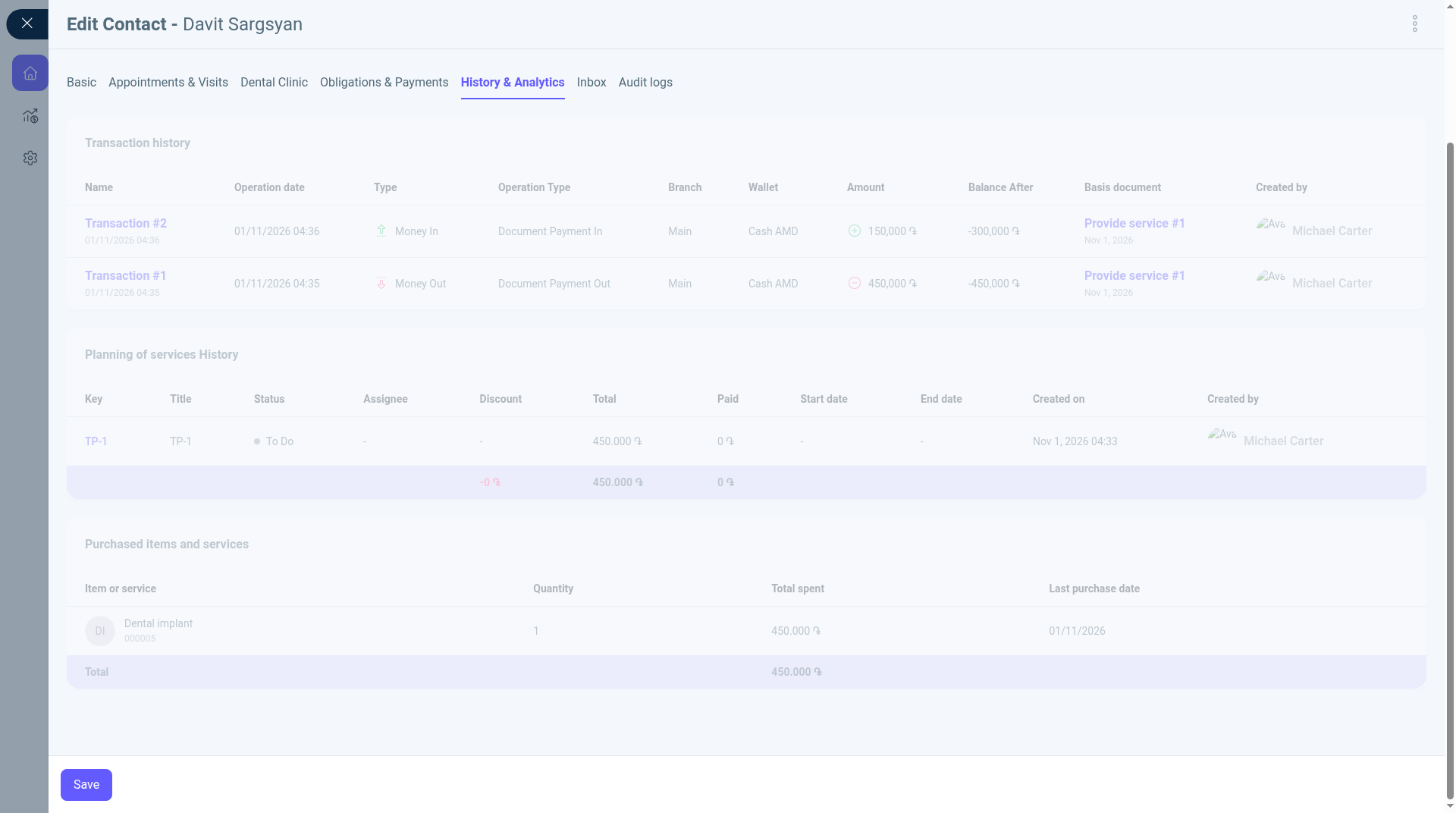
Transaction history
Columns: Name, Operation date, Type, Operation Type, Branch, Wallet, Amount, Balance After, Basis document, Created by.
Davit has two rows, both for Provide service #1, both Cash AMD, both entered by Michael Carter:
| Type | Operation type | Amount |
|---|---|---|
| Money In | Document Payment In | 150,000 ֏ |
| Money Out | Document Payment Out | 450,000 ֏ |
An empty table says there is no analytics data yet.
Planning of services history
The heading is the planning list plus History. Columns: Key, Title, Status, Assignee, Discount, Total, Paid, Start date, End date, Created on, Created by. A totals footer sums discount, total, and paid.
Davit’s row is TP-1, status To Do, total 450,000 ֏, paid 0 ֏. That paid figure is the amount allocated to this plan for the patient. It can differ from the sale card: the sale shows 150,000 paid of 450,000, while this row and the activity planning row show paid 0. The walkthrough did not trace which payment was linked to the ticket.
Purchased items and services
Columns: Item or service, Quantity, Total spent, Last purchase date. A totals footer sums Total spent. View all appears when the list is longer than the card shows.
Davit’s row is Dental implant, quantity 1, total 450,000 ֏, last purchase 01/11/2026.
Inbox
Inbox lists conversations linked to this contact. It uses the same channels as Messages.
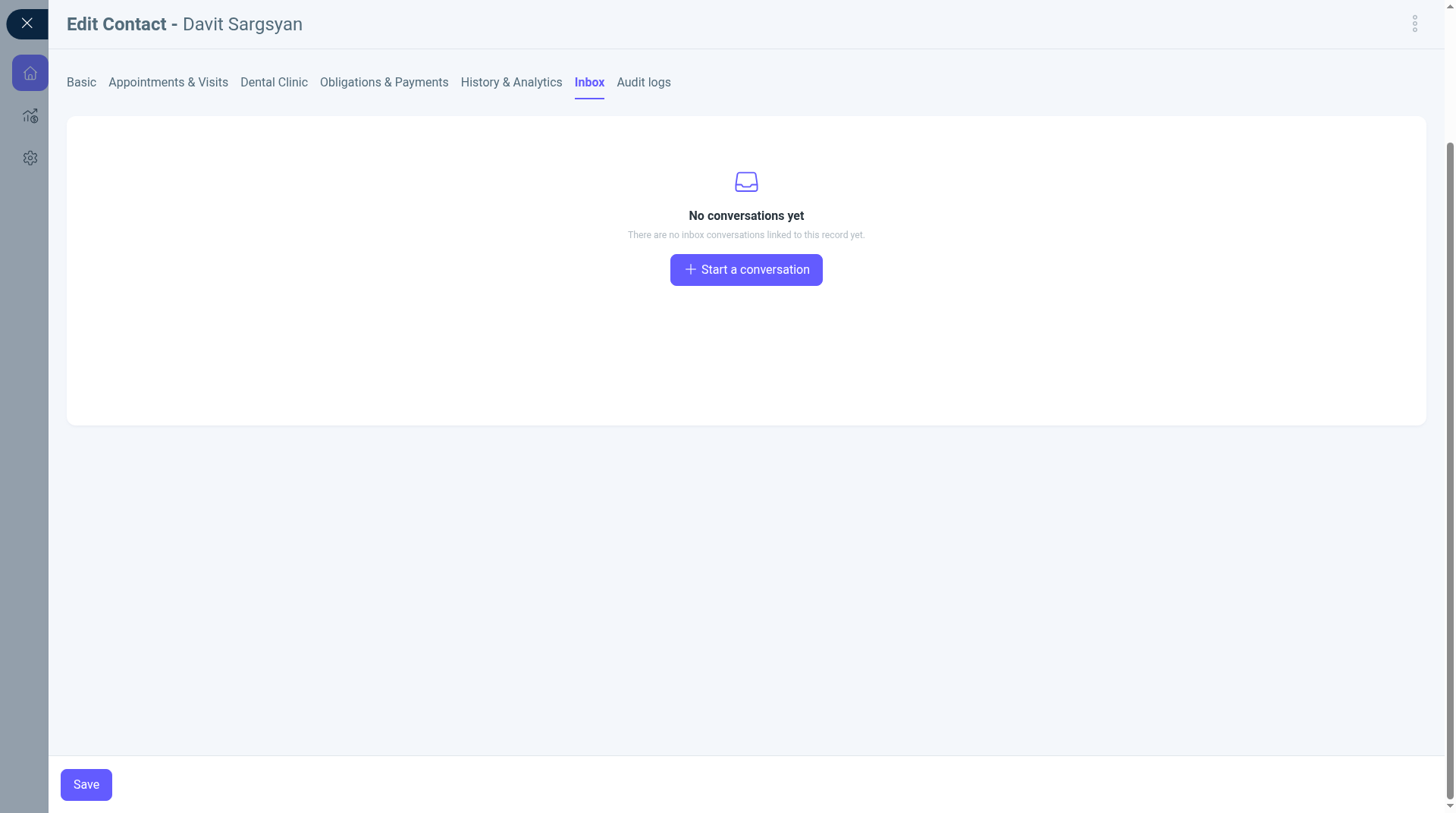
With none, the tab says No conversations yet and There are no inbox conversations linked to this record yet. Start a conversation opens the new-conversation flow. The walkthrough did not send a message. A role that cannot create conversations was not tried on this tab.
Audit logs
Audit logs is the change history for this contact. It uses the same access as Logs. Without that access the tab is omitted.
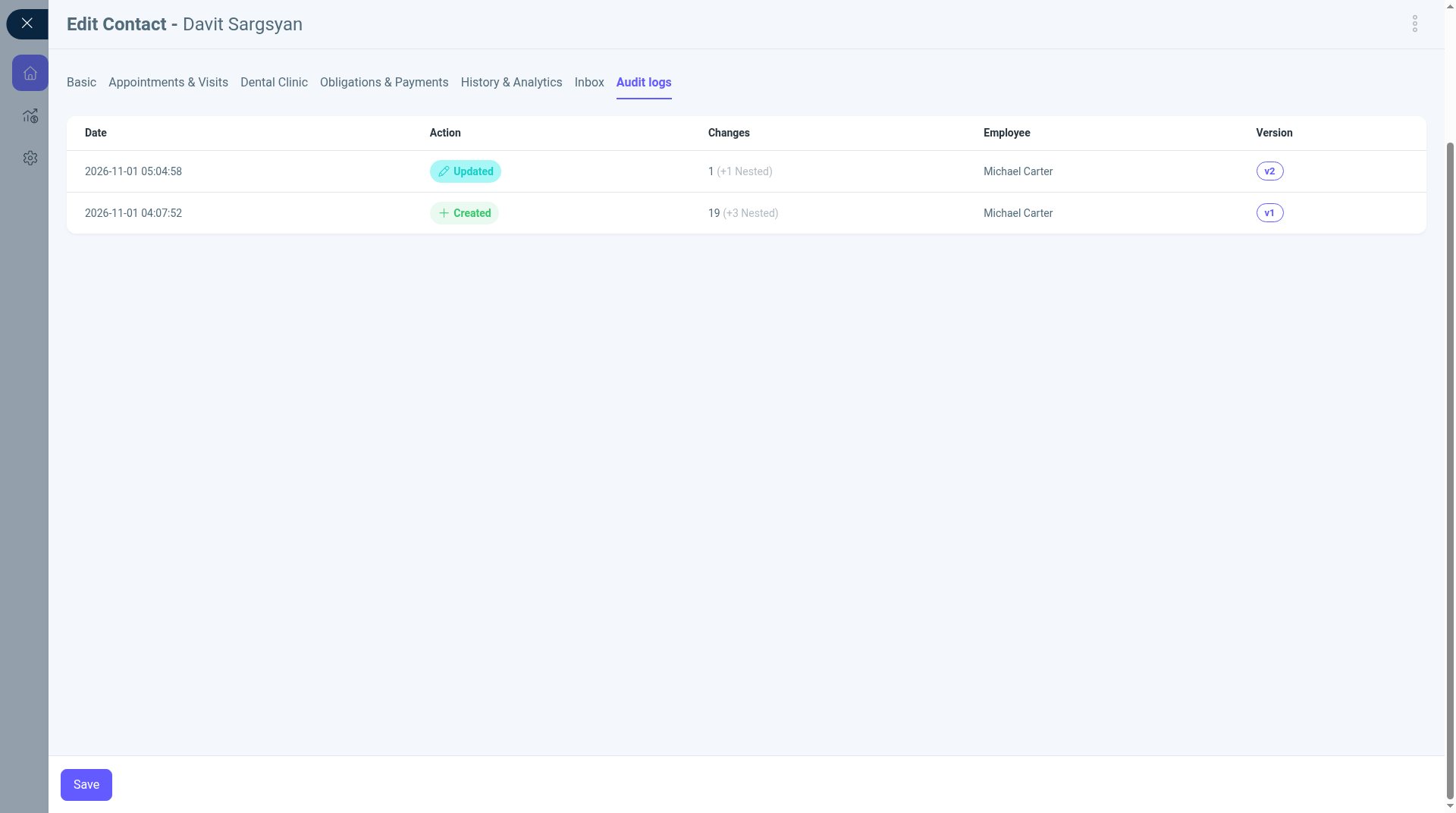
Columns: Date, Action, Changes, Employee, Version.
Davit has two rows, both by Michael Carter:
| Action | Version |
|---|---|
| Updated (1 change and 1 nested) | v2 |
| Created (19 changes and 3 nested) | v1 |
Clicking a row opens a detail dialog. The walkthrough opened it and closed it. The dialog was not used to edit the contact. An empty log says no audit logs were found for this record.
Workers, memberships, salary, and schedule
These tabs share the card and stay off the BrightSmile patient screenshots.
Workers is on a legal entity, and only on the full card. Add worker requires the person and the employment type. Current status defaults to on, and the end date stays hidden while the job is current. Start date, end date, and description are optional. New contact on the person field appears when you may create contacts. The row opens that person’s card. The gear is Edit and Remove. Both are hidden when the card is read-only. A new company shows No workers yet.
Memberships lists assigned memberships and Assign membership. The tab is omitted for dental (industry 2), financial services (industry 23), and industry 51, and it is not on the compact picker.
Assign membership requires the membership, a start date (today), and an end date (one month ahead, recalculated from the membership’s duration). See Memberships on the contact card.
Salary and Schedule are on employee cards. Salary assigns an ongoing salary or a one-time amount (amount, date, branch, description). Schedule is a weekly grid for one branch and needs schedule templates before it can be filled. Those screens belong with Employees and Schedule.
Read-only access
View without edit opens the card with fields locked. Created-on and created-by stay locked for everyone. Save is hidden. Change to legal person, Record Payment, the deposit action on the obligations tile, worker add and remove, and salary actions are unavailable. Duplicate still loads a copy. The copy is a new card, so you can save it only if you may create contacts.
Closing an add card that has unsaved changes asks you to confirm. There is no contact-card keyboard shortcut.
Tips and common problems
- Header actions do nothing on a contact that has never been saved. Save Basic first.
- Clearing the last role checkbox is refused.
- Dental Clinic is missing on a freight, hotel, school, or cinema company. It is also missing when no active project uses industry 2, or when you cannot view tickets.
- Add new version, View history, and Add New Form on Dental Clinic show Feature coming soon. Record teeth on a treatment plan instead.
- Save on a treatment plan asks for a specialist and at least one procedure. Cancel keeps the old plan.
- A procedure with no tooth selected is stored with no formula. Select the tooth first when the line should name a tooth.
- Record Payment is missing when the obligation is fully paid or the card is read-only.
- Deposit and withdrawal need an amount greater than zero. Record obligation only does not change the wallet.
- The sale can show a payment that the treatment-plan row still shows as unpaid. The plan row counts payments allocated to that plan for this patient.
- Balance is hidden on a financial-services company. Use Finance for those figures.
- Print says No templates available until a template exists for that document type.
- Phones and email missing on Basic means the role hides contact methods.