Header tools
The same header sits on every signed-in page. The logo returns to the first page your role can open. The controls on the right are your profile, notifications, messages, language, the app launcher, dark mode, and search. The pink gear at the bottom right is display settings for you, not company setup. The map of menus is in Navigation.
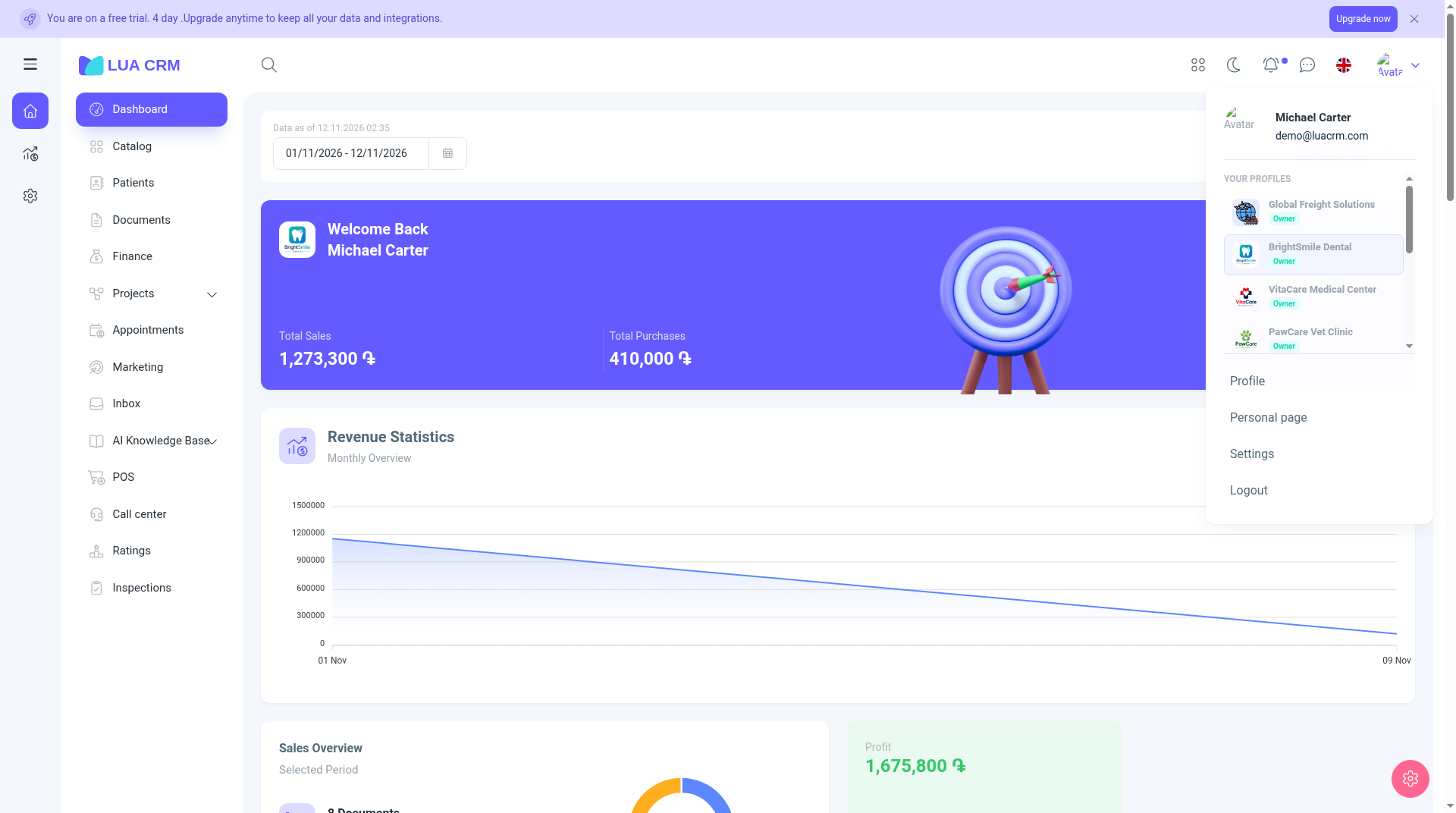
Profile menu
The avatar opens the menu. The name is the contact name, then first and last name, then the login. The line under it is the login (BrightSmile shows [email protected]).
Your profiles appears only when this login belongs to more than one company. Each row is the company logo, or two initials when there is no logo, the company name, and Owner or Member. The company you are in has a check. Choosing another company switches the workspace and opens the home page. The current row does not switch. A company that is not on your login, or a company marked inaccessible, is refused. The language you were using is kept.
| Item | Where it goes | Who sees it |
|---|---|---|
| Profile | Company (/company_settings) | You can view company settings |
| Personal page | User profile (/user) | Everyone |
| Settings | The configurations grid (/settings) | You can view settings |
| Logout | The login page | Everyone |
Logout ends this session, asks luacrm.com to sign the same login out, and sends other open tabs to the login page. The login address uses the current language. A test workspace uses debug.luacrm.com instead of luacrm.com.
Notifications
The bell opens a panel titled Notifications. A dot on the bell means the count is above zero. The number itself is the badge inside the panel, such as 2 new. The count loads with the page. The rows load the first time you hover or click the bell, and that list is kept until you mark rows read.
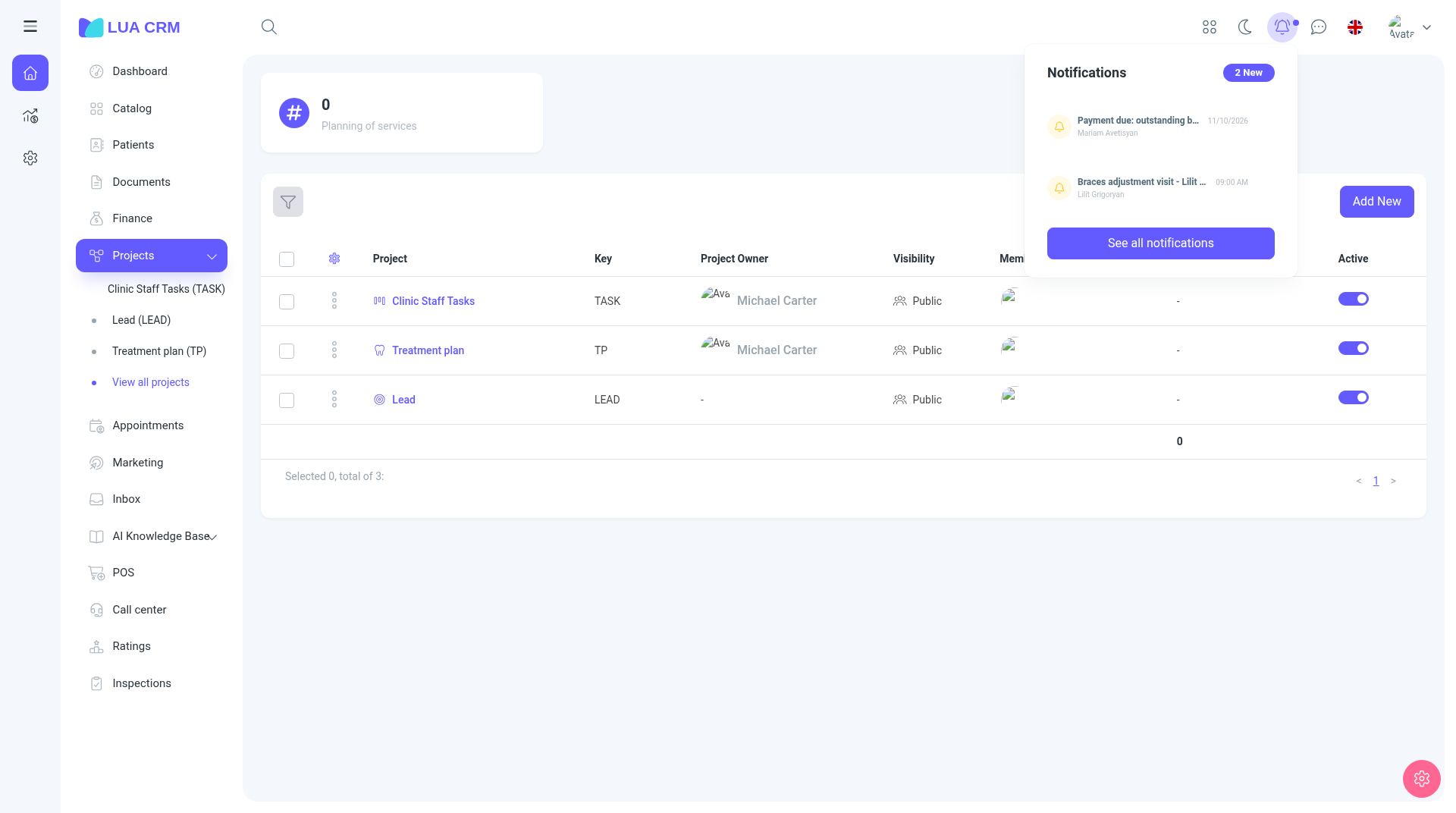
The panel keeps at most 10 rows. Overdue rows are listed first. An empty panel says there are no notifications.
| Row | When it appears | What a click does |
|---|---|---|
| Notification | An unread notification stored for you | Marks it read, then opens its link. The × on the row marks it read and leaves you here |
| Reminder | A reminder due today or earlier, still open, that you created or that an audience assigns to you | Opens the related record. It is not marked read |
| Payment due | Unpaid or partial, with money still open, due tomorrow, today, or earlier. An administrator sees every contact. Anyone else sees contacts they manage. Your own contact is left out | Opens the document, or the obligation when there is no document |
| Request due | A request whose end date is today, where you are the responsible person or the person who added it, and it is not archived | Opens the request |
| Commission due | A commission due today or earlier, still unpaid or partial, that you added | Opens the document |
| Birthday | A birthday today on an active contact you manage or you added | Opens the contact |
Mark all as read is shown only when a notification row is in the list. It marks unread notifications read. Reminders, payments, requests, commissions, and birthdays stay until the underlying date or balance changes.
See all notifications opens Reminders. That report is the full list. The bell is the short list.
Dark mode
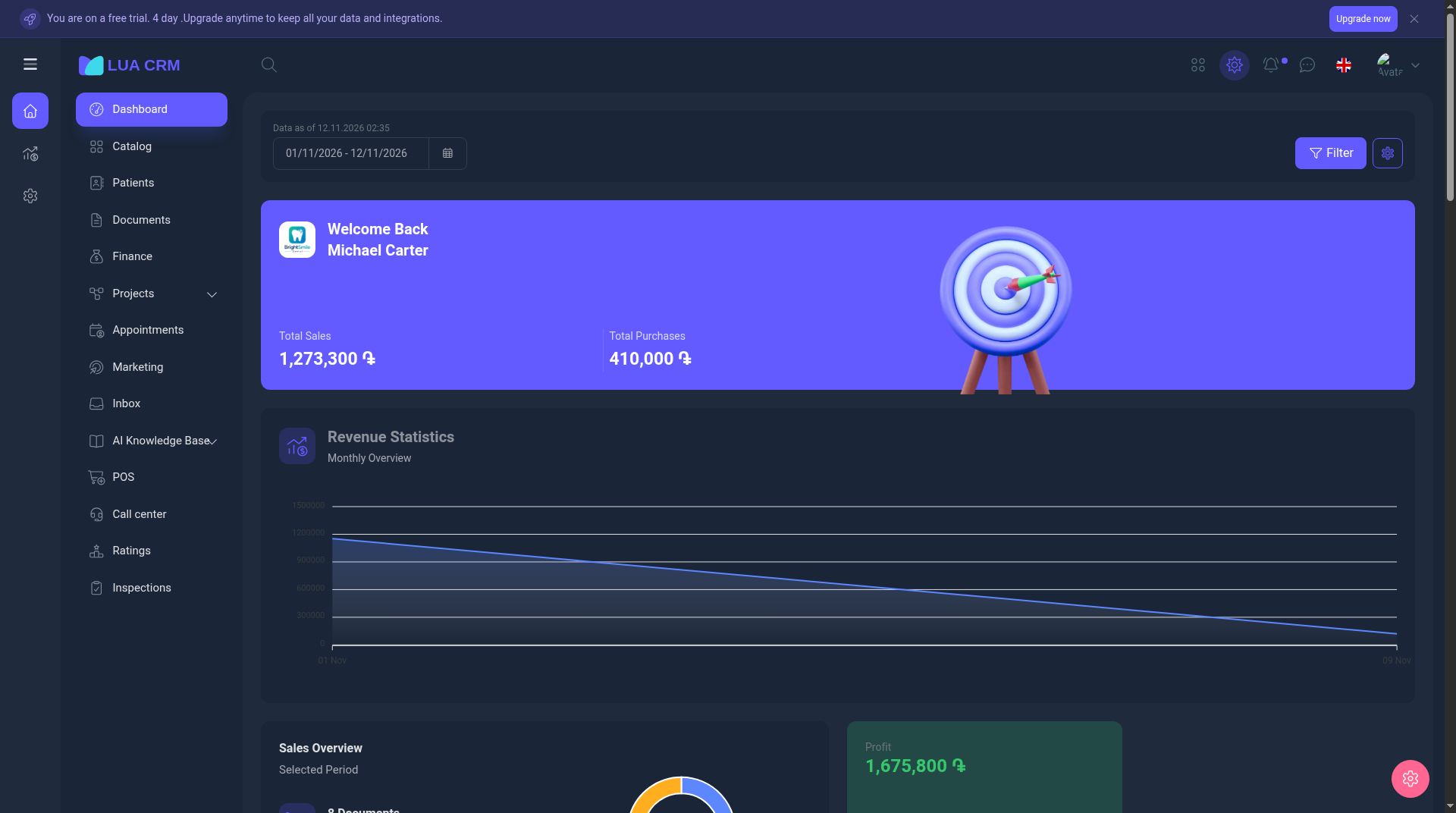
The moon switches the workspace to the dark theme and the icon becomes a sun. The sun switches it back. The same choice is Theme on the display gear. It is saved for your user and restored on the next sign-in.
App launcher
The grid icon opens the applications menu. On a narrow screen the same list is under Apps in the side panel. Each row is a module you can open. A module your role cannot open is left out.
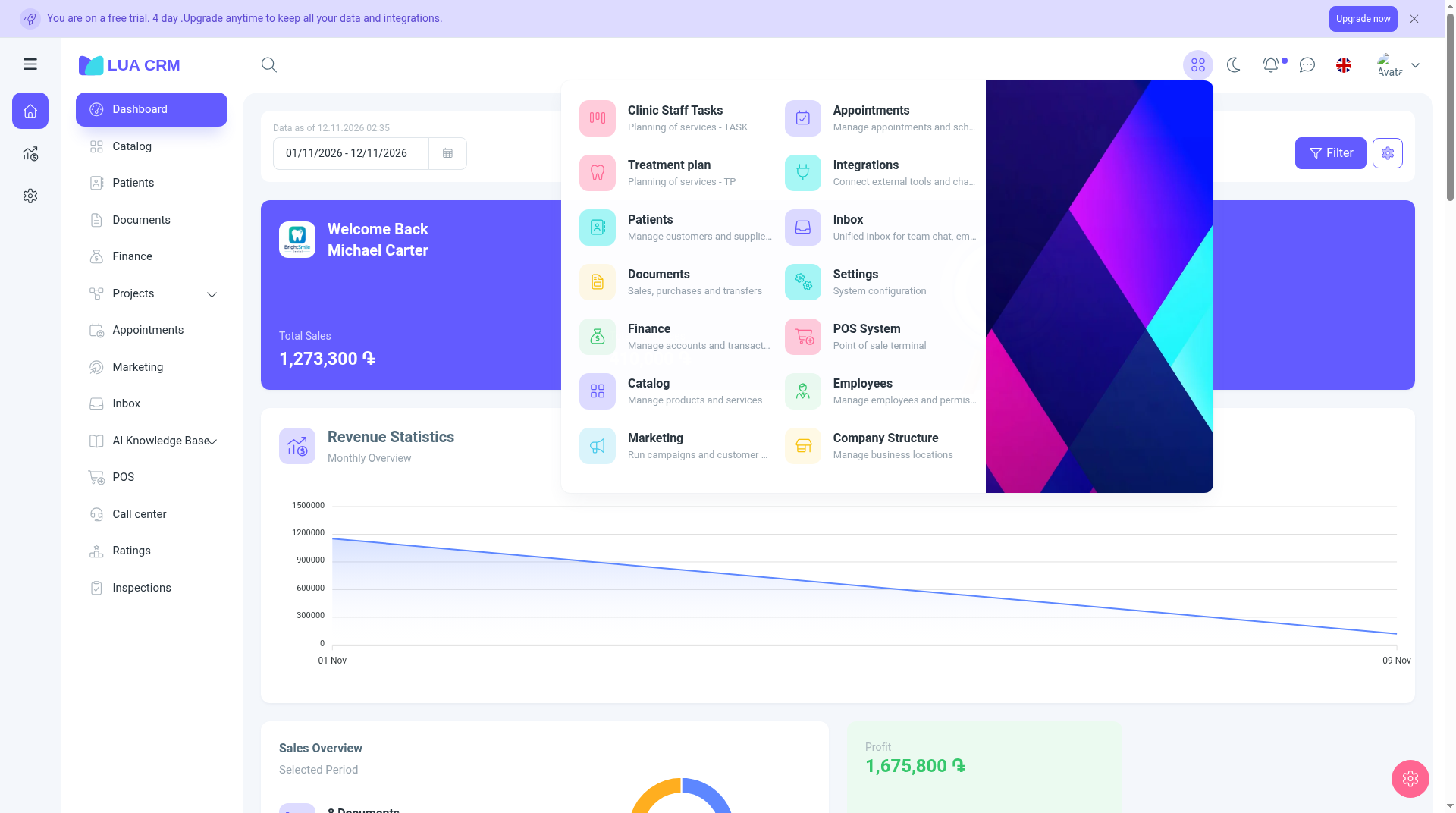
Up to three of your newest active projects are listed first, with the project icon and the key. A private project is labelled private. The lead project is not listed. When you can open projects but none of those shortcuts exist, the first row is Projects (/projects).
The rest of the menu, in order:
| Label | Address | Notes |
|---|---|---|
| Contacts | /contacts | BrightSmile Dental shows this as Patients |
| Documents | /documents | |
| Finance | /finance | |
| Catalog | /catalog | |
| Marketing | /campaigns | |
| Appointments | /appointments | |
| Integrations | /integrations | |
| Inbox | /inbox | |
| Settings | /company_settings | Company overview |
| POS System | /pos | Opens in a new tab |
| Employees | /users | |
| Company Structure | /company_structure | See Company structure |
Messages
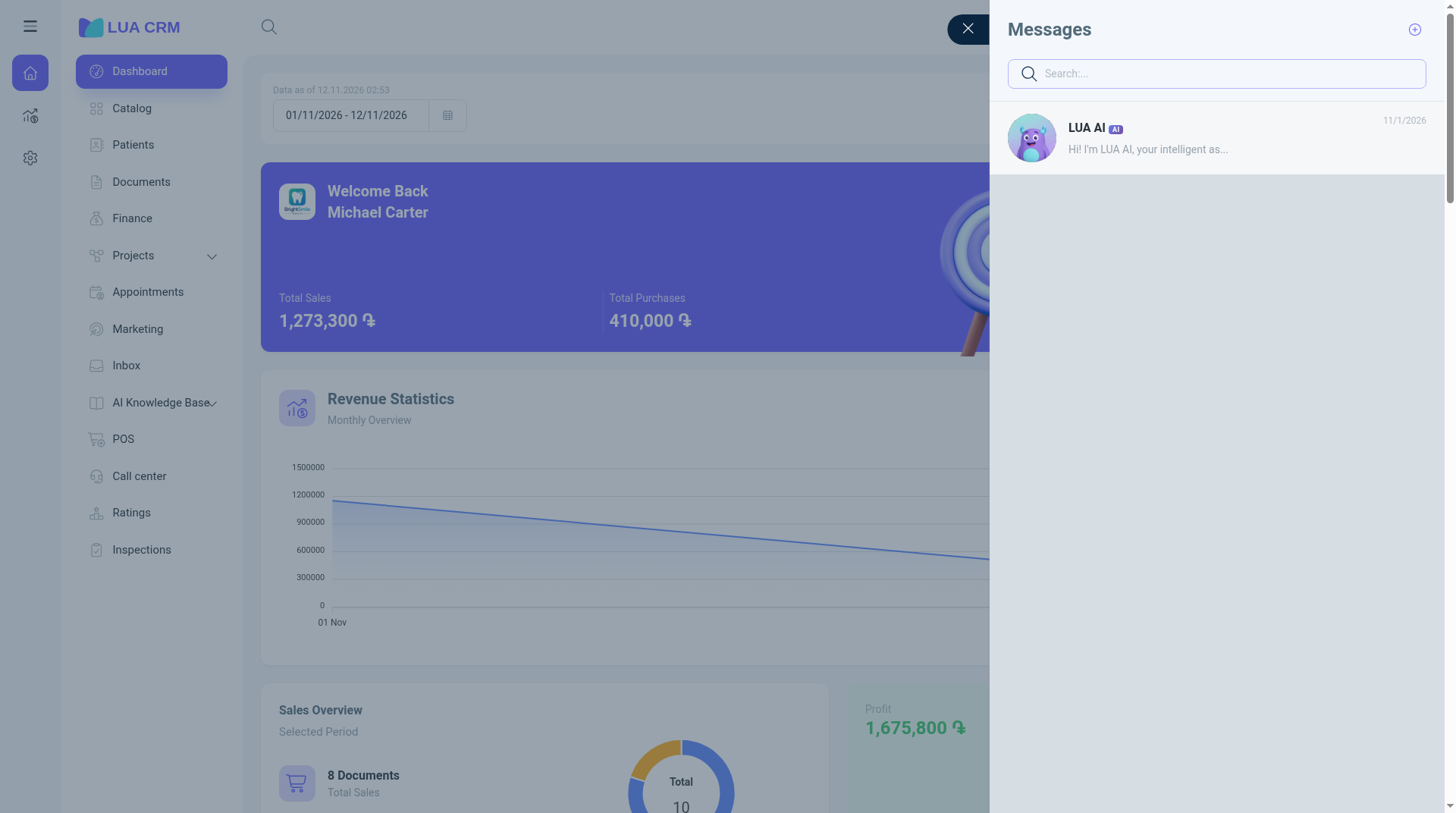
The speech-bubble icon opens the Messages panel. A dot means a staff thread is unread. This panel is internal chat and LUA AI. Customer channels stay in Messages. Search, a new chat, attachments, and mentions are described under internal chat.
Language
The flag opens the language menu. Languages are grouped by region. A region with no languages is omitted. The shipped list uses Europe, Asia, Africa, and Gulf. The current language is highlighted. A right-to-left language also shows a direction mark, and choosing it saves a right-to-left layout. Other languages save a left-to-right layout. The page reloads in the language you chose.
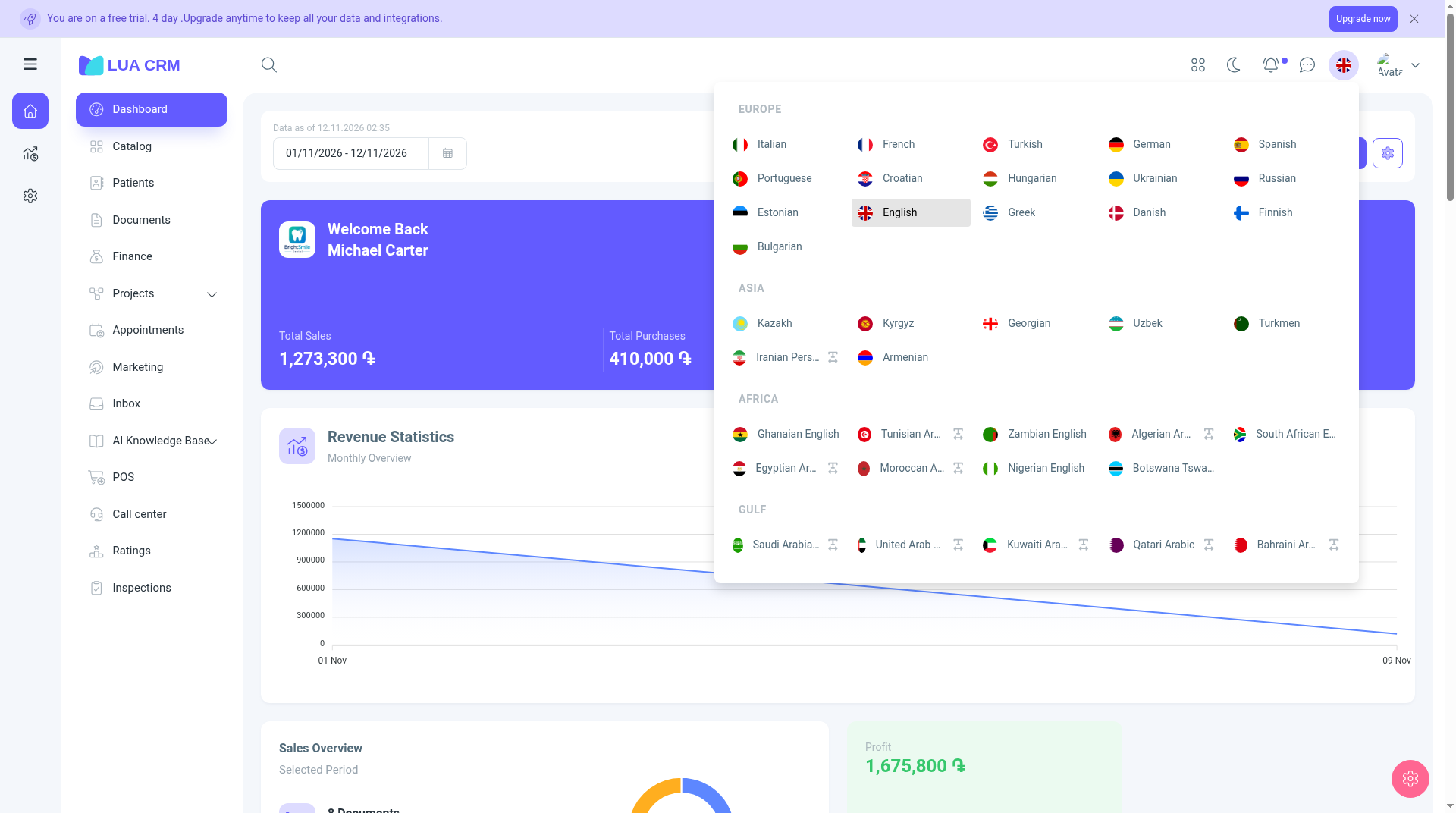
Europe includes Italian, French, Turkish, German, Spanish, Portuguese, Croatian, Hungarian, Ukrainian, Russian, Estonian, English, Greek, Danish, Finnish, and Bulgarian. Asia includes Kazakh, Kyrgyz, Uzbek, Turkmen, Iranian Persian, Armenian, and Georgian. Africa includes Ghanaian English, Tunisian Arabic, Zambian English, Algerian Arabic, South African English, Egyptian Arabic, Moroccan Arabic, Nigerian English, and Botswana Tswana. Gulf includes Saudi Arabian Arabic, United Arab Emirates Arabic, Kuwaiti Arabic, Qatari Arabic, and Bahraini Arabic. The label on each row is that language’s own name.
The choice is stored on your user. On the next page Lua CRM turns that id back into the short code (en, hy, and the others) and uses it for the interface. Extra languages for record text, separate from this menu, are under Configurations. When your language is one of those extra languages and it is not the company default, translated list values can follow it.
Global search
The magnifying glass opens Search here. With the box empty, the dialog lists Quick Page Links. The second line of each link is the address.
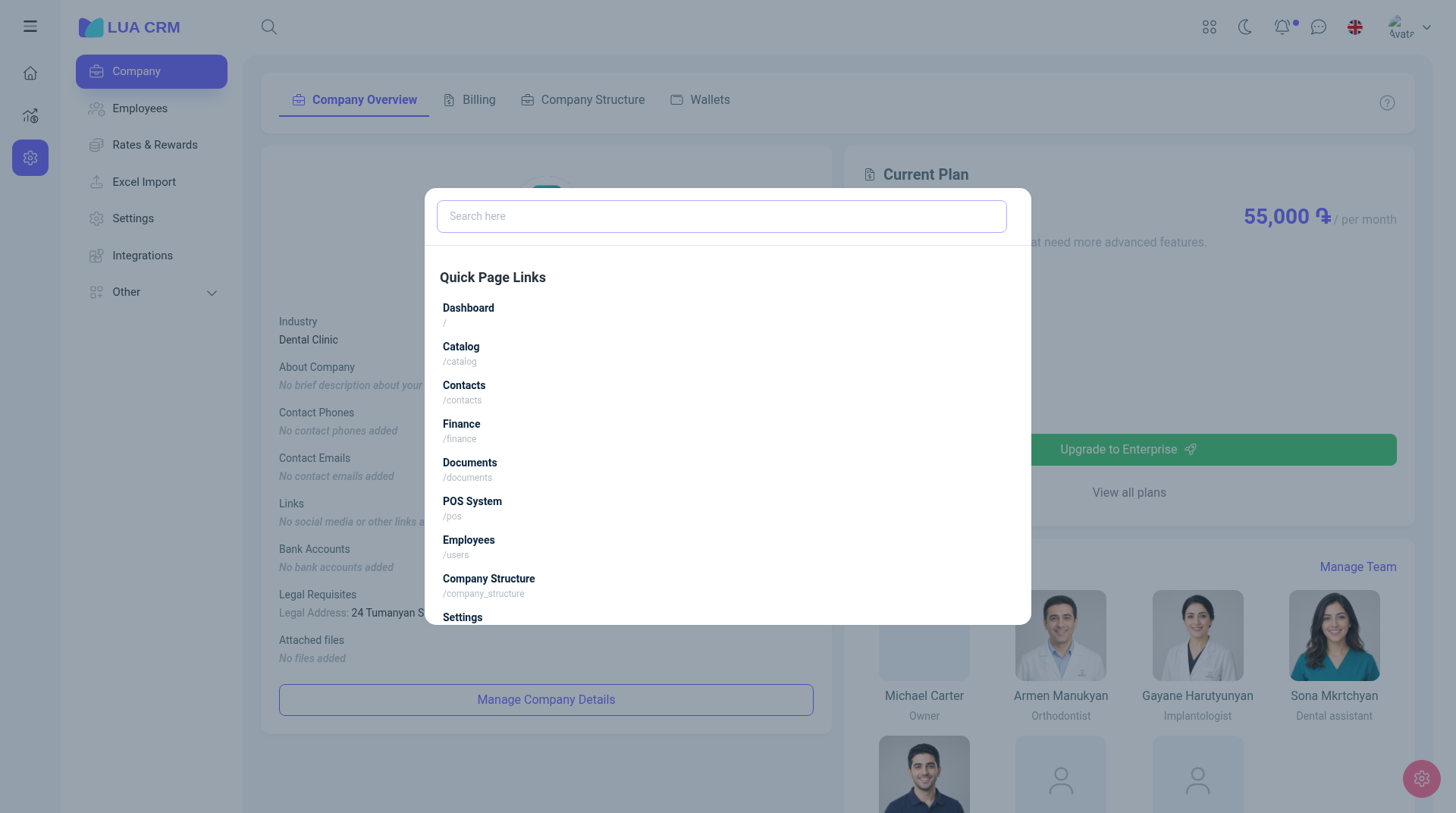
The links, in order, are Dashboard (/), Catalog (/catalog), Contacts (/contacts), Finance (/finance), Documents (/documents), POS System (/pos), Employees (/users), Company Structure (/company_structure), Settings (/company_settings), Wallets (/wallets), Excel import (/import), Projects (/projects), and Tickets (/tickets). This list is not cut down by your role. A page you cannot open still ends on Access denied.
Typing searches after two characters, with a short pause. The search covers catalog items (name, long name, SKU, group, barcode), contacts (name, TIN, and phone or email unless your role hides those), employees who can sign in, documents, finance rows, and tickets. Up to 20 hits come back, grouped by type. A contact search also adds related contacts. On the page you are already on, a hit for a contact, employee, document, catalog item, or finance row opens that record instead of loading the page again. Escape closes the dialog.
A 16-character or 32-character ticket code, on Enter, looks up a sold cinema ticket and opens that sale. For any other industry the same Enter does not run the normal search.
The client also asks for branches. The server has no branch search, so a branch name does not come back as a result. Company Structure remains available under Quick Page Links.
Display gear
The pink gear at the bottom right opens Settings. These choices are for your screen. They are saved on your user. Company setup stays under Settings in the left menu.
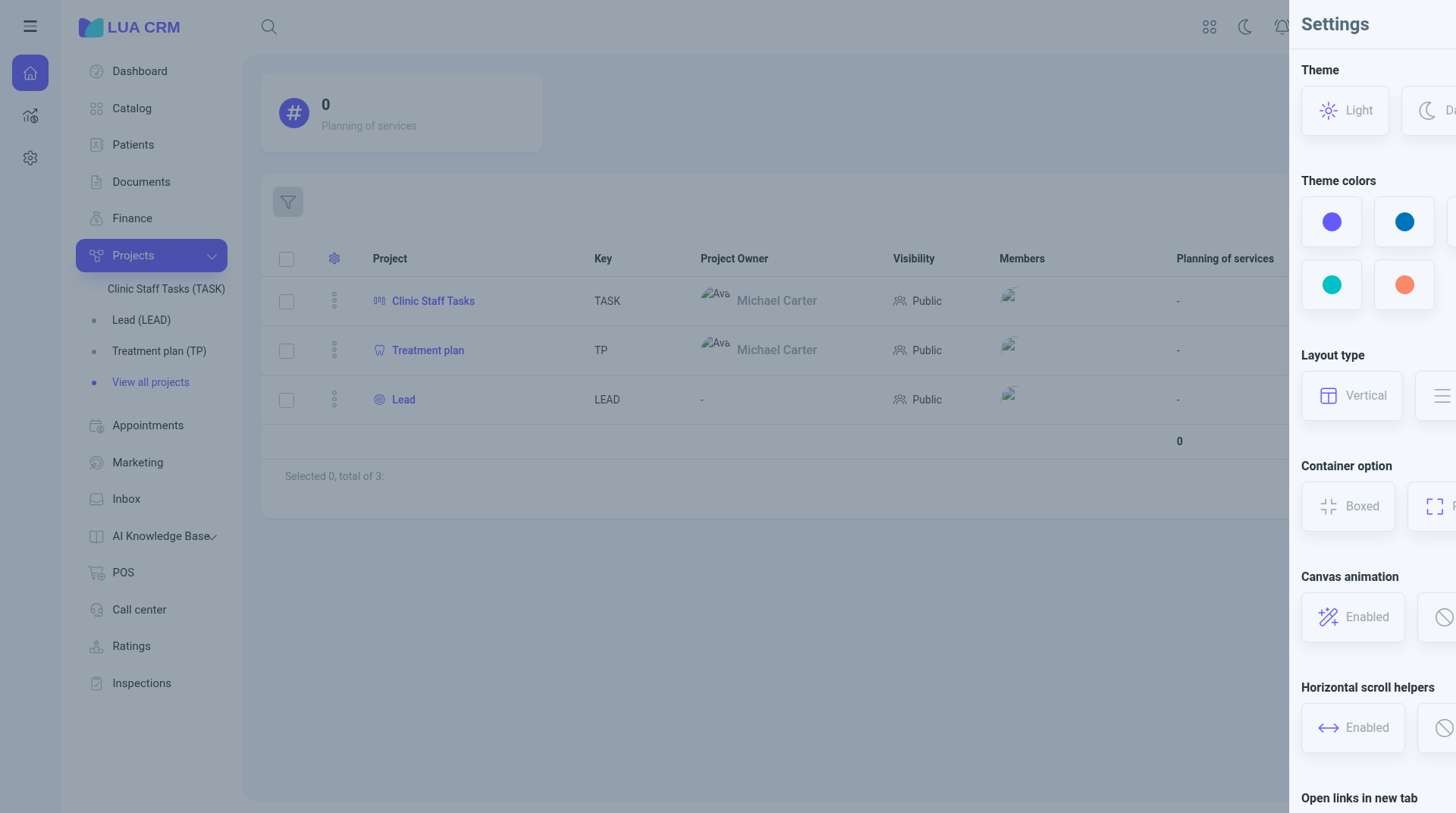
| Group | Choices | What it does |
|---|---|---|
| Theme | Light, Dark | The same switch as the moon and sun |
| Theme colors | Blue, Aqua, Purple, Green, Cyan, Orange | The accent color |
| Layout type | Vertical, Horizontal | Icon rail and side menu, or a top menu |
| Container option | Boxed, Full | How wide the page content is |
| Canvas animation | Enabled, Disabled | Whether side panels animate. Enabled is the start |
| Horizontal scroll helpers | Enabled, Disabled | Extra controls for wide tables. Enabled is the start |
| Open links in new tab | Enabled, Disabled | Whether links from lists open a new tab. Enabled is the start |
| Compact rows | Enabled, Disabled | Tighter table rows. Disabled is the start |
| Sidebar type | Full, Collapse | The side menu open or collapsed |
| Card with | Border, Shadow | Cards with a border or a shadow |
Left-to-right and right-to-left are not in this panel. The language menu sets that direction.